TABLE OF CONTENTS
- Product Overview
- Quick Reference
- Parts & Controls
- Checking the Battery Level
- Charging a Device with the Built-in USB-C or Lightning Cable
- Charging a Device Through the USB-C Port
- Magnetic Wireless Charging
- Recharging the Power Shutter
- Charging More Than One Device
- Getting the Best Charging Performance
- Safety Instructions
- Care & Maintenance
- Still stuck?
Product Overview
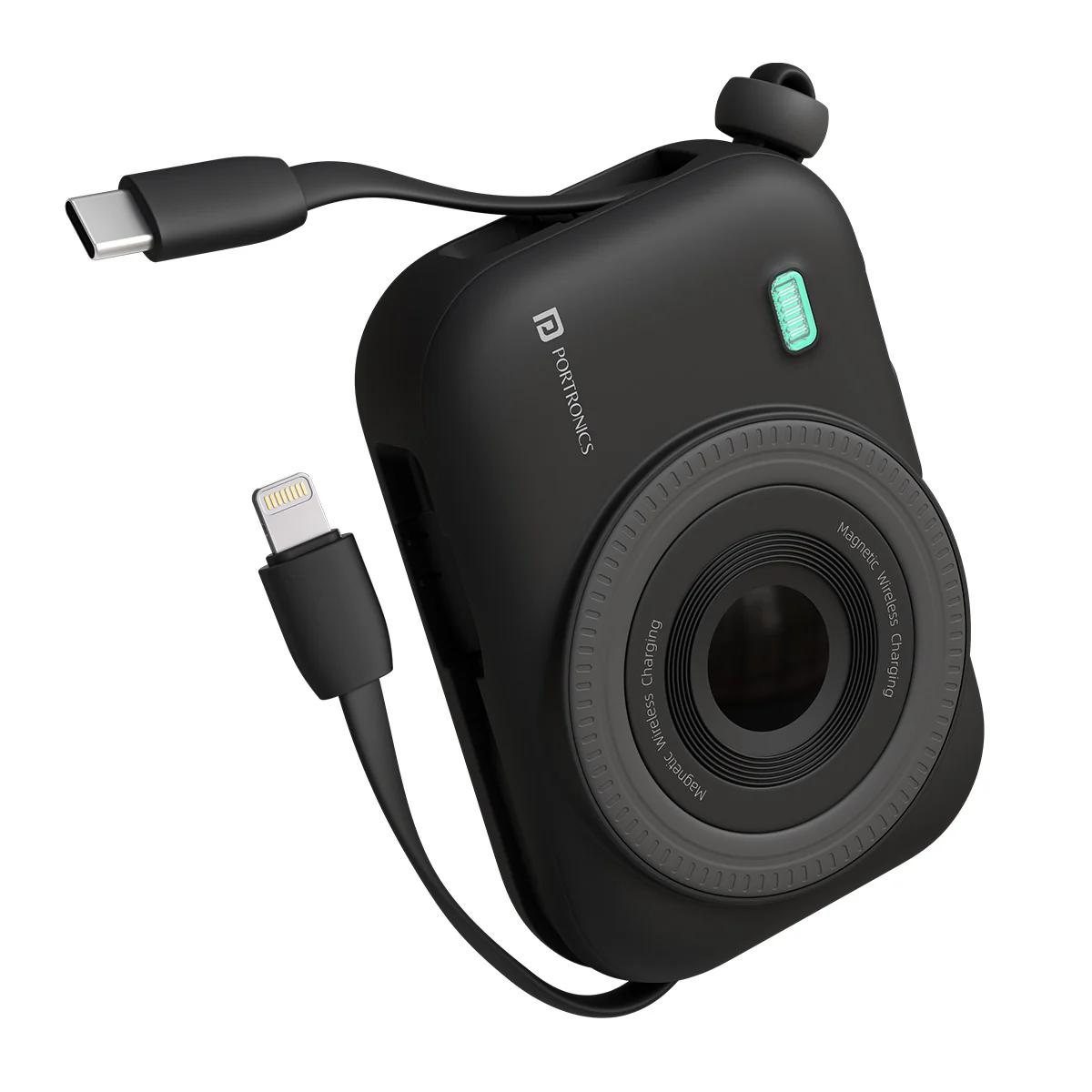
The Portronics Power Shutter is a 10,000mAh magnetic wireless power bank with built-in USB-C and Lightning charging cables, a USB-C input/output port and an LED digital battery display. Charge compatible devices through a cable or place a compatible phone on the wireless charging area.
Quick Reference
| Feature | Details |
|---|---|
| Product | Portronics Power Shutter |
| Capacity | 10,000mAh |
| Battery | Lithium-ion, 3.7V |
| Advertised Total Output | 22.5W |
| Wireless Charging | Up to 15W |
| Built-in Cables | USB-C and Lightning |
| USB-C Port | Input and output |
| Display | LED digital battery percentage |
| Dimensions | Approx. 11 × 8 × 3.5cm |
| Weight | Approx. 225g |
| Power Button | Displays battery level; double-press to turn off |
Parts & Controls
| Part | Function |
|---|---|
| Magnetic Wireless Charging Area | Charges a compatible phone wirelessly when aligned correctly |
| Built-in USB-C Cable | Wired charging for compatible USB-C devices; can also be used to recharge the power bank |
| Built-in Lightning Cable | Wired charging for compatible Lightning devices |
| USB-C Input/Output Port | Recharges the power bank or charges a compatible device |
| Power Button | Displays battery level; double-press to turn off |
| LED Digital Display | Shows battery percentage and charging status |
Checking the Battery Level
- When the power bank is off, press the Power Button once.
- The LED display shows the remaining battery percentage.
- When the power bank is recharging, the display shows the battery percentage and a lightning symbol.
- While powering a device, the display shows the remaining battery level.
- When the power bank is not in use, double-press the Power Button to turn it off.
When the battery is depleted, the output turns off automatically.
Charging a Device with the Built-in USB-C or Lightning Cable
- Carefully take out the built-in cable that matches your device.
- Connect the cable to the device's charging port.
- Check that the connector is inserted securely and the phone shows that it is charging.
- When charging is finished, disconnect the cable gently and return it to its storage position.
Use the USB-C cable for compatible USB-C devices and the Lightning cable for compatible Lightning devices.
Charging a Device Through the USB-C Port
- Connect a compatible USB-C cable to the power bank's USB-C port.
- Connect the other end to your phone or other compatible device.
- Check the device's charging indicator.
- Disconnect the cable carefully when finished.
The USB-C port supports both input and output. Supported charging rates depend on the device and cable.
Magnetic Wireless Charging
- Confirm that your phone supports wireless charging.
- For best results, remove the phone case during the initial test.
- Place the phone over the marked wireless charging circle on the power bank.
- Adjust the phone's position until it is properly aligned.
- Check the phone for its charging indicator.
- If charging does not begin, reposition the phone and remove metal objects or magnetic accessories from between the phone and power bank.
Wireless charging supports output levels of 5W, 7.5W, 10W and up to 15W, depending on device compatibility.
Recharging the Power Shutter
- Connect a compatible USB-C cable to the power bank's USB-C port, or use the built-in USB-C cable as supported.
- Connect the other end to a compatible power adapter.
- The display should show the battery percentage and a lightning symbol while charging.
- Let the power bank recharge on a stable, non-flammable surface.
- Disconnect the charger when finished.
Use a compatible adapter and cable. Charging time depends on the adapter, cable, remaining battery level and charging conditions.
Charging More Than One Device
Power Shutter provides built-in USB-C and Lightning cables, a USB-C input/output port and wireless charging.
- Check that each connected device supports its charging method.
- Use the cable that matches the device's connector.
- For wireless charging, align the phone over the charging circle.
- If charging is slower than expected when using more than one output, disconnect one device and test again.
The maximum advertised output is not guaranteed for every device or combination of devices.
Getting the Best Charging Performance
- Use a compatible cable and power adapter.
- Confirm that the connected device supports the charging protocol you expect.
- Align the phone carefully for wireless charging.
- Remove metal or magnetically sensitive objects from the wireless charging area.
- Check the battery percentage on the LED display.
- Do not use damaged cables or adapters.
Safety Instructions
- Charge the power bank on a flat, stable, non-flammable surface.
- Do not charge it on a bed, sofa or near heaters, radiators or other flammable materials.
- Do not leave it charging unattended or overnight.
- Keep it away from direct sunlight, water and humid environments.
- Keep loose metal objects away from the charging area and terminals to avoid short circuits.
- Do not expose the product to liquids.
- Do not disassemble, puncture, crush or attempt to repair the power bank.
- Stop using it immediately if it becomes swollen, cracked, exposes wires or behaves abnormally.
- Keep the device at least 20cm away from medical implants that may be affected by magnetic fields.
- Dispose of the product through an authorised electronic-waste collection point, not household waste.
Care & Maintenance
- Wipe the exterior with a soft, dry cloth.
- Store it in a cool, dry place away from direct sunlight.
- Keep all cables, connectors and the wireless charging area clean and dry.
- Avoid dropping, crushing or placing heavy objects on the power bank.
- Do not use the product if its casing, cable or connector is damaged.
Still stuck?
If the issue persists after performing all troubleshooting steps, please raise a support request.
Our support team will assist you further.
Support
- Visit: www.portronics.com
- Support Portal: support.portronics.com
Was this article helpful?
That’s Great!
Thank you for your feedback
Sorry! We couldn't be helpful
Thank you for your feedback
Feedback sent
We appreciate your effort and will try to fix the article