TABLE OF CONTENTS
- Product Overview
- Quick Reference
- What's in the Box
- Parts & Controls
- Before First Use
- Checking the Battery Level
- Charging a Device Through USB-A
- Charging a Device Through USB-C
- Recharging the Zapcell 10K
- Charging Two Devices
- Getting the Best Charging Performance
- Safety & Care
- Still stuck?
Product Overview
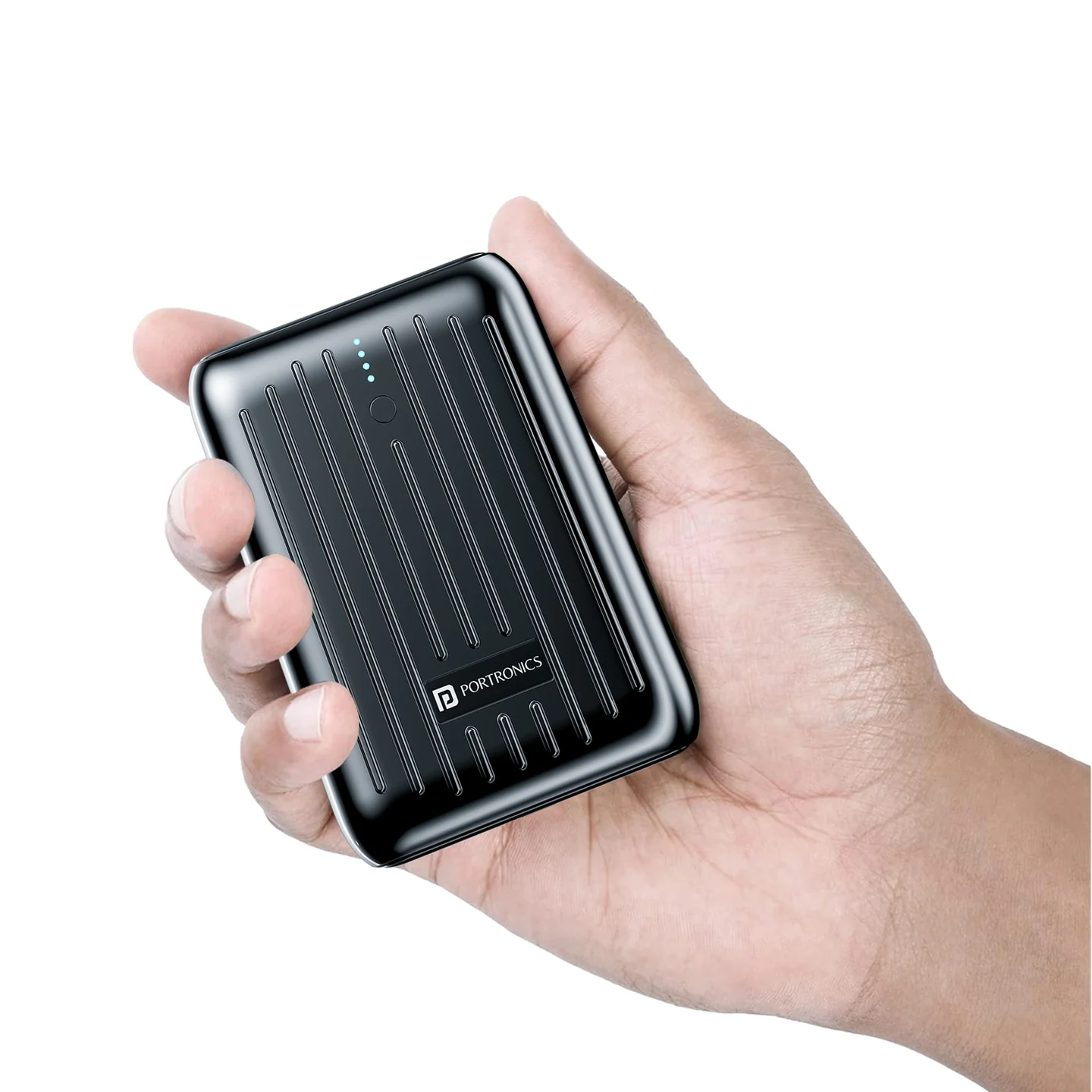
The Portronics Zapcell 10K is a compact 10,000mAh power bank with USB-A and USB-C outputs, fast charging up to 22.5W and a four-LED battery indicator. It can charge compatible devices through either output port and can be recharged through its USB-C port.
Quick Reference
| Feature | Details |
|---|---|
| Product | Portronics Zapcell 10K |
| Product Codes | POR 2173 (Black) / POR 2172 (White) |
| Battery Capacity | 10,000mAh |
| Maximum Advertised Output | Up to 22.5W |
| USB-A Output | Up to 22.5W |
| USB-C Output | USB-C PD 3.0, up to 20W |
| USB-C Input | Up to 18W |
| Ports | USB-A output and USB-C input/output |
| Battery Indicator | Four LEDs |
| Wake-Up Button | Shows battery level and activates the power bank |
| Weight | Approx. 175g |
| Warranty | 12 months |
Actual charging speed depends on the connected device, cable and supported charging protocol.
What's in the Box
| Item | Quantity |
|---|---|
| Zapcell 10K Power Bank | 1 |
| Charging Cable | 1 |
Parts & Controls
| Part | Function |
|---|---|
| USB-A Port | Charges compatible devices |
| USB-C Port | Recharges the power bank or charges a compatible device |
| Wake-Up Button | Activates the power bank and displays the remaining battery level |
| Four LED Indicators | Show battery level and charging progress |
Before First Use
- Connect the power bank to a compatible USB charger using the charging cable.
- Allow the initial charge to run for approximately 3 hours, as recommended in the product listing.
- Check the LED indicators to monitor charging progress.
- Disconnect the power bank when charging is complete.
Use a suitable, good-quality charging cable and adapter.
Checking the Battery Level
- Press the Wake-Up Button once.
- The four LEDs show the approximate remaining battery level.
- When the power bank is charging, the LEDs blink to indicate charging progress.
- The power bank's output turns off automatically when its battery is depleted.
Battery-Level Indicator
| Approximate Battery Level | LED 1 | LED 2 | LED 3 | LED 4 |
|---|---|---|---|---|
| 1–25% | On | Off | Off | Off |
| 26–50% | On | On | Off | Off |
| 51–75% | On | On | On | Off |
| 76–100% | On | On | On | On |
| 0% | Off | Off | Off | Off |
Charging-Progress Indicator
| Approximate Battery Level While Charging | LED 1 | LED 2 | LED 3 | LED 4 |
|---|---|---|---|---|
| 0–25% | Blinking | Off | Off | Off |
| 26–50% | On | Blinking | Off | Off |
| 51–75% | On | On | Blinking | Off |
| 76–100% | On | On | On | On |
| Abnormal indication | Blinking | Blinking | Blinking | Blinking |
The LEDs indicate approximate battery ranges rather than an exact percentage.
Charging a Device Through USB-A
- Connect a compatible charging cable to the power bank's USB-A output.
- Connect the other end to your phone or other compatible device.
- Press the Wake-Up Button if needed.
- Check that the device's charging indicator appears.
- Disconnect the cable carefully when charging is complete.
The USB-A output supports charging up to 22.5W, depending on device compatibility.
Charging a Device Through USB-C
- Connect a compatible USB-C cable to the power bank's USB-C port.
- Connect the other end to a compatible device.
- Check that the device indicates charging.
- Disconnect the cable carefully when finished.
The USB-C port supports output up to 20W through USB-C Power Delivery 3.0. The port is also used to recharge the power bank.
Recharging the Zapcell 10K
- Connect the supplied charging cable to the power bank's USB-C port.
- Connect the other end to a compatible USB charger or a powered USB port.
- Check that the LEDs blink to indicate charging progress.
- Allow the power bank to recharge.
- Disconnect it once you have enough charge for your next use.
The USB-C input supports up to 18W, depending on the adapter and charging profile.
Charging Two Devices
Zapcell 10K has USB-A and USB-C outputs, so you can connect compatible devices to both ports.
- Connect the first device to USB-A.
- Connect the second device to USB-C.
- Check that both devices show charging.
- If charging is slower than expected, disconnect one device and test each output separately.
The overall maximum output is 22.5W. Actual power is shared according to the connected devices' requirements and supported charging protocols.
Getting the Best Charging Performance
- Use a compatible, good-quality cable and charger.
- Confirm that the device supports the charging protocol you expect.
- Check the remaining battery level before charging.
- Disconnect one device if simultaneous charging is much slower than expected.
- Recharge the power bank promptly when the battery is low.
- If storing the power bank for a long time, recharge it at least once every three months.
A 22.5W maximum rating does not mean every connected device will charge at 22.5W.
Safety & Care
- Charge the power bank on a flat, stable, non-flammable surface.
- Do not charge it on a bed, sofa or near heaters or other flammable materials.
- Avoid charging unattended or leaving it charging overnight.
- Keep it away from direct sunlight, water and humid environments.
- Keep coins, keys and other metal objects away from the ports and terminals.
- Do not use the power bank if it becomes unusually hot, swollen, cracked or damaged.
- Do not open, puncture, crush or attempt to repair the power bank.
- Stop using a damaged unit and seek safe handling/disposal advice.
- Clean with a soft cloth; do not use corrosive cleaners.
- Dispose of the product through an authorised electronic-waste collection point, not household waste.
Still stuck?
If the issue persists after performing all troubleshooting steps, please raise a support request.
Our support team will assist you further.
Support
- Visit: www.portronics.com
- Support Portal: support.portronics.com
Was this article helpful?
That’s Great!
Thank you for your feedback
Sorry! We couldn't be helpful
Thank you for your feedback
Feedback sent
We appreciate your effort and will try to fix the article