Toad One Mouse complete Guide
Modified on Thu, 2 Apr at 11:31 AM
Portronics Toad One Mouse – Bluetooth & 2.4G Connection Guide
TABLE OF CONTENTS
- Portronics Toad One Mouse – Bluetooth & 2.4G Connection Guide
- Section A: How to Connect via 2.4 GHz USB Receiver
- Section B: How to Connect via Bluetooth
- Section C: Troubleshooting Guide
- Still Facing Issues?
1. Product Overview
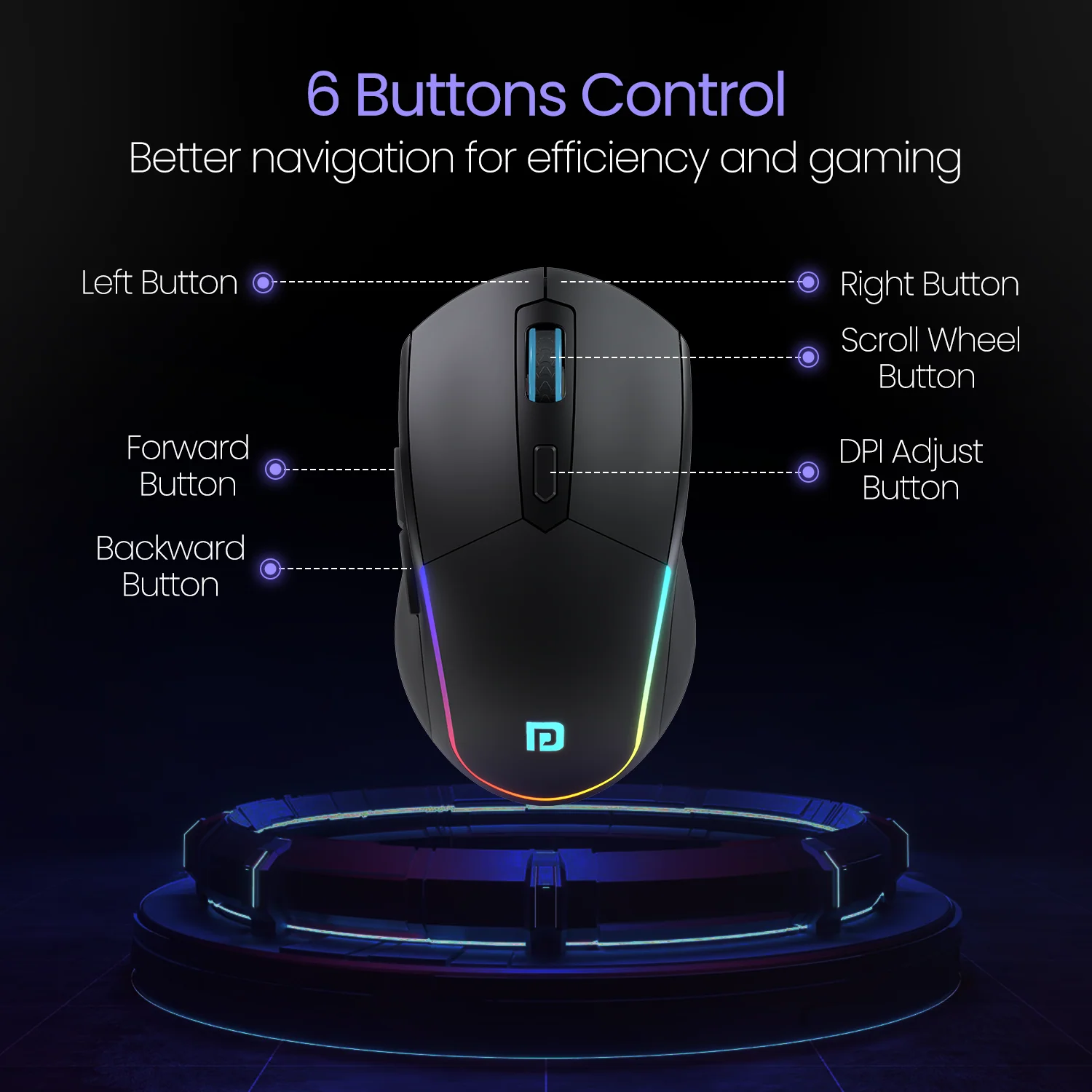
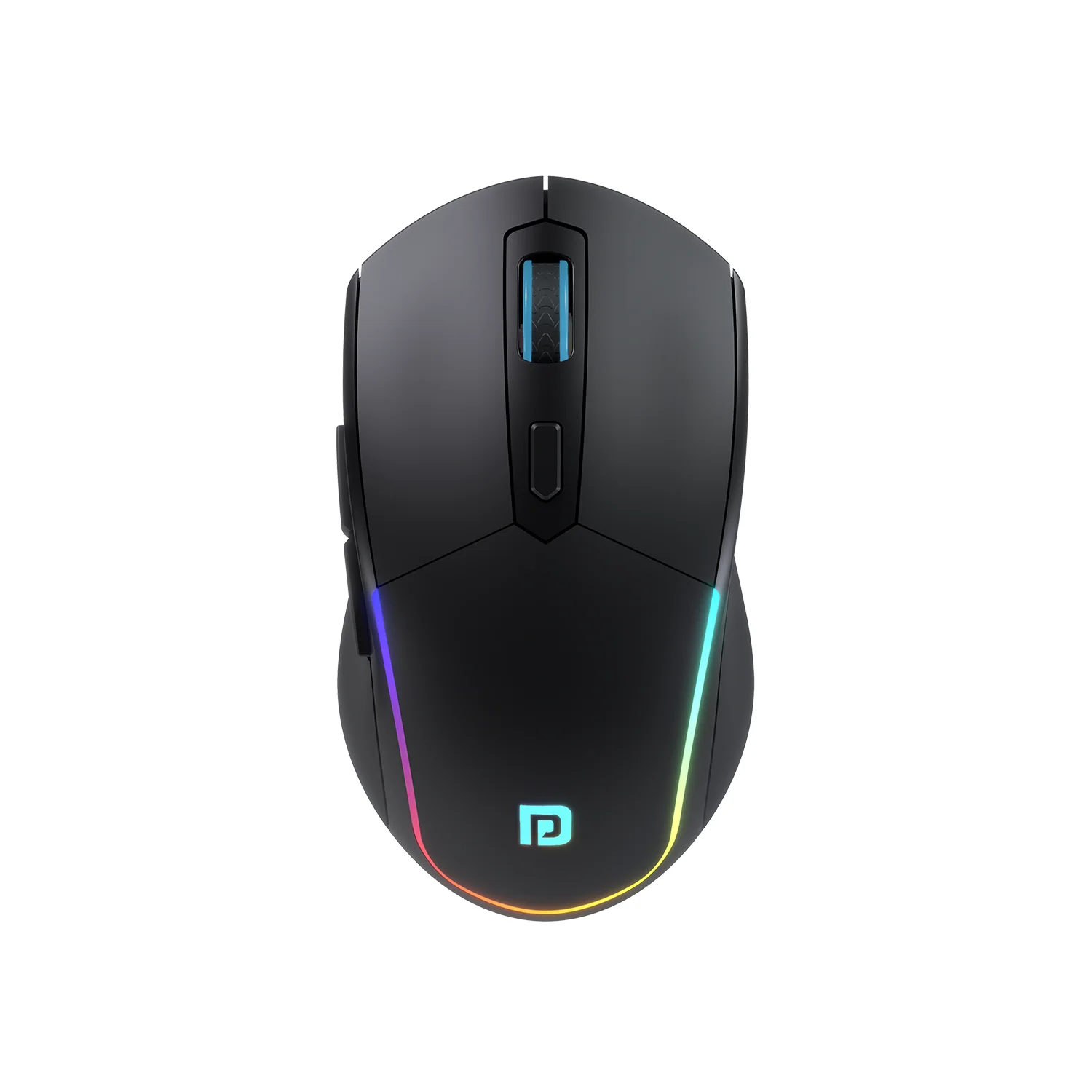
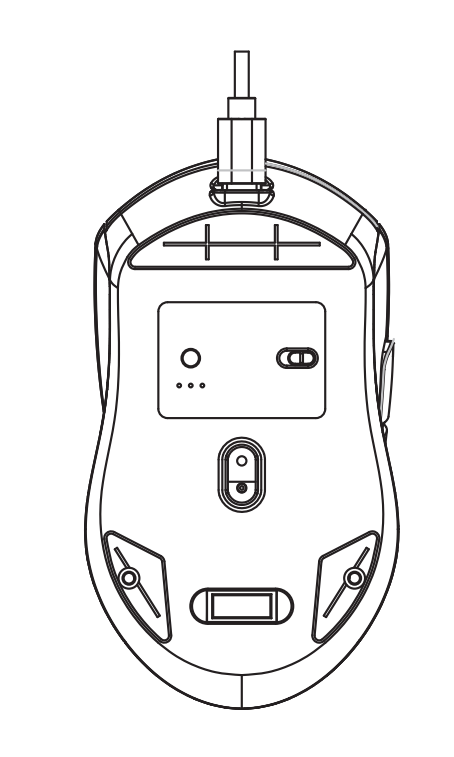
Model: Portronics Toad One
Connectivity Modes:
2.4 GHz USB Receiver
Bluetooth 5.0 (Dual Mode: Toad One / Toad One Plus)
Section A: How to Connect via 2.4 GHz USB Receiver
Step 1: Power ON the Mouse
Locate the power switch on the left side (marked 2.4G).
Ensure the mouse is sufficiently charged.
Step 2: Insert the USB Receiver
Insert the provided USB dongle into the USB port of your laptop/PC.
The mouse will automatically connect.
No additional pairing steps are required.
Step 3: Confirmation
The cursor should respond immediately.
If not, try inserting the receiver into another USB port.
Section B: How to Connect via Bluetooth
Important: Before proceeding, check the LED indicator on the backside of the mouse to confirm the selected mode.
Step 1: Power ON the Mouse
Locate the power switch on the left side (marked BT).
Ensure adequate battery level before pairing.
Step 2: Select Bluetooth Mode
The mouse supports two Bluetooth channels:
Toad One → Blue Indicator
Toad One Plus → Green Indicator
To change the mode:
Press the circular button once to toggle between modes.
Blue Light → Toad One
Green Light → Toad One Plus
Step 3: Activate Pairing Mode
After selecting the desired Bluetooth channel,
Press and hold the circular button for 5–7 seconds.
The LED will start blinking rapidly, indicating pairing mode.
Step 4: Enable Bluetooth on Your Device
For Windows:
Go to Settings → Bluetooth & Devices
Turn Bluetooth ON
Click Add Device → Select Bluetooth
Choose “Portronics Toad One” or “Portronics Toad One Plus”
Click Connect
For macOS:
Open System Settings → Bluetooth
Turn Bluetooth ON
Select “Portronics Toad One” or “Portronics Toad One Plus”
Click Connect
Step 5: Connection Confirmation
The cursor will start responding to movement.
The mouse is now ready for use.
Section C: Troubleshooting Guide
Issue 1: Mouse Not Appearing in Bluetooth List
Recommended Checks:
Ensure the mouse is in pairing mode (rapid blinking LED).
Verify correct Bluetooth channel (Blue/Green indicator).
Restart Bluetooth on your device.
Turn the mouse OFF and ON again.
Ensure the mouse is adequately charged.
Issue 2: Mouse Connected but Not Working
Remove the device from the Bluetooth list.
Restart your laptop/PC.
Reconnect by repeating the pairing steps.
Ensure the same Bluetooth channel is not connected to another device.
Issue 3: Frequent Disconnection
Maintain a distance within 5–8 meters.
Fully charge the mouse and test again.
Remove and reconnect the device from paired devices.
Issue 4: Cursor Lag or Delay
Adjust DPI using the DPI button.
Keep the mouse closer to your device.
Close background applications consuming high system resources.
Check battery level.
Still Facing Issues?
If the issue persists after performing all troubleshooting steps, please Click here raise a support request.
Our support team will assist you further.
Was this article helpful?
That’s Great!
Thank you for your feedback
Sorry! We couldn't be helpful
Thank you for your feedback
Feedback sent
We appreciate your effort and will try to fix the article