Portronics Toad One Mouse – Quick Connection Guide
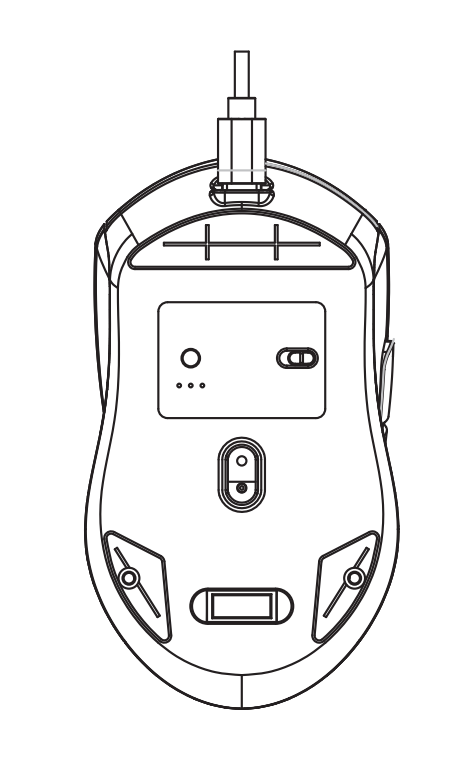
1. Product Overview
Model: Portronics Toad One
Connectivity Modes:
2.4 GHz USB Receiver
Bluetooth 5.0 (Dual Mode: Toad One / Toad One Plus)
Section A: Connecting via 2.4 GHz USB Receiver
Step 1: Turn ON the Mouse
Slide the power switch to 2.4G mode and ensure the mouse has sufficient charge.
Step 2: Insert the USB Receiver
Insert the USB receiver (dongle) into the USB port of your laptop or PC.
The mouse will connect automatically without manual pairing.
Step 3: Connection Check
Move the mouse to confirm the cursor responds on the screen.
If it does not respond, try another USB port.
Section B: Connecting via Bluetooth
Step 1: Turn ON Bluetooth Mode
Slide the power switch to BT mode.
Step 2: Select Bluetooth Channel
Press the circular button to switch between modes:
Blue Indicator → Toad One
Green Indicator → Toad One Plus
Step 3: Enter Pairing Mode
Press and hold the circular button for 5–7 seconds until the LED indicator starts blinking.
Step 4: Connect on Your Device
For Windows
Go to Settings → Bluetooth & Devices
Turn Bluetooth ON
Click Add Device → Bluetooth
Select Portronics Toad One / Toad One Plus
Click Connect
For macOS
Open System Settings → Bluetooth
Turn Bluetooth ON
Select Portronics Toad One / Toad One Plus
Click Connect
Step 5: Connection Confirmation
Once connected, the cursor will respond to movement, and the mouse is ready to use.
Was this article helpful?
That’s Great!
Thank you for your feedback
Sorry! We couldn't be helpful
Thank you for your feedback
Feedback sent
We appreciate your effort and will try to fix the article