TABLE OF CONTENTS
- 1. Overview
- 2. Full Specifications
- 3. Body Overview — Buttons & Ports
- 4. Getting Started
- 5. Bluetooth Connection
- 6. 2.4GHz Wireless Connection
- 7. If 2.4GHz Connection Fails
- 8. DPI Adjustment
- 9. Charging
- 10. Sleep Mode
- 11. Compatible Systems
- 12. Operating Conditions
- 13. Usage & Safety Instructions
- 14. Warranty & Support
1. Overview
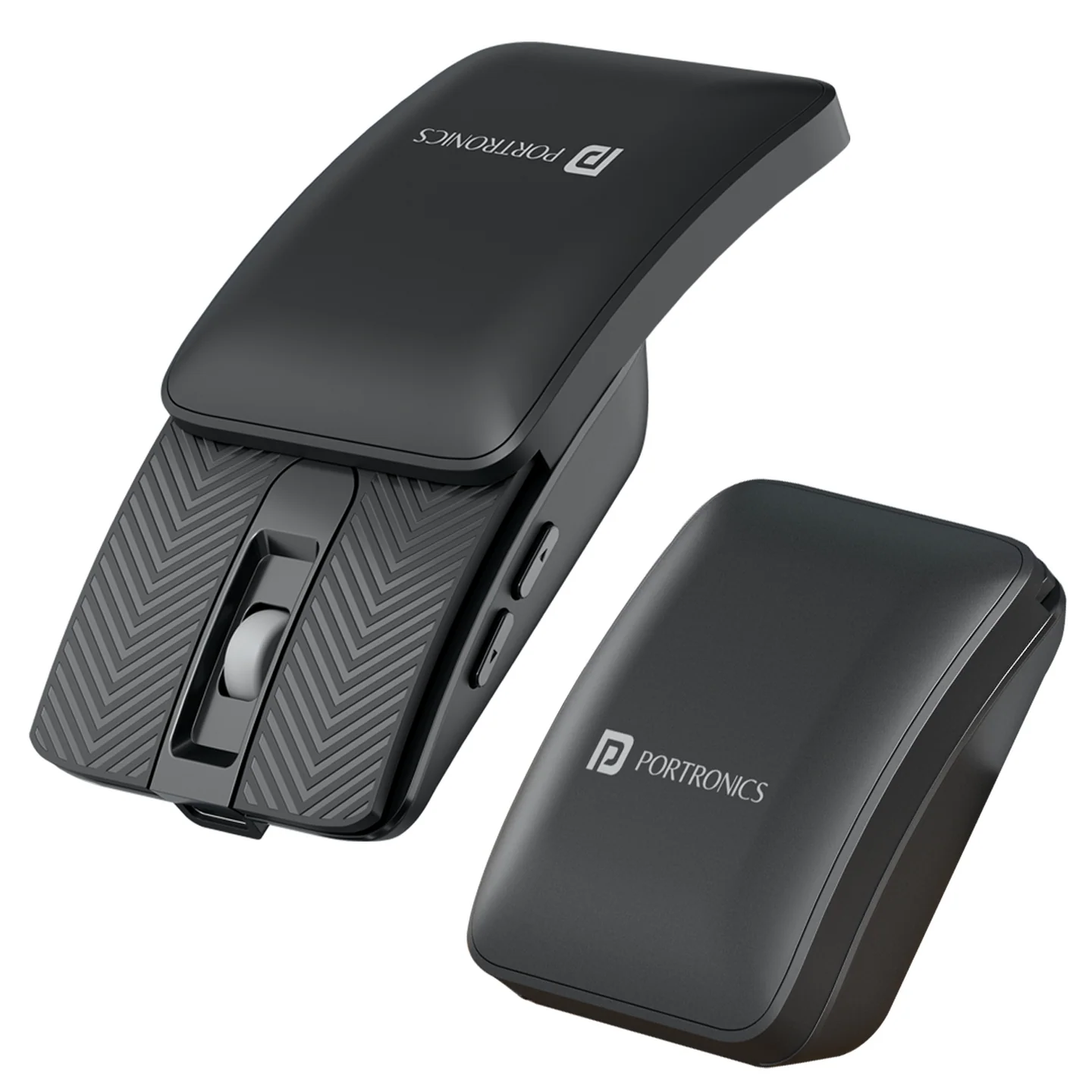
The Toad Fold is a compact, rechargeable, foldable wireless mouse that supports both 2.4GHz wireless and Bluetooth connections. It's built to be easy to carry and works across laptops, desktops, tablets, and compatible smartphones.
2. Full Specifications
| Category | Details |
|---|---|
| Connection Mode | 2.4GHz Wireless + Bluetooth |
| Interface | USB Receiver |
| Material | ABS |
| DPI Levels | 1200 / 1600 / 2400 / 3200 DPI |
| Wireless Range | Up to 10 meters |
| Battery | 3.7V (300mAh) Li Polymer |
| Charging Port | Type-C |
| Charging Input | DC 5V/1A |
| Charging Time | Approx. 2 hours |
| Product Weight | 57g |
| Product Size (unfolded) | 109.8 x 57 x 27.8mm |
| Folded Size | 57 x 70 x 27.8mm |
3. Body Overview — Buttons & Ports
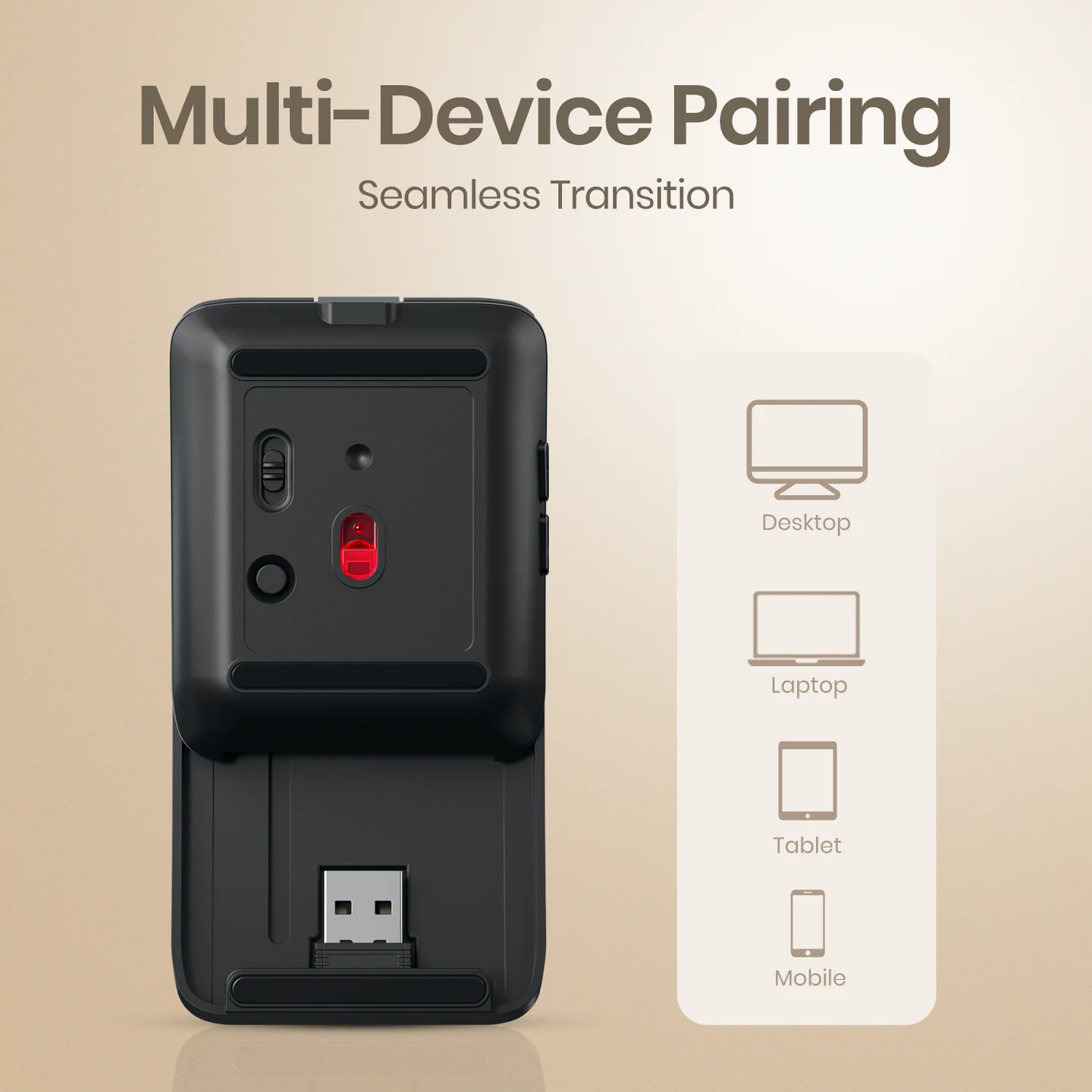
- Power/mode switch — slides between Off, 2.4G, and BT positions.
- Mode button — long press to re-pair in Bluetooth mode.
- USB receiver (dongle) — stored in a compartment beneath the mouse; used for 2.4GHz connection.
- Type-C charging port — for charging via the supplied cable.
- Indicator light — shows blue for Bluetooth status and red for charging/2.4GHz pairing status (see connection and charging sections below).
4. Getting Started
- Unfold the mouse to its full working position before use.
- Slide the power switch to either 2.4G or BT, depending on your preferred connection mode.
- Follow the matching connection steps below to pair the mouse with your device.
5. Bluetooth Connection
- Switch the mouse power button to the BT position.
- The blue indicator light on the back turns on for around 2 seconds and then turns off — this means the mouse is powered on.
- When the Bluetooth indicator flashes quickly in blue, the mouse is ready to pair.
- Open Bluetooth settings on your laptop, tablet, or smartphone. Turn on Bluetooth and search for available devices.
- Select the mouse name from the Bluetooth list. Once connected, the red indicator light on the back turns on and the mouse is ready to use.
Note: To re-pair, long press the Mode button.
6. 2.4GHz Wireless Connection
- Switch the mouse power button to the 2.4G position.
- The USB receiver (dongle) is conveniently stored beneath the mouse, after moving the slider.
- Insert the USB receiver into the USB port of your laptop or desktop PC.
- The mouse connects automatically and can be used normally.
7. If 2.4GHz Connection Fails
- Press and hold the middle button + right button together.
- The indicator light flashes quickly in green.
- Insert the USB receiver into your laptop or desktop.
- Wait for the pairing process to complete.
- Once pairing is successful, the red light stays on for 2 seconds and then turns off. The mouse is now ready to use.
8. DPI Adjustment
| DPI | Indicator | Speed |
|---|---|---|
| 1200 DPI | LED flashes 1 time | Default speed |
| 1600 DPI | LED flashes 2 times | Medium speed |
| 2400 DPI | LED flashes 3 times | Fast speed |
| 3200 DPI | LED flashes 4 times | Extra fast speed |
9. Charging
- Connect the Type-C charging cable to the mouse.
- Connect the other end to a DC 5V power source.
- The red light stays on while charging.
- The red light turns off once the mouse is fully charged.
10. Sleep Mode
If the mouse is not used for 10 minutes, it automatically enters sleep mode to save battery. In sleep mode, the connection and LED light turn off. Move or click the mouse to wake it up again.
11. Compatible Systems
Compatible with Windows 7, Windows 8, and Windows 10. It also works with many Bluetooth-supported laptops, tablets, and smartphones.
12. Operating Conditions
| Condition | Range |
|---|---|
| Operating Temperature | 0°C to 45°C |
| Storage Temperature | -20°C to 60°C |
| Operating Humidity | 10% to 85% RH at 25°C |
| Storage Humidity | 5% to 95% RH at 25°C |
13. Usage & Safety Instructions
- Use only a DC 5V power source for charging.
- Do not expose the mouse to water or moisture.
- Keep away from extreme heat and direct sunlight.
- Do not disassemble or repair the mouse yourself.
- Turn off the mouse when not in use for a long time.
- Store the USB receiver safely inside the mouse compartment when not in use.
14. Warranty & Support
Warranty: 12 months, covering product design, feature, and functionality-related faults. Damage due to physical impact, liquid exposure, fire, or misuse is not covered.
Need Help?
- Visit: support.portronics.com
Was this article helpful?
That’s Great!
Thank you for your feedback
Sorry! We couldn't be helpful
Thank you for your feedback
Feedback sent
We appreciate your effort and will try to fix the article