TABLE OF CONTENTS
- 1. Product Overview
- Section A: How to Connect via 2.4 GHz USB Receiver
- Section B: How to Connect via Bluetooth
- Section C: Mode Switching
- Section D: Charging Instructions
- Section E: DPI Adjustment
- Section F: RGB Operation
- Section G: Troubleshooting Guide
- Section H: Care & Maintenance
- Important Notes
- Still Facing Issues?
1. Product Overview
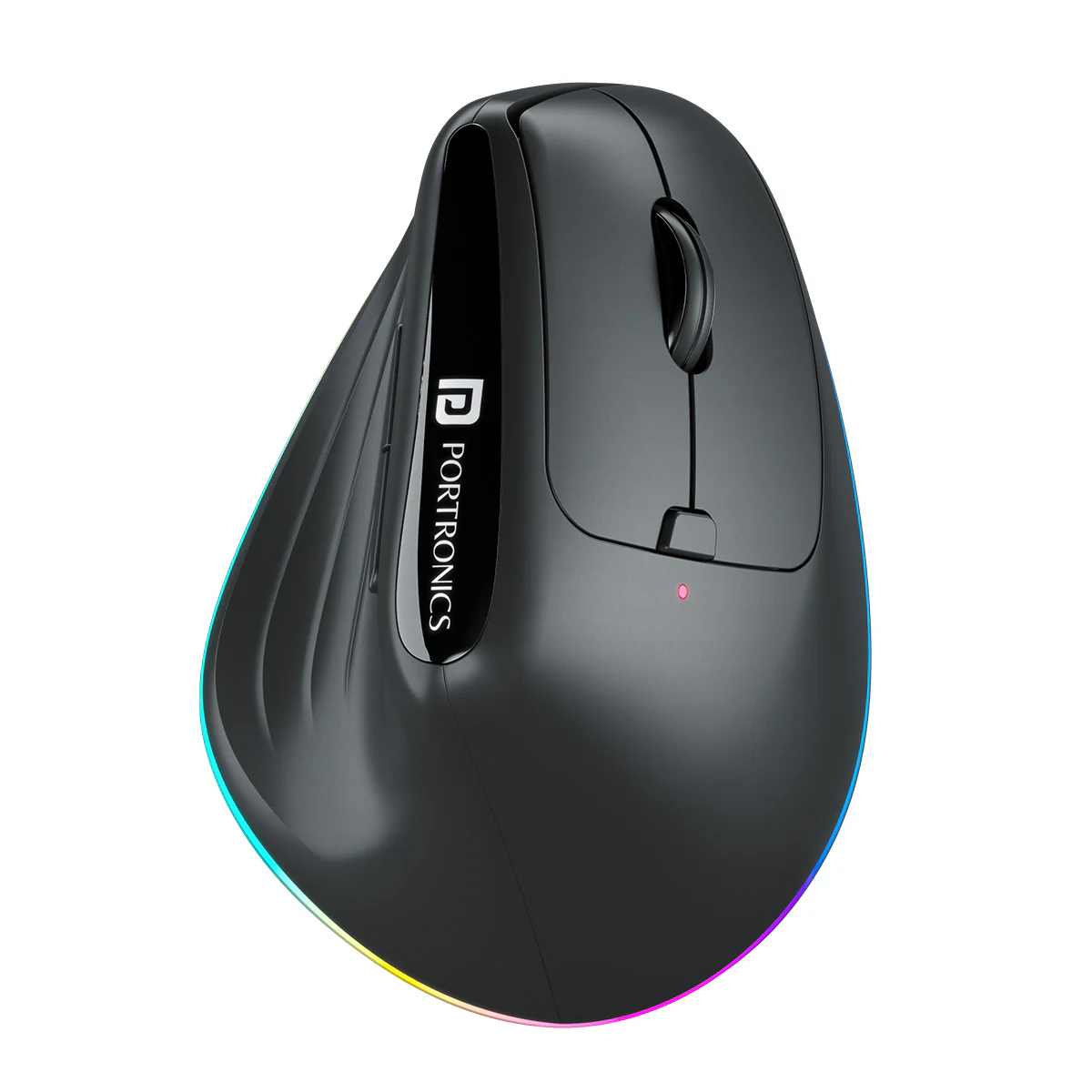
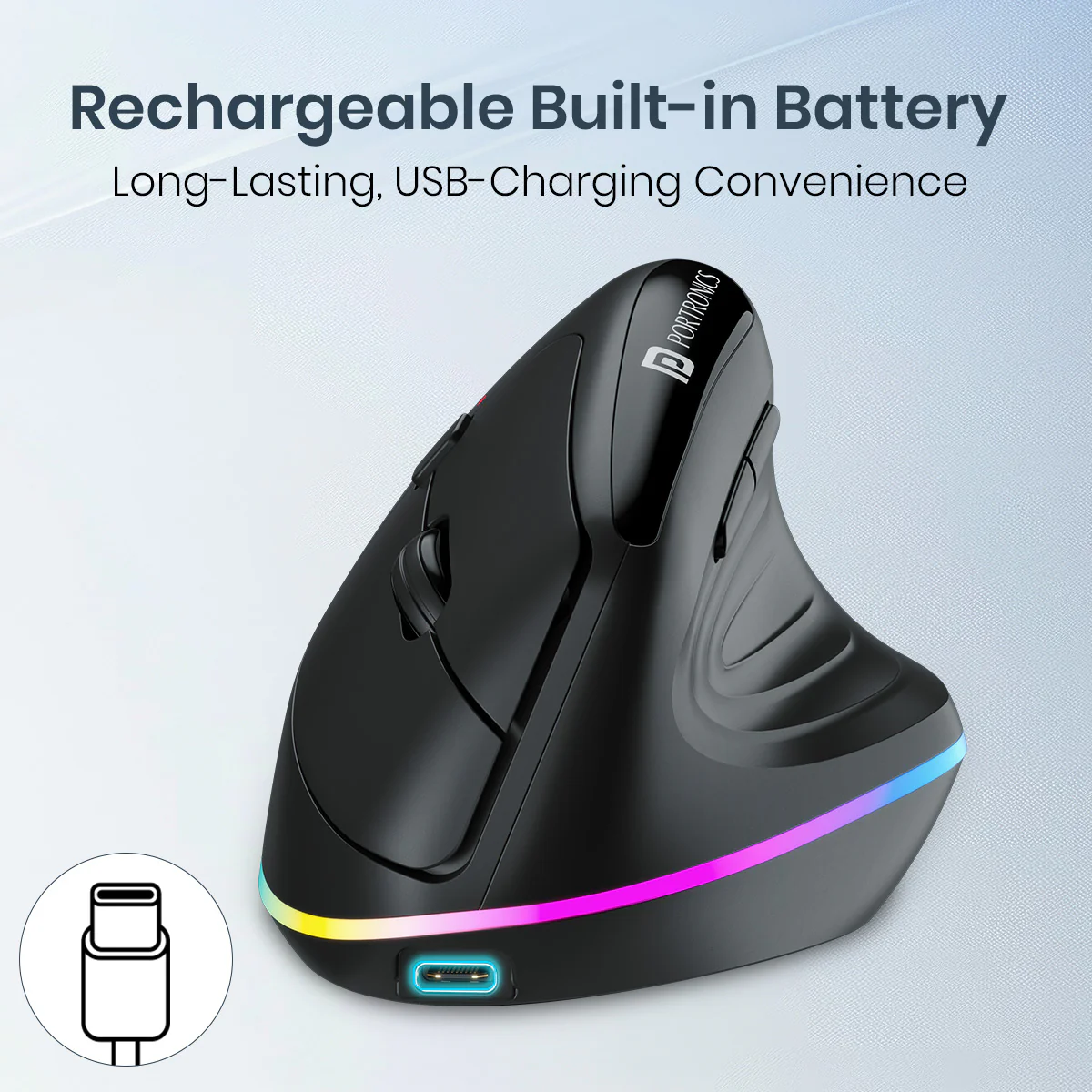
Model: Portronics Toad Ergo 3
Type: Rechargeable Ergonomic Vertical Wireless Mouse
Connectivity Modes:
- 2.4 GHz USB Receiver
- Dual Bluetooth (BT1 / BT2)
Key Features
- Ergonomic vertical design to reduce wrist strain
- Dual Bluetooth connectivity + USB receiver
- Adjustable DPI (1000 / 1600 / 2400)
- RGB lighting design
- 6-button control (Forward/Backward buttons included)
Box Contents
- Wireless Mouse
- USB Receiver
- Charging Cable
- User Documentation
Section A: How to Connect via 2.4 GHz USB Receiver
Step 1: Power ON the Mouse
- Toggle the switch to 2.4G mode.
- The indicator light will turn ON.
Step 2: Insert USB Receiver
- Plug the USB receiver into your laptop/PC.
- The mouse will automatically connect.
Step 3: Confirmation
- Once connected, the indicator light on the mouse will glow.
- Move the mouse to verify cursor movement.
Section B: How to Connect via Bluetooth
Step 1: Power ON the Mouse
- Turn the toggle switch to ON.
Step 2: Select Bluetooth Mode
- Press the pairing key to switch between:
- BT1
- BT2
Step 3: Activate Pairing Mode
- Long press the pairing button for 2–3 seconds.
- The Bluetooth indicator will flash, indicating pairing mode.
Step 4: Enable Bluetooth on Your Device
For Windows:
- Go to Settings → Bluetooth & Devices
- Turn Bluetooth ON
- Click Add Device → Bluetooth
- Select Ergo 3-BT1 / Ergo 3-BT2
- Click Connect
For macOS:
- Open System Settings → Bluetooth
- Turn Bluetooth ON
- Select Ergo 3-BT1 / Ergo 3-BT2
- Click Connect
Step 5: Connection Confirmation
- Once connected, the mouse is ready for use.
Section C: Mode Switching
- Press the pairing key to switch between:
- 2.4G Mode
- BT1
- BT2
- Only one Bluetooth channel can be active at a time.
Section D: Charging Instructions
- Use the provided USB to Type-C cable.
- Charge the mouse fully before first use.
- If the mouse does not turn ON, it may be in protection mode—charge for 2–3 hours.
Section E: DPI Adjustment
- Press the DPI button(below the scroll wheel) to switch sensitivity:
- 1000 DPI
- 1600 DPI
- 2400 DPI (default)
Section F: RGB Operation
- Press and hold the scroll button to turn RGB lighting ON/OFF.
Section G: Troubleshooting Guide
Issue 1: Mouse Not Working
- Ensure the mouse is charged.
- Check USB receiver connection.
- Try a different USB port.
Issue 2: Bluetooth Not Connecting
- Ensure pairing mode is active.
- Restart Bluetooth on your device.
- Reconnect the mouse.
Issue 3: Cursor Slow or Unresponsive
- Clean the sensor.
- Avoid reflective surfaces.
- Adjust DPI settings.
Issue 4: Delay or Lag
- Keep the mouse closer to the device.
- Avoid interference from metal surfaces or other wireless devices.
Section H: Care & Maintenance
- Turn OFF the mouse before cleaning.
- Use a soft, dry cloth only.
- Avoid liquids and harsh chemicals.
Important Notes
- Compatible with Windows, macOS, Android, and iOS (iOS 13+).
- Do not disassemble or expose to water or fire.
- Warranty covers manufacturing defects only.
Still Facing Issues?
If the issue persists after performing all troubleshooting steps, please Click here raise a support request.
Our support team will assist you further.
Was this article helpful?
That’s Great!
Thank you for your feedback
Sorry! We couldn't be helpful
Thank you for your feedback
Feedback sent
We appreciate your effort and will try to fix the article