TABLE OF CONTENTS
- 1. Product Overview
- Section A: Back Side Overview (Important for Connectivity)
- Section B: How to Connect via 2.4 GHz USB Receiver
- Section C: How to Connect via Bluetooth
- Section D: Multi-Device Usage
- Section E: DPI Adjustment
- Section F: Charging Instructions
- Section G: Troubleshooting Guide
- Section H: Care & Maintenance
- Important Notes
- Still Facing Issues?
1. Product Overview
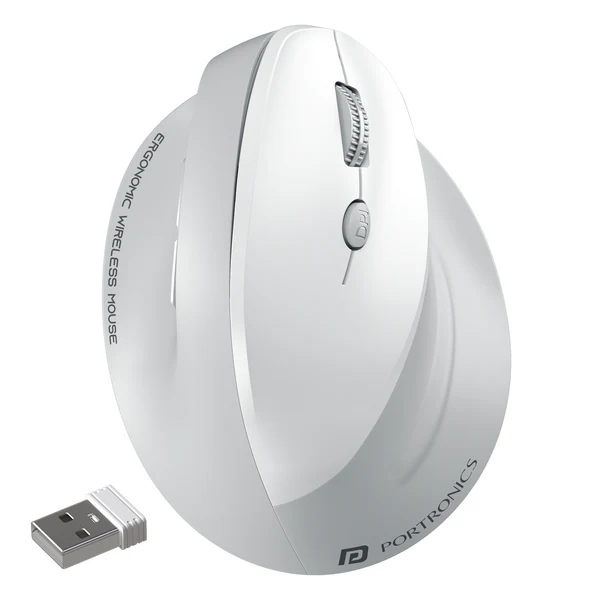
Model: Portronics Toad Ergo 4
Type: Rechargeable Ergonomic Vertical Wireless Mouse
Connectivity Modes:
- 2.4 GHz USB Receiver
- Bluetooth 5.3
Key Features
- Ergonomic vertical design for wrist comfort
- Dual connectivity (Bluetooth + USB receiver)
- Adjustable DPI up to 4000
- 6-button control (Forward/Backward included)
- Rechargeable battery with Type-C charging
Box Contents
- Wireless Mouse
- USB Receiver
- Charging Cable
- User Manual
Section A: Back Side Overview (Important for Connectivity)
Key Components (Back Side)
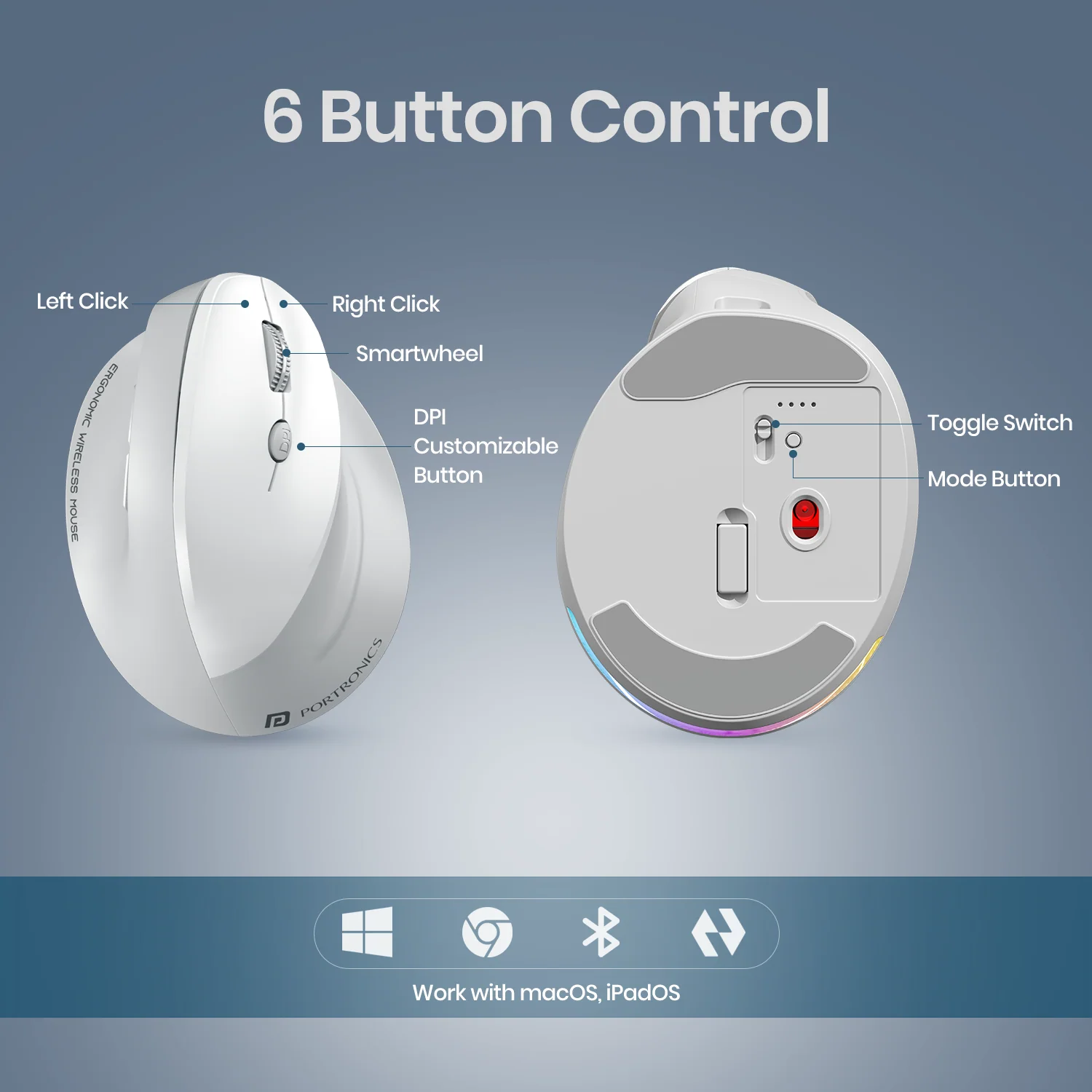
Optical Sensor → Tracks movement
- Power / Mode Switch→
- Bluetooth Mode
- Power OFF
- 2.4G Mode
- Bluetooth / Mode Button → Pairing & switching
- USB Receiver Slot → Stores dongle
- Type-C Charging Port → Front side
These buttons are critical for switching between Bluetooth and USB modes.
Section B: How to Connect via 2.4 GHz USB Receiver
Step 1: Power ON the Mouse
- Switch to 2.4G mode (bottom switch).
- Ensure the mouse is charged.
Step 2: Insert USB Receiver
- Plug the USB receiver into your laptop/PC.
- The mouse will auto-connect (plug & play).
Step 3: Confirmation
- Move the mouse to verify cursor movement.
- If not working, try another USB port.
Section C: How to Connect via Bluetooth
Step 1: Power ON the Mouse
- Switch to Bluetooth mode.
Step 2: Activate Pairing Mode
- Press and hold the Bluetooth button for 2–5 seconds.
- LED will blink rapidly (pairing mode).
Step 3: Enable Bluetooth on Your Device
For Windows:
- Settings → Bluetooth & Devices
- Turn ON → Add Device → Bluetooth
- Select Portronics Toad Ergo 4 → Connect
For macOS:
- System Settings → Bluetooth
- Turn ON → Select Portronics Toad Ergo 4 → Connect
Step 4: Connection Confirmation
- Cursor movement confirms successful pairing.
Section D: Multi-Device Usage
- Supports switching between Bluetooth and 2.4G modes.
- Use the mode button + switch to change devices.
Section E: DPI Adjustment
- Press DPI button to switch levels:
- 800 / 1600 / 2400 / 4000 DPI
Section F: Charging Instructions
- Use the Type-C cable provided.
- Recharge when battery is low.
- Typical usage range up to 10 meters.
Section G: Troubleshooting Guide
Issue 1: Mouse Not Connecting
- Ensure correct mode is selected (BT / 2.4G).
- Restart Bluetooth or system.
- Check battery level.
Issue 2: USB Mode Not Working
- Reinsert receiver.
- Try another USB port.
- Restart system.
Issue 3: Cursor Lag or Delay
- Avoid glass/reflective surfaces.
- Reduce distance from device.
- Adjust DPI settings.
Issue 4: Frequent Disconnection
- Keep within 10 meters range.
- Avoid wireless interference.
Section H: Care & Maintenance
- Do not expose to dust or moisture.
- Avoid dropping the device.
- Clean using a soft, dry cloth.
- Turn OFF when not in use.
Important Notes
- Compatible with Windows, macOS, and Android.
- Warranty covers manufacturing defects only.
Still Facing Issues?
If the issue persists after performing all troubleshooting steps, please Click here raise a support request.
Our support team will assist you further.
Was this article helpful?
That’s Great!
Thank you for your feedback
Sorry! We couldn't be helpful
Thank you for your feedback
Feedback sent
We appreciate your effort and will try to fix the article