Portronics Loca
Compatible with Apple Find My Network
TABLE OF CONTENTS
- Portronics Loca
- Section A: Pre-Connection Checklist
- Section B: How to Connect Loca (Apple Find My Setup)
- Section C: Usage Confirmation
- Section D: Troubleshooting Guide
- Important Notes
- Still Facing Issues?
1. Product Overview
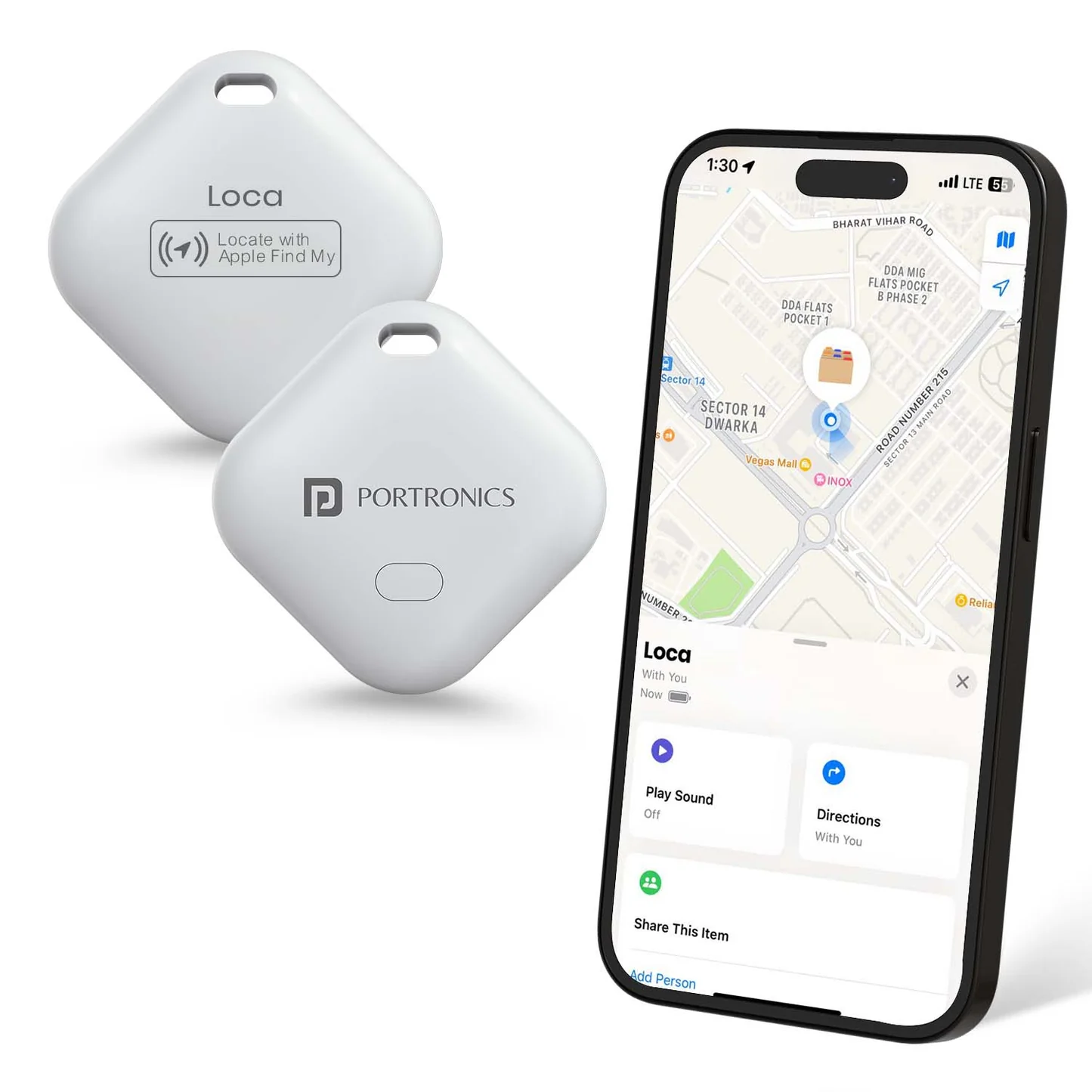
Product Name: Portronics Loca – Item Finder
Network Compatibility: Apple Find My
Supported Devices: iPhone & iPad (iOS/iPadOS 14.5 or later)
Connectivity: Integrated with Apple Find My network
Important:
Loca does not require any third-party application. It connects directly through Apple’s Find My app.
Section A: Pre-Connection Checklist
Before starting the setup, please ensure:
Your iPhone/iPad is updated to iOS/iPadOS 14.5 or later.
You are signed in with your Apple ID.
Bluetooth is enabled.
Location Services are turned ON.
The battery activation sticker inside the Loca has been removed (this activates the battery).
Section B: How to Connect Loca (Apple Find My Setup)
Step 1: Activate Pairing Mode
Press the button 5 times
(Press 4 times rapidly and hold on the 5th press).You will hear a beep sound, confirming the device has entered pairing mode.
Step 2: Open the Find My App
Open the Find My app on your iPhone or iPad.
Tap the Items tab.
Select Add Item.
Tap Other Supported Item.
Step 3: Complete Pairing
Keep the Loca close to your iPhone.
Once detected, tap Connect.
Assign a name and emoji (optional).
Tap Continue to complete setup.
Expected Result:
The Loca will appear under the “Items” section within the Find My app.
Section C: Usage Confirmation
After successful setup:
The device status will display as Connected in Find My.
You can tap Play Sound to locate the tag when nearby.
The last known location updates automatically when the tag comes near any Apple device connected to the Find My Application.
You may enable Separation Alerts for notifications if the tag is left behind.
If the device does not function as expected, refer to the troubleshooting section below.
Section D: Troubleshooting Guide
Issue 1: Loca Not Showing in Find My
Recommended Checks:
Verify your iPhone/iPad is running iOS/iPadOS 14.5 or later.
Restart your iPhone/iPad.
Re-enter pairing mode
(Press 4 times rapidly and hold on the 5th press).Ensure the device is not already linked to another Apple ID.
If linked, remove it from the previous Apple device before pairing again.
Issue 2: Device Not Connecting During Setup
Keep the device within 5–10 meters of your iPhone.
Restart your iPhone/iPad.
Activate pairing mode again and retry the setup process.
Issue 3: Play Sound Not Working
Ensure the tag is within Bluetooth range.
Check that the battery is active and not depleted.
Move closer to the device.
Close and reopen the Find My app.
Issue 4: Location Not Updating
Ensure Location Services are enabled:
Settings → Privacy → Location Services → ONConfirm your iPhone has an active internet connection.
Important Clarification:
Loca is not a GPS device.
It updates its location only when it comes near an Apple device that is part of the Find My network.
Important Notes
Loca works exclusively with the Apple Find My network.
It is not compatible with Android devices.
An Apple ID is required for setup.
The device does not have built-in GPS.
Store the device in a dry environment when not in use.
Still Facing Issues?
If the issue persists after performing all troubleshooting steps, please Click here raise a support request.
Our support team will assist you further.
Was this article helpful?
That’s Great!
Thank you for your feedback
Sorry! We couldn't be helpful
Thank you for your feedback
Feedback sent
We appreciate your effort and will try to fix the article