Portronics Beem 470 Mini – Complete Guide
Modified on Tue, 7 Apr at 3:45 PM
1. Product Overview
The Portronics Beem 470 Mini Smart LED Projector is a compact device designed for home entertainment. It supports:
- HDMI / AUX / USB connectivity
- Wi-Fi and Bluetooth
- Manual focus adjustment
- Auto keystone correction
Note: Only vertical (up/down) keystone correction is supported.
2. Initial Setup Guide
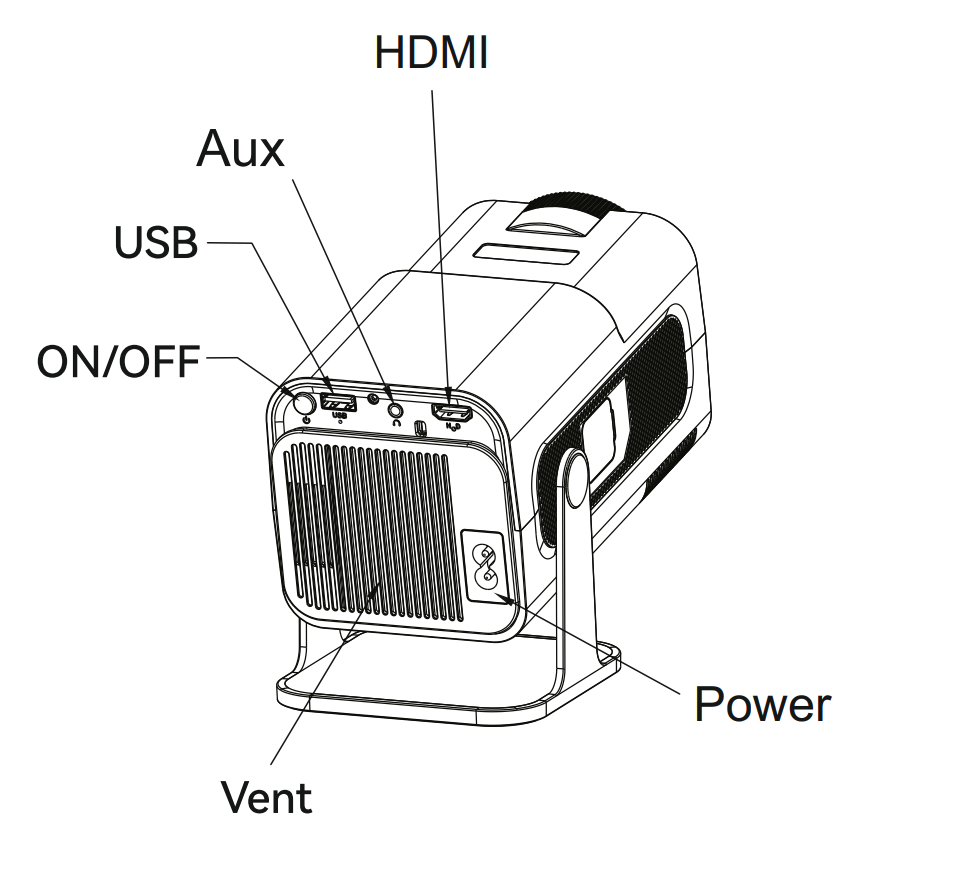
Step-by-Step Setup
- Place the projector on a flat and stable surface.
- Connect the power cable securely.
- Press the Power button to turn it on.
- Connect your device using one of the following:
- HDMI (recommended)
- AUX / USB
- Wireless (Wi-Fi / Bluetooth)
- Select the correct input source using the remote.
- Adjust the image:
- Use the focus wheel for clarity
- Use keystone correction for proper alignment
3. Remote Control Functions
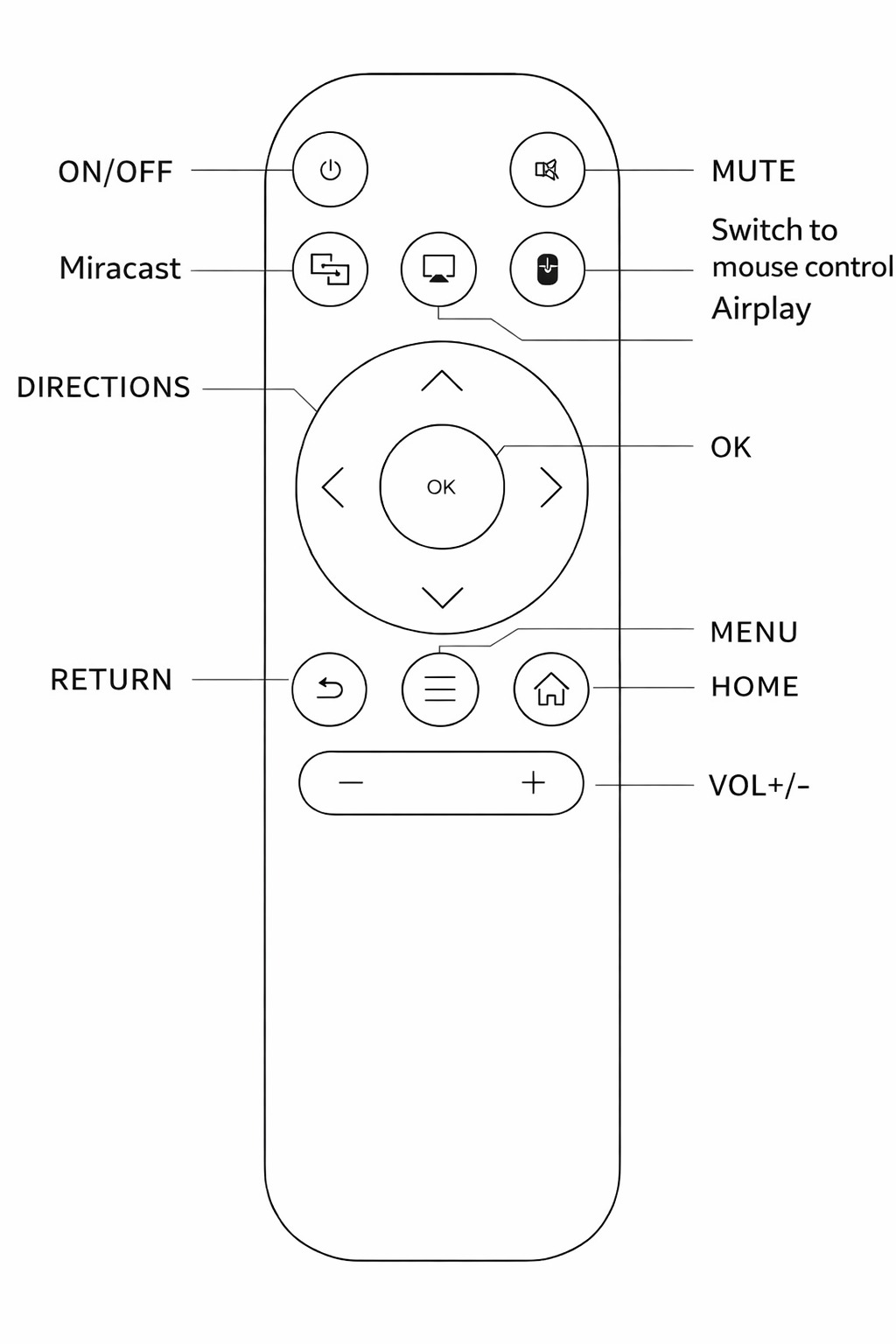
The remote includes the following key controls:
- Power ON/OFF
- Navigation buttons (↑ ↓ ← → OK)
- Volume + / -
- Home / Menu / Back
- Source switch
Ensure there is a clear line of sight between the remote and the projector for proper operation.
4. Troubleshooting Guide
A. Projector Not Turning On
Possible Causes
- Loose or faulty power connection
- Defective power socket
Resolution Steps
- Reconnect the power cable properly
- Use a high-quality power cord
- Try a different power outlet
- Press and hold the power button
B. No Display / No Signal
Possible Causes
- Incorrect input source
- Faulty or loose cable
Resolution Steps
- Select the correct input (HDMI/AUX)
- Reconnect all cables securely
- Try another cable or device
- Restart both the projector and the connected device
C. Blurry or Unclear Image
Possible Causes
- Incorrect focus
- Improper projection distance
Resolution Steps
- Use a clean, plain white surface for projection
- Adjust the focus wheel
- Reposition the projector
- Clean the lens gently
D. Distorted Image (Keystone Issue)
Resolution Steps
- Go to Settings → Keystone Correction
- Adjust vertical alignment
- Ensure the projector is placed straight, facing the screen
E. No Sound / Low Audio
Possible Causes
- Muted volume
- Incorrect audio output settings
Resolution Steps
- Increase volume using the remote
- Turn off mute
- Check audio output settings on the connected device
- Reconnect or replace the AUX cable
F. Wi-Fi / Bluetooth Connectivity Issues
Resolution Steps
- Go to Settings → Network/Bluetooth
- Enter the correct credentials
- Restart both the projector and the router
- Keep the devices within close range
- Reconnect the device
G. Overheating / Auto Shutdown
Possible Causes
- Blocked ventilation
- Dust buildup
Resolution Steps
- Ensure proper airflow around the projector
- Clean the vents regularly
- Avoid long continuous usage
- Allow the device to cool before restarting
H. Remote Not Working
Resolution Steps
- Replace the batteries
- Remove any obstacles between the remote and the projector
- Point directly at the sensor
- Use within the recommended range
Common Issues
Stuck on Portronics Logo
- Connect the device to power (red LED should glow)
- Press and hold the power button on the projector
- Press the Home button multiple times on the remote
- Wait for 1–2 minutes
- The device will enter reset mode
- Complete the setup again
Apps Not Working
- Use the built-in app store
- Update the apps or reset the device
- Contact support if the issue continues
Mirroring Issues
- Some OTT apps may not support screen mirroring.
Dust Inside Lens
- Due to the non-sealed design, dust may enter over time
- Internal fan airflow can pull dust inside
- The issue may reoccur even after cleaning
Solution: Raise a support ticket
Sony Liv / Jio Hotstar / Zee5 Not Working
- Enable Mouse Mode using the remote
- This will activate a cursor for navigation
- Use the cursor to select and interact within the app
5. Safety Guidelines
- Do not look directly into the lens during projection
- Keep the device away from water, dust, and physical impact
- Maintain at least 2x2 space around the projector for ventilation
- Children should use the device under adult supervision
6. Maintenance Tips
- Clean the lens using a soft, dry cloth
- Keep ventilation areas free from dust
- Store the projector in a dry place
- Turn off and unplug the device when not in use
Still Facing Issues?
If the issue persists after performing all troubleshooting steps, please Click here raise a support request.
Our support team will assist you further.
Was this article helpful?
That’s Great!
Thank you for your feedback
Sorry! We couldn't be helpful
Thank you for your feedback
Feedback sent
We appreciate your effort and will try to fix the article