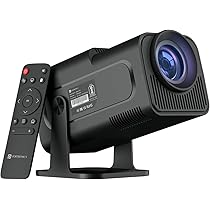
Portronics Beem 470 – Complete Guide

Modified on Fri, 3 Apr at 5:51 PM

TABLE OF CONTENTS

https://images-eu.ssl-images-amazon.com/images/I/612lOJ8eUqL._AC_UL210_SR210%2C210_.jpg

Product Overview

  • Type: Smart LED Projector
  • OS: Android 11
  • Resolution: 1920 × 1080 (Full HD)
  • Brightness: 4500 lumens
  • Screen Size: 40”–150”
  • Projection Distance: 1.2m–4m
  • Speaker: 5W built-in
  • Connectivity: Wi-Fi (2.4/5GHz), Bluetooth, HDMI, USB, AUX

Important Usage Notes

  • Designed for home entertainment use
  • Best performance in dark or low-light environments
  • Slight edge blur may occur depending on distance and projection angle

Initial Setup

Step 1: Placement

  • Place on a flat surface
  • Face directly toward wall/screen
  • Keep projector straight

Step 2: Power ON

  • Connect power cable
  • Press Power button (3 seconds)

Step 3: Focus Adjustment

  • Rotate focus ring until image is clear

Connecting to Wi-Fi

  • Go to Settings → Wi-Fi
  • Turn ON Wi-Fi
  • Select network and enter the password.

Bluetooth Connection

  • Go to Settings → Bluetooth
  • Turn ON and pair the device.

Note:

  • Some devices may not connect due to compatibility limitations
  • Certain devices may not work together even if they work separately

Applications Usage

  • Open apps from home screen
  • Use built-in apps like YouTube, Prime Video, etc.

Note:

  • Avoid installing third-party APK apps

Screen Mirroring

For iPhone

  • Connect both devices to same Wi-Fi
  • Enable AirPlay from remote
  • Use Screen Mirroring

For Android

  • Use Miracast / Eshare / TransScreen
  • Follow on-screen instructions

Important Notes:

  • Mirroring may not work on all devices
  • Not supported for Windows/Mac (use HDMI)

Projection Settings

  • Go to Settings → Projection

Options:

  • Keystone Correction (Auto/Manual)
  • Screen Zoom
  • Projection Mode (Front/Rear/Ceiling)

HDMI Connection

  • Connect HDMI cable
  • Select HDMI input
  • Press Windows + P (for laptop)

Audio & Volume

  • Control volume via remote
  • Connect external speakers via Bluetooth or AUX

Troubleshooting

No Power

  • Check power cable and socket

No Internet

  • Restart router and projector
  • Re-enter Wi-Fi password

Blur Image

  • Adjust focus
  • Maintain proper distance

Screen Tilt

  • Use Keystone correction

Bluetooth Not Working

  • Restart both devices
  • Keep devices close
  • Contact support if needed (possible firmware update)

Screen Mirroring Not Working

  • Ensure both devices are on same Wi-Fi
  • Restart devices

Only Audio During Mirroring

  • Some apps are not supported
  • OTT apps (Netflix, Hotstar, etc.) may restrict mirroring due to DRM

Display Flickering

  • Please raise a support ticket

Maintenance & Care

  • Keep at least 2×2 ft ventilation space
  • Do not block air vents
  • Clean lens with soft cloth
  • Store in a cool, dry place

Important Safety Notes

  • Do not look directly into the lens
  • Use original power adapter
  • Unplug when not in use

Common Issues

  • Connect to power (red LED will glow)
  • Long press power button
  • Press Home button multiple times on the remote.
  • Wait 1–2 minutes
  • The device will enter reset mode
  • Setup again

Apps Not Working

  • Use built-in app store
  • Update apps or reset the device.
  • Contact support if issue persists

Mirroring Issues

  • OTT apps may not support mirroring

Setup Box / Fire TV Stick

  • Supported up to 1080P

Dust Inside Lens

  • Due to non-sealed design, dust may accumulate over time
  • An internal fan may pull dust inside
  • The issue may recur even after cleaning

Solution: Raise a support ticket


Still Facing Issues?

If the issue persists after performing all troubleshooting steps, please Click here raise a support request.

Our support team will assist you further.

Was this article helpful?

That’s Great!

Thank you for your feedback

Sorry! We couldn't be helpful

Thank you for your feedback

Let us know how can we improve this article!

Select at least one of the reasons
CAPTCHA verification is required.

Feedback sent

We appreciate your effort and will try to fix the article