TABLE OF CONTENTS
- Product Overview
- Quick Reference
- What's in the Box
- Ports and Controls
- Setting Up the Soundbar
- Power On and Standby
- Switching Input Modes
- 1. Bluetooth Pairing
- 2. HDMI ARC Connection to a TV
- 3. Optical Connection
- 4. AUX Connection
- 5. USB Playback
- Soundbar Button Controls
- Remote Control Guide
- Choosing a Sound Mode
- Volume and Playback
- Wall Mounting
- Troubleshooting
- Care & Safety
- Still stuck?
Product Overview
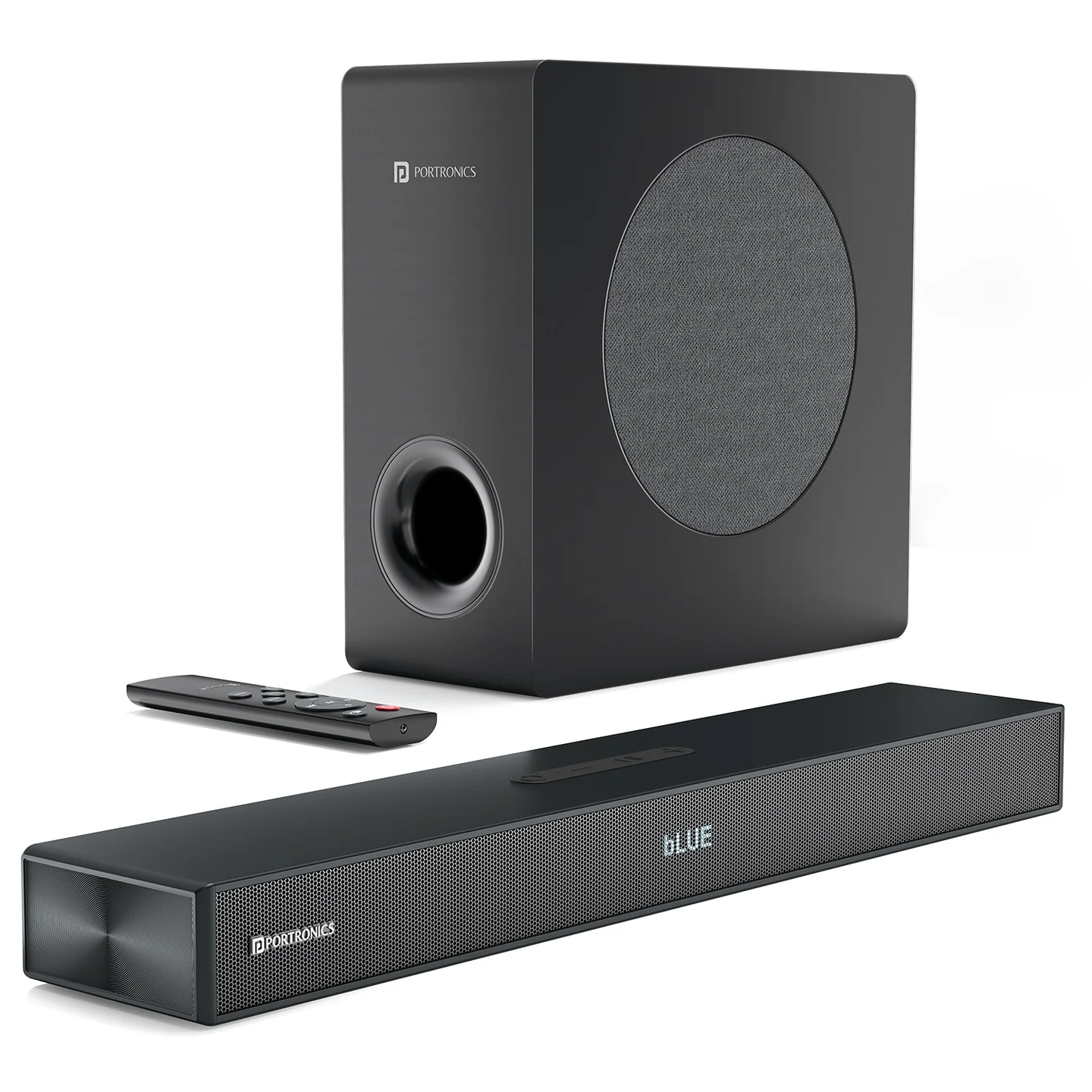
The Portronics Pure Sound 110 is a 140W 2.1-channel home-theatre soundbar with a wired subwoofer. It supports Bluetooth, HDMI ARC, Optical, USB and AUX inputs, and includes a remote control with Music, Movie and News sound modes. The official listing also highlights 3D surround sound and a TI DSP chipset.
Quick Reference
| Feature | Details |
|---|---|
| Product | Portronics Pure Sound 110 |
| Product Code | POR 3495 |
| Sound Output | 140W |
| Channel Configuration | 2.1 channel |
| Soundbar Drivers | 2 × (1.2 × 3.8-inch) |
| Subwoofer | 5.25-inch, wired |
| Bluetooth | 5.3 |
| Frequency Response | 45Hz–18kHz |
| Power Input | AC 110–240V, 50/60Hz |
| Power Adapter | 24V / 3A |
| Inputs | Bluetooth, HDMI ARC, Optical, USB and AUX |
| Standby Power | Less than 0.5W |
| Sound Modes | Music, Movie and News |
| Soundbar Dimensions | 400 × 38 × 76mm, |
| Subwoofer Dimensions | 270 × 115 × 270mm, according to the manual |
What's in the Box
| Item | Quantity |
|---|---|
| Soundbar | 1 |
| Subwoofer | 1 |
| Power Adapter | 1 |
| 3.5mm-to-3.5mm Audio Cable | 1 |
| Digital Optical Cable | 1 |
| Remote Control | 1 |
| Wall-Mounting Kit | 1 |
| User Manual | 1 |
Ports and Controls
| Port / Control | Function |
|---|---|
| DC IN | Connects the supplied 24V/3A power adapter |
| SUB OUT | Connects the wired subwoofer |
| USB | Connects a compatible USB drive for audio playback |
| OPTICAL | Digital optical audio input |
| HDMI ARC | Audio connection to a compatible TV's HDMI ARC port |
| AUX | 3.5mm analogue audio input |
| Power / Mode Button on Soundbar | Long-press for power control; short-press to switch input channels |
| “−” Button | Short press: volume down; long press: previous song |
| Play/Pause Button | Short press to play or pause |
| “+” Button | Short press: volume up; long press: next song |
| Remote Control | Power, mute, input selection, playback, unpairing and sound modes |
Setting Up the Soundbar
- Place the soundbar on a stable surface near your TV or audio source.
- Place the subwoofer on a stable floor or surface near the soundbar.
- Connect the subwoofer cable to the soundbar's SUB OUT connection.
- Connect the supplied power adapter to the DC IN port on the soundbar.
- Connect the adapter to a suitable power outlet.
- Short-press the Power button on the remote to turn the system on from standby.
- Choose the input that matches your connected source.
Use the supplied adapter rated 24V/3A. Do not connect another adapter unless it matches the required rating.
Power On and Standby
- Using the remote: Short-press the Power button to turn the soundbar on or switch it to standby.
- Using the soundbar controls: The manual describes a long press for power-on and holding the Power button for about 3 seconds to power off. Short-pressing the soundbar's Power/Mode button switches input channels.
- When the system is connected to power, the display indicates the selected input mode.
Switching Input Modes
Press MODE on the remote to cycle through the available inputs:
| Input | Use |
|---|---|
| BT | Wireless audio from a paired phone, tablet or computer |
| ARC / HDMI ARC | Audio from a compatible TV using its HDMI ARC port |
| OPT | Digital audio through an Optical cable |
| USB | Audio playback from a compatible USB drive |
| AUX | Analogue audio through the supplied 3.5mm cable |
Select the same input on the soundbar that your source device is connected to.
1. Bluetooth Pairing
- Turn on the soundbar.
- Press the Power/Mode button on the soundbar or use MODE on the remote to enter Bluetooth mode. The manual indicates the Bluetooth status with a blue light.
- Open Bluetooth settings on your phone, tablet or computer.
- Search for Pure Sound 110.
- Select Pure Sound 110 to connect.
- Start audio playback after pairing is complete.
Clearing or Repeating Bluetooth Pairing
If the soundbar does not connect:
- Make sure the soundbar is in Bluetooth mode.
- Press UNPAIR on the remote to clear the previous Bluetooth pairing.
- Open Bluetooth settings on your source device and remove/forget Pure Sound 110 if it is saved.
- Search for Pure Sound 110 again and select it.
The remote's UNPAIR function is intended for Bluetooth pairing and should be used while BT mode is selected.
2. HDMI ARC Connection to a TV
- Locate the TV's HDMI ARC port. Do not use a regular HDMI port if it is not ARC-compatible for TV audio return.
- Connect one end of the HDMI cable to the TV's HDMI ARC port.
- Connect the other end to the soundbar's HDMI ARC port.
- Press MODE on the remote to select HDMI/ARC input.
- If the TV recognises ARC automatically, it may switch to this mode on its own.
- If there is no sound, open the TV's audio settings and select HDMI ARC or the appropriate external-speaker output.
Ff the TV does not auto-recognise ARC, select the corresponding sound mode manually.
3. Optical Connection
- Connect the supplied Optical cable to the TV's Optical OUT port.
- Connect the other end to the soundbar's OPTICAL port.
- Make sure the cable plugs are oriented and inserted correctly.
- Press MODE on the remote to select OPT.
- Start playback on the TV.
4. AUX Connection
- Connect the supplied 3.5mm audio cable from the TV or source device's AUDIO OUT port to the soundbar's AUX port.
- Press MODE on the remote to select AUX.
- Start playback and adjust the volume.
Important: Connect to the source device's AUDIO OUT, not AUDIO IN. Unplug the AUX cable before switching to another input mode, as instructed in the manual.
5. USB Playback
- Insert a compatible USB drive into the soundbar's USB port.
- Press MODE on the remote to select USB mode.
- Start playback if it does not begin automatically.
- Use Play/Pause and the previous/next track controls to manage audio.
Soundbar Button Controls
| Control | Function |
|---|---|
| Power / Mode | Short press: switch input channels; long press: power control as described in the manual |
| “−” | Short press: volume down; long press: previous song |
| Play/Pause | Short press: play/pause |
| “+” | Short press: volume up; long press: next song |
Remote Control Guide
| Remote Button | Function |
|---|---|
| Power | Short-press to power on or switch to standby |
| Mute | Mute or restore audio |
| VOL + / VOL − | Increase or decrease volume |
| Play/Pause | Play/pause supported Bluetooth/USB media |
| Previous / Next | Skip tracks in Bluetooth/USB mode |
| MODE | Switch BT, ARC, OPT, AUX and USB inputs |
| UNPAIR | Clear Bluetooth pairing while in BT mode |
| MUSIC | Select Music mode |
| MOVIE | Select Movie mode |
| NEWS | Select News mode |
Choosing a Sound Mode
Press the corresponding mode button on the remote:
- Music: for music playback.
- Movie: for films and video content.
- News: for spoken content.
Volume and Playback
- Use VOL + / VOL − on the remote or the “+”/“−” buttons on the soundbar to adjust volume.
- Press Play/Pause to start or pause supported Bluetooth/USB playback.
- Use Previous and Next to change tracks in Bluetooth/USB modes.
- If you hear no sound, check both the soundbar volume and the source device's output level, then confirm the correct input mode.
Wall Mounting
A wall-mounting kit is listed in the package contents, and the manual includes wall-mount installation diagrams. Use the kit according to the manual and ensure the mounting surface and fixing points are suitable for the soundbar's weight. If you are unsure about the wall type or installation, use a qualified installer.
Troubleshooting
No sound
- Check that the power adapter is connected to DC IN and to a working outlet.
- Confirm the soundbar is turned on.
- Check that the selected input matches the connected device.
- Check the source device's audio output and volume.
- Check the subwoofer connection.
- Try another supported input if available.
HDMI ARC has no sound
- Use the TV's HDMI ARC port, not a non-ARC HDMI port.
- Make sure the soundbar is set to ARC/HDMI mode.
- Check the TV's audio output settings.
Optical has no sound
- Ensure the TV port is Optical OUT.
- Reseat both ends of the optical cable.
- Select OPT mode.
- Set the TV's digital audio output to PCM if necessary.
Bluetooth pairing fails
- Select BT mode.
- Search for Pure Sound 110 in Bluetooth settings.
- Use UNPAIR to clear the previous pairing and retry.
- Remove/forget the old entry from the phone before pairing again.
Care & Safety
- Use the supplied 24V/3A adapter.
- Keep at least 5cm of space around the unit for ventilation.
- Do not cover ventilation openings with fabric, paper or other objects.
- Keep the system away from rain, moisture, dripping or splashing water.
- Do not place objects filled with liquid on the soundbar or subwoofer.
- Keep naked flames, such as lit candles, away from the unit.
- Do not open or modify the soundbar, subwoofer or power adapter.
- Turn the system off before connecting or disconnecting cables.
- Avoid prolonged listening at maximum volume.
Still stuck?
If the issue persists after performing all troubleshooting steps, please raise a support request.
Our support team will assist you further.
Support
- Visit: www.portronics.com
- Support Portal: support.portronics.com
Was this article helpful?
That’s Great!
Thank you for your feedback
Sorry! We couldn't be helpful
Thank you for your feedback
Feedback sent
We appreciate your effort and will try to fix the article