TABLE OF CONTENTS
- Product Overview
- Quick Reference
- Ports & Functions
- Getting Started
- Connecting an HDMI Display
- Using the USB 3.0 Port
- Using USB-C Power Delivery (PD) Charging
- Using C-Konnect with a Projector or TV
- Compatibility Checklist
- Care & Safety
- Still stuck?
Product Overview
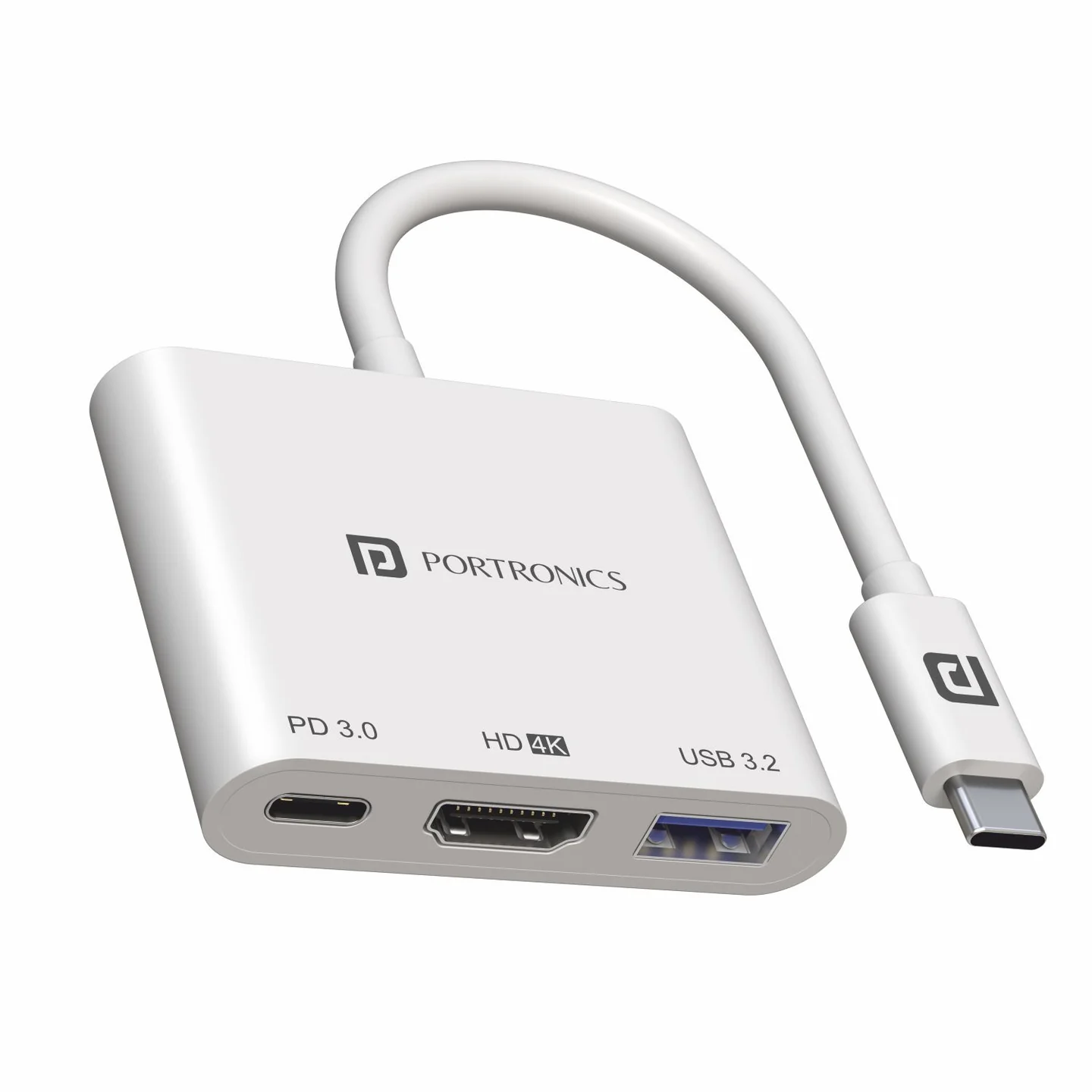
The Portronics C-Konnect is a USB-C multiport adapter that adds HDMI display output, a USB 3.0 data port and USB-C Power Delivery pass-through charging to a compatible USB-C device.
Quick Reference
| Feature | Details |
|---|---|
| Product | Portronics C-Konnect |
| Product Code | POR 1041 |
| Host Connection | USB Type-C |
| Ports | HDMI, USB 3.0 and USB-C PD charging |
| HDMI Resolution | Up to 4K × 2K at 30Hz |
| USB 3.0 Data Transfer | Up to 5Gbps |
| USB-C PD | Supports charging pass-through up to 100W |
| Housing | ABS |
| Cable Length | 150mm |
| Product Size | 15.8 × 75.8 × 38mm |
| Weight | 72.6g |
| Compatibility | Compatible USB-C devices running supported Windows, macOS and Android systems |
Important: Your device’s USB-C port must support video output for HDMI display use. Not every USB-C port supports HDMI output.
Ports & Functions
| Port | Function |
|---|---|
| USB-C Host Connector | Connects C-Konnect to your laptop, tablet or other compatible device |
| HDMI | Connects to an HDMI monitor, TV or projector; supports up to 4K × 2K at 30Hz |
| USB 3.0 | Connects USB-A devices such as flash drives, keyboards, mice, cameras and external storage; up to 5Gbps |
| USB-C PD | Pass-through charging for a compatible host device; charging only, not data transfer |
Getting Started
- Check that your laptop, tablet or other device has a USB-C port.
- Confirm that the USB-C port supports the function you need. For HDMI display output, the device must support video over USB-C.
- Connect C-Konnect’s USB-C plug to the host device.
- Connect your required accessory to the correct adapter port.
- The adapter is designed to be plug and play and does not normally require a separate driver.
- If using multiple functions at once, check that your host device and power adapter support the required operation.
Connecting an HDMI Display
- Connect an HDMI cable from C-Konnect’s HDMI port to your monitor, TV or projector.
- Select the correct HDMI input on the display.
- On your laptop or device, open display settings and select mirror/duplicate or extend mode, as required.
- If the display does not appear, check that the host USB-C port supports video output.
- For 4K output, make sure the host device, display and HDMI cable support the required resolution and refresh rate.
C-Konnect supports HDMI output up to 4K × 2K at 30Hz. The actual resolution depends on the connected device and display.
Using the USB 3.0 Port
- Connect a USB device to the adapter’s USB 3.0 port.
- Wait for the host device to detect it.
- Open the relevant application or file manager to access the device.
- For file transfers, copy files using the host device’s file manager.
- Safely eject external storage before disconnecting it, where supported by your operating system.
Compatible devices may include USB flash drives, keyboards, mice, cameras and external storage. The port supports data transfer speeds up to 5Gbps, depending on the connected device and workload.
Using USB-C Power Delivery (PD) Charging
The USB-C PD port provides pass-through charging to a compatible host device.
- Connect C-Konnect to the host device.
- Connect a compatible USB-C PD wall charger to the adapter’s USB-C PD port.
- Use a USB-C charger and cable rated for the power you intend to deliver.
- Check the host device’s charging indicator.
The PD port supports charging pass-through up to 100W when the charger, cable and host device support the required PD standard.
Note: The USB-C PD port is for charging only. It does not transfer data or provide video output.
Using C-Konnect with a Projector or TV
- Connect an HDMI cable from C-Konnect to the projector or TV.
- Connect the USB-C plug to a compatible host device.
- Select the HDMI input on the projector or TV.
- Set the desired display mode on the host device.
- If you are presenting for an extended period, connect a compatible USB-C PD charger to the adapter’s PD port to charge the host device while projecting.
The host device must support HDMI video output through its USB-C port.
Compatibility Checklist
Before using C-Konnect, check the following:
- The host device has a USB-C port.
- The host USB-C port supports video output if you want to use HDMI.
- The operating system and device support the intended USB accessories.
- For pass-through charging, the host supports USB-C Power Delivery charging.
- The charger and USB-C cable are suitable for the required power.
- The display, HDMI cable and host device support the selected resolution.
Care & Safety
- Disconnect the adapter before cleaning it.
- Keep the adapter and ports dry and away from liquids.
- Do not force connectors into ports.
- Avoid bending or pulling the short USB-C cable.
- Use a compatible certified charger and cable for PD charging.
- Do not exceed the rated power capability of the charger, cable or host device.
- Avoid dropping, crushing or dismantling the adapter.
- Disconnect devices carefully to avoid damaging ports.
Still stuck?
If the issue persists after performing all troubleshooting steps, please raise a support request.
Our support team will assist you further.
Support
- Visit: www.portronics.com
- Support Portal: support.portronics.com
Was this article helpful?
That’s Great!
Thank you for your feedback
Sorry! We couldn't be helpful
Thank you for your feedback
Feedback sent
We appreciate your effort and will try to fix the article