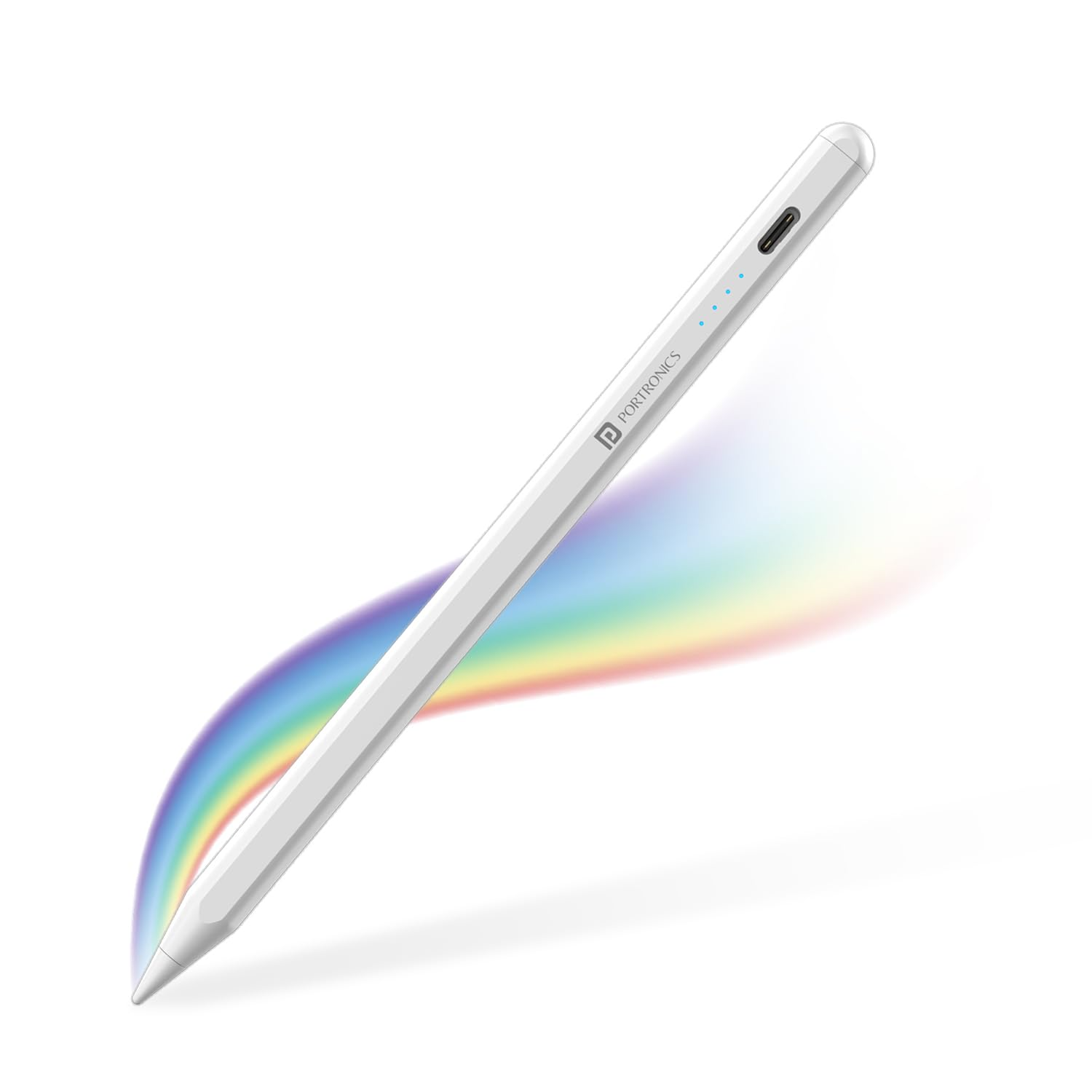
Portronics Glide Stylus complete guide

Modified on Fri, 6 Mar at 1:46 PM

Portronics Glide Stylus for iPad (White) – User Guide & Troubleshooting


TABLE OF CONTENTS


1. Product Overview

https://m.media-amazon.com/images/I/51qtxqNKPML.jpg

Product Name: Portronics Glide – Stylus for iPad
Color: White
Compatibility: iPad models launched between 2020 to 2024 (refer to official compatibility list in user manual)

Note: This stylus does not require Bluetooth pairing. It works instantly once powered ON.


Section A: Pre-Connection Checklist

Before using the stylus, ensure:

  • The stylus is sufficiently charged.

  • Your iPad model falls within the supported compatibility range (2020–2024 models).

  • The iPad screen is clean and free from dust or moisture.


Section B: How to Use the Stylus

Step 1: Power ON the Stylus

  • Tap twice on the back (top) of the stylus.

  • The LED indicator will turn ON.

  • The LED will also indicate the battery status.

Step 2: Start Using

  • No Bluetooth pairing is required.

  • Once powered ON, the stylus is ready to use immediately.

  • Open Notes or any drawing/writing application and begin writing.


Section C: Usage Confirmation

  • The stylus should respond instantly to touch.

  • Smooth writing without delay indicates proper functioning.

  • If not responding, refer to the troubleshooting section below.


Section D: Troubleshooting Guide

Issue 1: Stylus is ON but Not Writing

Recommended Checks:

  • Restart the iPad.

  • Ensure the stylus battery is charged.

  • Check the tip/nib for looseness or damage. Tighten or replace if necessary.

  • Confirm the iPad model is compatible.


Issue 2: Intermittent Writing or Skipping

  • Clean the iPad screen.

  • Ensure the nib is properly tightened.

  • Fully charge the stylus and test again.


Issue 3: LED Not Turning ON

  • Charge the stylus for at least 30–45 minutes.

  • Try using a different charging cable or adapter.


Important Notes

  • The device does not support Bluetooth pairing.

  • Double-tap on the back to power ON/OFF.

  • Store the stylus in a dry environment when not in use.


Still Facing Issues?

If the issue persists after performing all troubleshooting steps, please Click here raise a support request.

Our support team will assist you further.

Was this article helpful?

That’s Great!

Thank you for your feedback

Sorry! We couldn't be helpful

Thank you for your feedback

Let us know how can we improve this article!

Select at least one of the reasons
CAPTCHA verification is required.

Feedback sent

We appreciate your effort and will try to fix the article