Portronics Beem 440 Complete Guide
TABLE OF CONTENTS
- Portronics Beem 440 Complete Guide
- Product Overview
- Section A: Initial Setup
- Section B: Connecting to Wi-Fi
- Section C: Connecting Bluetooth Devices
- Section D: Using Applications
- Section E: Screen Mirroring
- Section F: Projection Settings
- Section G: Connecting Laptop via HDMI
- Section H: Audio & Volume Control
- Section I: Troubleshooting Guide
- Section J: Maintenance & Care
- Important Safety Notes
- Common Issues & Clarifications
- Still Facing Issues?
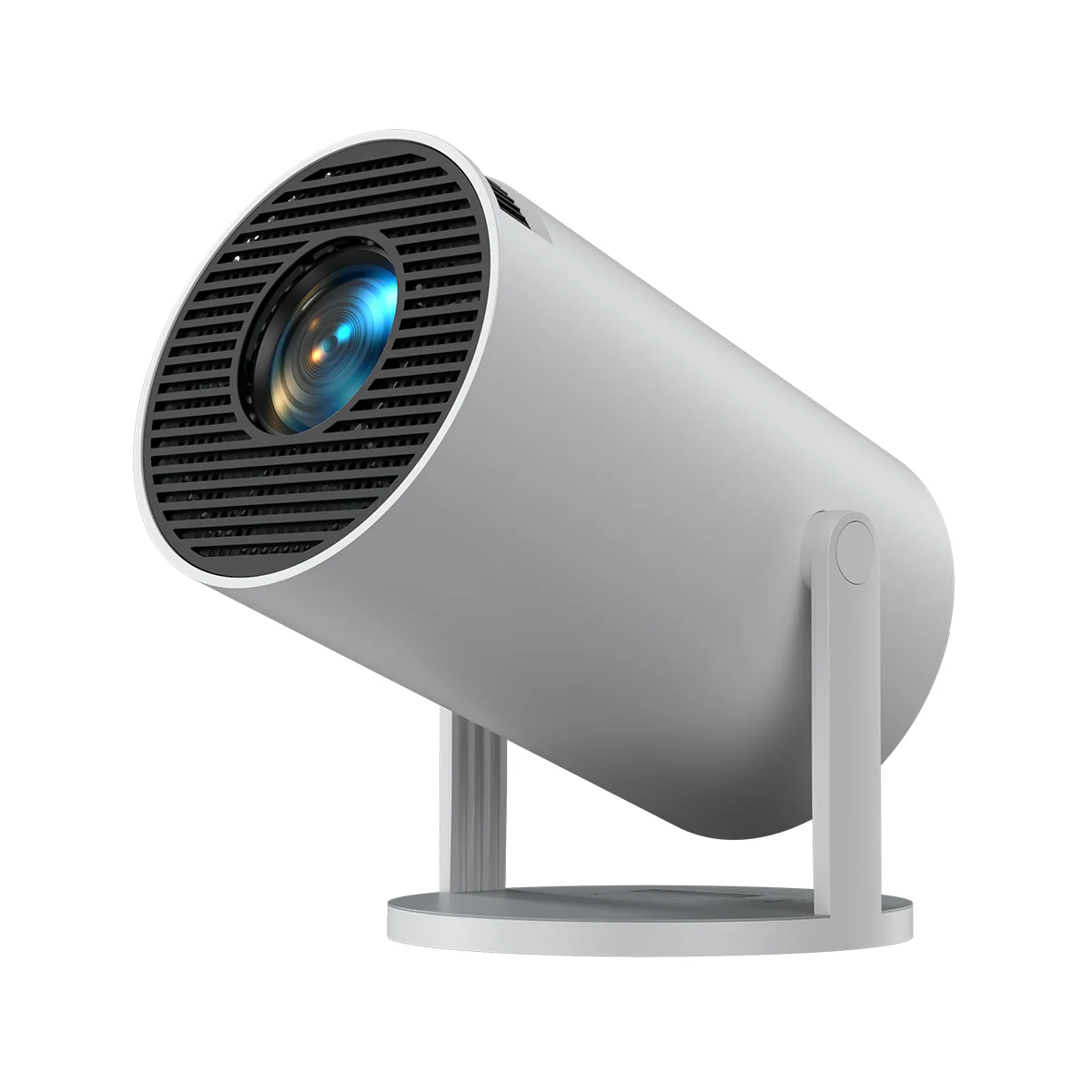
Product Overview
Model: Portronics Beem 440
Type: Smart Android Projector
Operating System: Android 11
Connectivity Options Available:
- Wi-Fi (2.4 GHz / 5 GHz supported for better stability and speed)
- Bluetooth
- HDMI (for connecting laptops)
- USB (
Display Specifications:
- Native Resolution: 1280 × 720 (HD)
- Brightness: 1800 lumens (up to 2200 lumens in updated manufacturing batches)
Projection Details:
- Supported Screen Size: 40 inches to 100 inches
- Recommended Projection Distance: 1.2 meters to 3 meters
Audio Output:
- Built-in speaker available for direct audio playback
Storage Configuration:
- RAM: 1GB
- Internal Storage: 8GB
Important Usage Notes:
- The device is designed specifically for entertainment purposes only and is not recommended for commercial or presentation use
- The best viewing experience is achieved in a dark room environment with a plain white wall or projection screen
- Slight blur or softness on the edges of the screen may occur due to projection limitations and distance-based projection
Section A: Initial Setup
Step 1: Placement of the Projector
- Place the projector on a stable, flat surface
- Ensure it is directly facing a wall or projection screen
- Keep the projector aligned straight to minimize distortion
Step 2: Powering ON the Device
- Connect the projector to a power source using the provided adapter/2-pin cord.
- Press and hold the Power Button for approximately 3 seconds until the device turns ON
Step 3: Focus Adjustment
- Rotate the focus wheel slowly to adjust the image clarity as per your viewing experience.
- It is recommended to adjust focus while on the home screen for best results
Section B: Connecting to Wi-Fi
- Navigate to Settings → Networking Settings → Wi-Fi
- Turn Wi-Fi ON
- Select your preferred network from the list
- Enter the correct Wi-Fi password
Once connected successfully, the projector will be ready for internet-based usage such as apps and streaming.
Section C: Connecting Bluetooth Devices
- Go to Settings → Bluetooth
- Turn Bluetooth ON
- Search and select your device from the available list
Important Note:
- Some Bluetooth devices may not connect due to compatibility limitations between devices
- Certain devices may not work together even though they function properly with other devices
Section D: Using Applications
- Navigate to Application section
- Open any pre-installed application
- Download additional apps only through the pre-installed app store available on the device
Important Note:
- Sideloaded applications (installed via APK files or external sources) are not supported
- Performance or compatibility issues with such apps will not be covered under support
Section E: Screen Mirroring
For iOS Devices (AirPlay):
- Connect both the iPhone and projector to the same Wi-Fi network
- Open Screen Mirroring on your iPhone
- Select Beem 440 from the available devices
For Android Devices:
- Use Miracast, Eshare, or TransScreen (pre-installed applications)
- Ensure both devices are connected to the same Wi-Fi network
- Open the application and follow the on-screen instructions to connect
Additional Note:
- Miracast support is limited and may not work on all Android devices
- Screen mirroring is not designed for Windows or Mac systems; for those, use HDMI connection
Section F: Projection Settings
Go to Settings → Projection Settings
You can adjust the following:
- Screen Zoom (to fit the display properly)
- Projection Mode (Rotate Front, Rotate Rear, Rotate Ceiling, and Rotate Rear Ceiling)
- Keystone Correction (Auto or Manual adjustment for alignment)
Section G: Connecting Laptop via HDMI
- Connect an HDMI cable between the projector and the laptop
- Select HDMI input source on the projector
On your laptop:
- Press Windows Key + P Proceed further according to the requirement.
Section H: Audio & Volume Control
- Adjust volume using the remote control.
- External speakers can be connected via Bluetooth and Aux*.
Important Note:
- If Bluetooth audio devices fail to connect, it may be due to compatibility issues
- Certain devices may not work together even though they function properly with other devices
- The latest batch does not have an AUX port.
Section I: Troubleshooting Guide
Issue 1: Adapter Not Working
- Check if the projector shows any red light indication
- Inspect the power cable for visible damage
- If the adapter is faulty, please raise a support request
Issue 2: No Internet Connection
- Restart both the Wi-Fi router and the projector
- Re-enter the Wi-Fi password carefully
- Move the projector closer to the router for better signal
Issue 3: Screen Not Clear
- The device is designed for dark room usage
- Maintain a distance of 4 to 10 feet for optimal clarity
- Place the projector in the center of the room
- Adjust the focus wheel properly on the home screen
Issue 4: Screen Misalignment
- Use Keystone Correction (Auto or Manual) to fix alignment
Issue 5: Bluetooth Not working
- Restart Bluetooth on the projector
- Restart the other Bluetooth device.
- Ensure the device is within close range
- Try to pair again.
- If Bluetooth audio devices fail to connect, it may be due to compatibility issues
- Certain devices may not work together even though they function properly with other devices
- The latest batch does not have an AUX port.
Issue 6: Screen Mirroring Not Working
- Ensure both devices are connected to the same Wi-Fi network
- Check whether your device supports mirroring
- Restart both devices and retry
- Use Eshare or TransScreen for Android/IOS devices.
Section J: Maintenance & Care
- Ensure at least 2x2 feet open space around the projector for proper ventilation
- Do not block air vents while the projector is running
- Keep the device in a cool and dry environment
- Avoid exposure to dust and moisture
Important Safety Notes
- Do not look directly into the projector lens
- Always use the original power adapter/Power Cord provided
- Disconnect power when the device is not in use for long durations
Common Issues & Clarifications
1. Portronics Logo Stuck
- This may occur due to power fluctuation or interrupted software process
- Solution: Long press power button → Tap Home button multiple times → Wait 1–2 minutes—now set up again and ready to use.
2. YouTube Not Working
- Install Smart YouTube TV from App Store (You can click here to view the complete installation process.)
- A permanent fix is under development. Or connect with us.
3. Sony Liv / Chrome Not Working (Scrolling Issue)
- Enable Mouse Mode using the remote control
- Press the Mouse button and operate the app
4. Connectivity and Usage Limitations
- If Miracast does not work, use Eshare or TransScreen for better compatibility
- OTT apps: Mirroring is restricted due to DRM policies
- Hotspot: Not supported; use Wi-Fi only
- Set-top box: Not recommended due to resolution mismatch
- Angle correction: Avoid initial usage; raise support request if already used
4. Dust in lens
- Due to this design, dust accumulation may occur over time, depending on the usage environment.
- Please understand that the projector has an internal cooling fan, and internal airflow is required for proper cooling.
- This airflow can carry dust particles into the unit, which may lead to dust accumulation over time.
- Due to the non-sealed design, dust accumulation may recur over time even after cleaning.
- For this issue, raise a support ticket.
Still Facing Issues?
If the issue persists after performing all troubleshooting steps, please Click here raise a support request.
Our support team will assist you further.
Was this article helpful?
That’s Great!
Thank you for your feedback
Sorry! We couldn't be helpful
Thank you for your feedback
Feedback sent
We appreciate your effort and will try to fix the article