TABLE OF CONTENTS
- 1. Product Overview
- 2. Key Features
- 3. Package Contents
- 4. Technical Specifications
- 5. How It Works
- 6. Setup & Installation
- 7. Display & Controls
- 8. Weather Indicators
- 9. How to Set Time & Date
- 10. How to Set Alarm
- 11. How Snooze Works
- 12. Understanding the Display
- 13. Changing Temperature Unit
- 15.Useful Features
- Common Questions
- Helpful Tips
- Still Facing Issues?
1. Product Overview
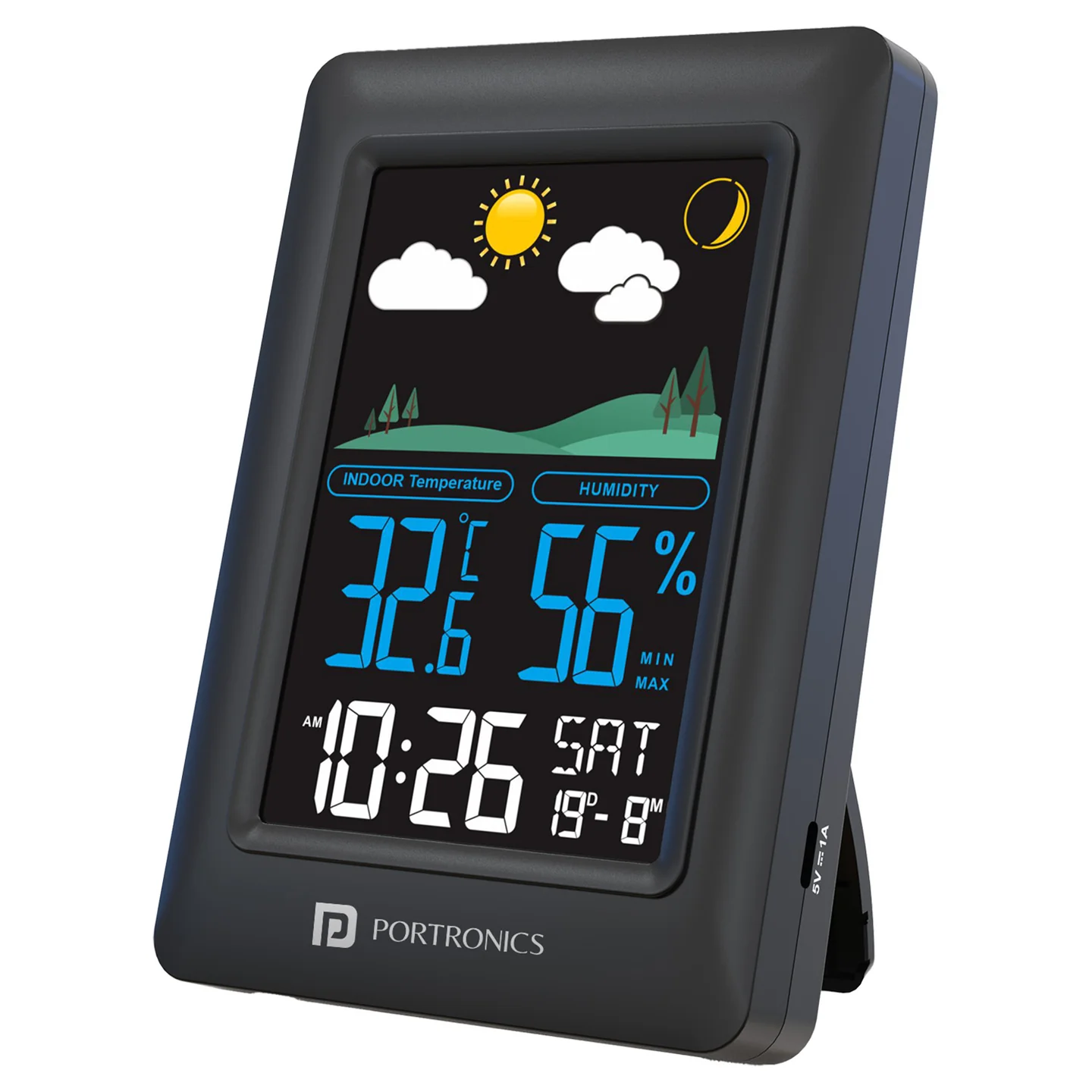
Meteo is a compact weather station device designed to provide real-time environmental data such as temperature, humidity, and weather trends. It helps users monitor indoor/outdoor conditions for better comfort and planning.
2. Key Features
- Real-time Temperature Display (°C/°F)
- Humidity Monitoring
- Time & Date Display
- Alarm & Snooze Function
- Backlight Display
- Indoor & Outdoor Monitoring
3. Package Contents
- Meteo Device – 1
- User Manual – 1
4. Technical Specifications
- Temperature Range: Typically -10°C to 50°C (indoor)
- Humidity Range: 20% – 95% RH
- Power Source: Battery and USB
- Display Type: LCD Digital Screen
5. How It Works
The Meteo device:
- Collects data using built-in sensors
- Measures temperature and humidity levels
- Displays readings on the screen
6. Setup & Installation
Step 1: Insert Batteries
- Open battery compartment
- Insert batteries correctly (+/- polarity)
Step 2: Configure Settings
- Set time, date, and units (°C/°F)
- Adjust alarm if needed
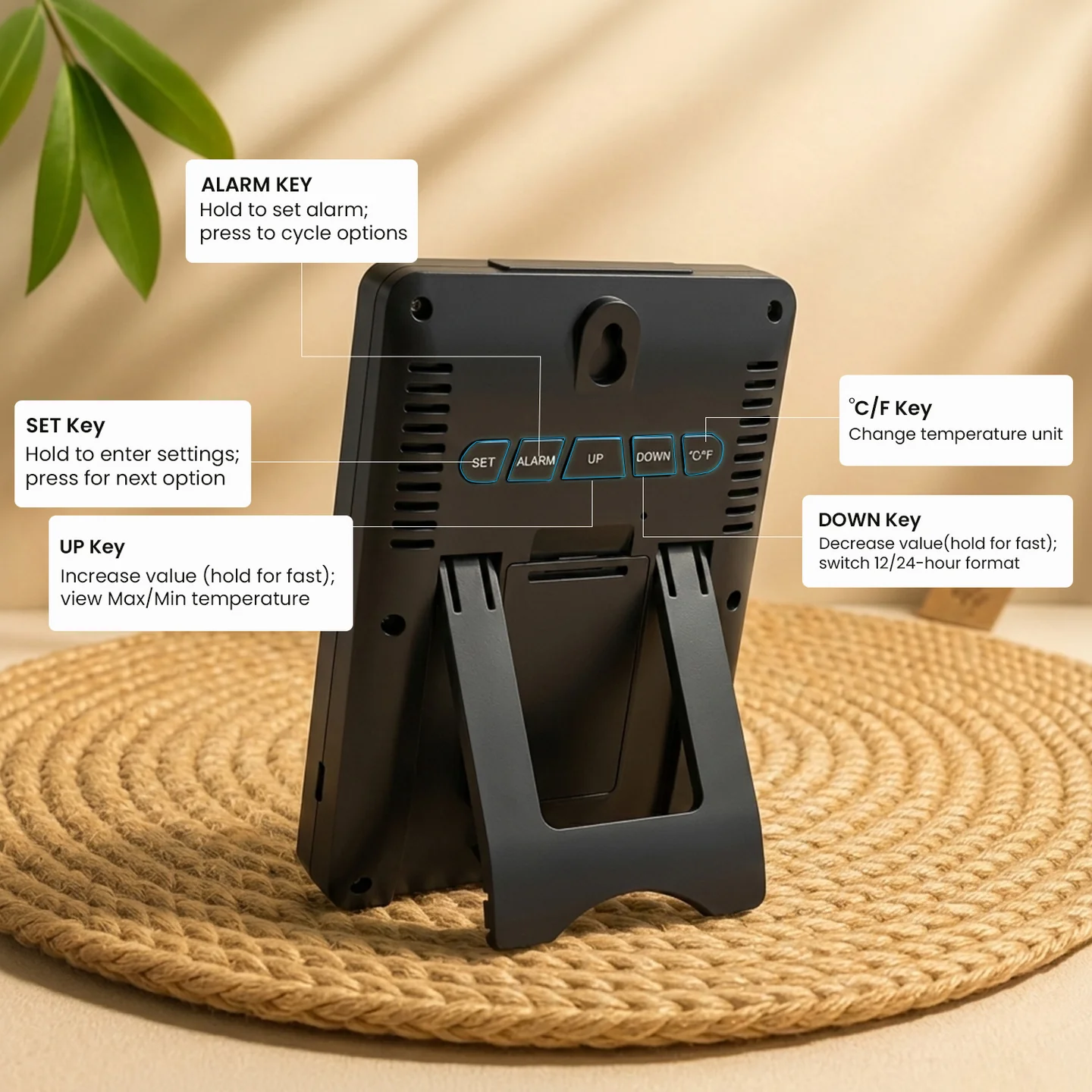
7. Display & Controls
Buttons / Functions:
- Mode: Switch between time, alarm, and weather display
- Set: Adjust settings
- Up/Down: Change values
- Light: Turn on backlight
8. Weather Indicators
- Sunny – Clear weather
- Cloudy – Partly cloudy
- Rainy – Possible rainfall
9. How to Set Time & Date
- Press and hold the SET button
- Use UP/DOWN buttons to change values
- Press SET to move forward
- Order: Hour → Minute → Year → Month → Date
- It saves automatically after a few seconds
10. How to Set Alarm
- Press the ALARM button to view the alarm.
- Press and hold it to set
- Adjust:
- Hour
- Minute
- Snooze time (5–20 mins)
- Press ALARM again to save
11. How Snooze Works
- When the alarm rings:
- Press SNOOZE/LIGHT to delay it
- The alarm will ring again after selected time
- The alarm stops by pressing any button.
12. Understanding the Display
Temperature
- Shows indoor temperature
- Range: –10°C to 50°C
Humidity
- Shows indoor moisture level
- Range: 10% to 99%
Special Readings
- LL = Too low to measure
- HH = Too high to measure
13. Changing Temperature Unit
- Press °C/°F button to switch between Celsius and Fahrenheit
14. Backlight & Brightness
Battery Mode
- Pressing any key turns the backlight ON for 8 seconds
- Backlight automatically turns OFF after 8 seconds to save battery
Adapter Mode
- Backlight stays active continuously
- Press the SNOOZE/LIGHT key to cycle through brightness levels: High → Medium → Off → High
- Choose the brightness level based on your room lighting
Note: The device uses 3×AAA batteries to preserve time and settings even when running on adapter power.
15.Useful Features
- Moon phase display
- Maximum & minimum readings (press UP button)
- The alarm indicator icon shows when alarm is active.
Common Questions
1. My device is not turning ON
- Check batteries or connect adapter properly
2. Backlight turns OFF automatically
- This is normal in battery mode to save power
3. Temperature shows LL or HH
- LL = Too low
- HH = Too high
4. Alarm is not ringing
- Make sure alarm is turned ON
5. Display is dim
- Replace batteries
Helpful Tips
- Use adapter for continuous display
- Keep device away from heat or direct sunlight
- Replace batteries regularly
- Use snooze for better alarm control
Still Facing Issues?
If the issue persists after performing all troubleshooting steps, please Click here raise a support request.
Our support team will assist you further.
Was this article helpful?
That’s Great!
Thank you for your feedback
Sorry! We couldn't be helpful
Thank you for your feedback
Feedback sent
We appreciate your effort and will try to fix the article