TABLE OF CONTENTS
- 1. Product Overview
- 2. Box Contents
- 3. Quick Start Guide
- 4. Device Compatibility
- 5. Indicator Light Reference
- 6. Self-Diagnosis (Start Here)
- 7. Troubleshooting Guide
- 8. Reset and Reconnection
- 9. Battery and Charging
- 10. Quick Self-Test
- Still Facing Issues?
1. Product Overview
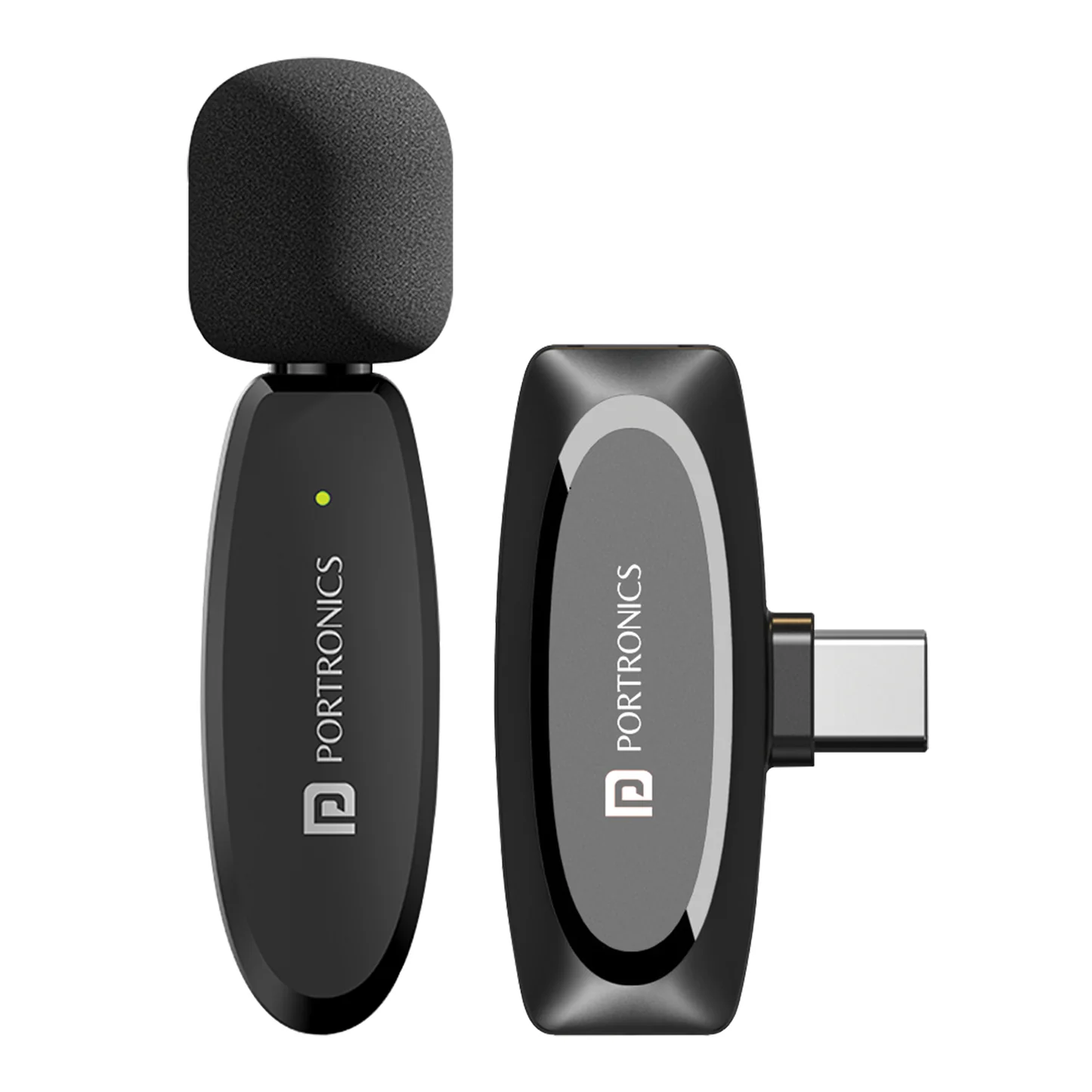
The Portronics Dash 7 is a plug-and-play wireless microphone system that connects directly to your device using a receiver. It automatically pairs with the transmitter and enables audio recording without requiring Bluetooth or additional applications.
2. Box Contents
- 1 Transmitter (clip-on microphone)
- 1 Receiver (Type-C or Lightning)
- 1 Charging cable
- 1 User manual
3. Quick Start Guide
Follow these steps to begin using your device:
- Insert the receiver into your smartphone or device
- Press and hold the power button on the microphone to turn it on
- Wait for the devices to auto-pair (indicator light becomes stable)
- Open your camera or recording application
- Start recording
Important:
- No Bluetooth pairing is required
- No app installation is required
4. Device Compatibility
Supported:
- Android smartphones (Type-C, OTG required)
- iPhones (Lightning or Type-C models)
Limitations:
- Some apps may not support external microphones
- OTG must be enabled on Android devices
- Accessories must be enabled on IOS devices
5. Indicator Light Reference
| Light Behavior | Status |
|---|---|
| Solid light | Connected and ready |
| Blinking light | Pairing |
| Blue blinking | Low battery |
| Red light while charging | Charging |
6. Self-Diagnosis (Start Here)
Before troubleshooting, confirm:
- The receiver is firmly connected
- The microphone is powered on
- Battery is sufficiently charged
- OTG is enabled (Android only)
- Microphone permissions are enabled in your app
If all checks are complete, proceed to your issue below.
7. Troubleshooting Guide
7.1 Microphone Not Connecting
Possible reasons:
- OTG disabled
- Improper connection
- Device compatibility issue
Resolution steps:
- Enable OTG in phone settings
- Reinsert the receiver
- Restart your device
- Turn microphone off and on again
- Wait for stable indicator light
Advanced step:
- Test with another smartphone to isolate the issue
7.2 No Audio in Recording
Possible reasons:
- App does not support external microphones
- Permissions are disabled
Resolution steps:
- Enable microphone permission in app settings
- Try a different application (Camera, Open Camera, YouTube)
- Reconnect receiver and retry
7.3 Poor Audio Quality / Noise
Possible reasons:
- Distance exceeds operating range
- Wireless interference
- Incorrect microphone placement
Resolution steps:
- Keep within 20–30 meters range
- Avoid crowded wireless environments
- Clip microphone closer to your mouth
- Avoid strong wind or background noise
7.4 Device Not Charging
Possible reasons:
- Faulty cable or adapter
- Dirty charging port
Resolution steps:
- Use original cable
- Try a different power source
- Clean charging port carefully
7.5 Automatic Disconnection
Possible reasons:
- Low battery
- Idle auto power-off
Resolution steps:
- Fully charge the microphone
- Restart before use
- Ensure continuous usage
8. Reset and Reconnection
If issues persist:
Reset steps:
- Press and hold the reset button for 3 seconds
Reconnection:
- Turn both transmitter and receiver off
- Turn them back on
- Wait for automatic pairing
9. Battery and Charging
- Usage time: Up to 6 hours
- Charging time: Approximately 2–3 hours
- Low battery indication: Blinking light
Best practices:
- Fully charge before extended use
- Avoid overcharging overnight
10. Quick Self-Test
Perform this test to confirm functionality:
- Connect receiver to your device
- Turn on the microphone.
- Record a short video using your camera
- Play back the video and check audio clarity
If audio is clear, the device is functioning correctly.
Still Facing Issues?
If the issue persists after performing all troubleshooting steps, please Click here raise a support request.
Our support team will assist you further.
Was this article helpful?
That’s Great!
Thank you for your feedback
Sorry! We couldn't be helpful
Thank you for your feedback
Feedback sent
We appreciate your effort and will try to fix the article