TABLE OF CONTENTS
- 1. Introduction
- 2. Package Contents
- 3. Technical Data
- 4. Features
- 5. Speaker Controls & Ports
- 6. Microphone Controls
- 7. Direction of Use
- 8. Mode Switching
- 9. Specifications Summary
- 10. Support
1. Introduction
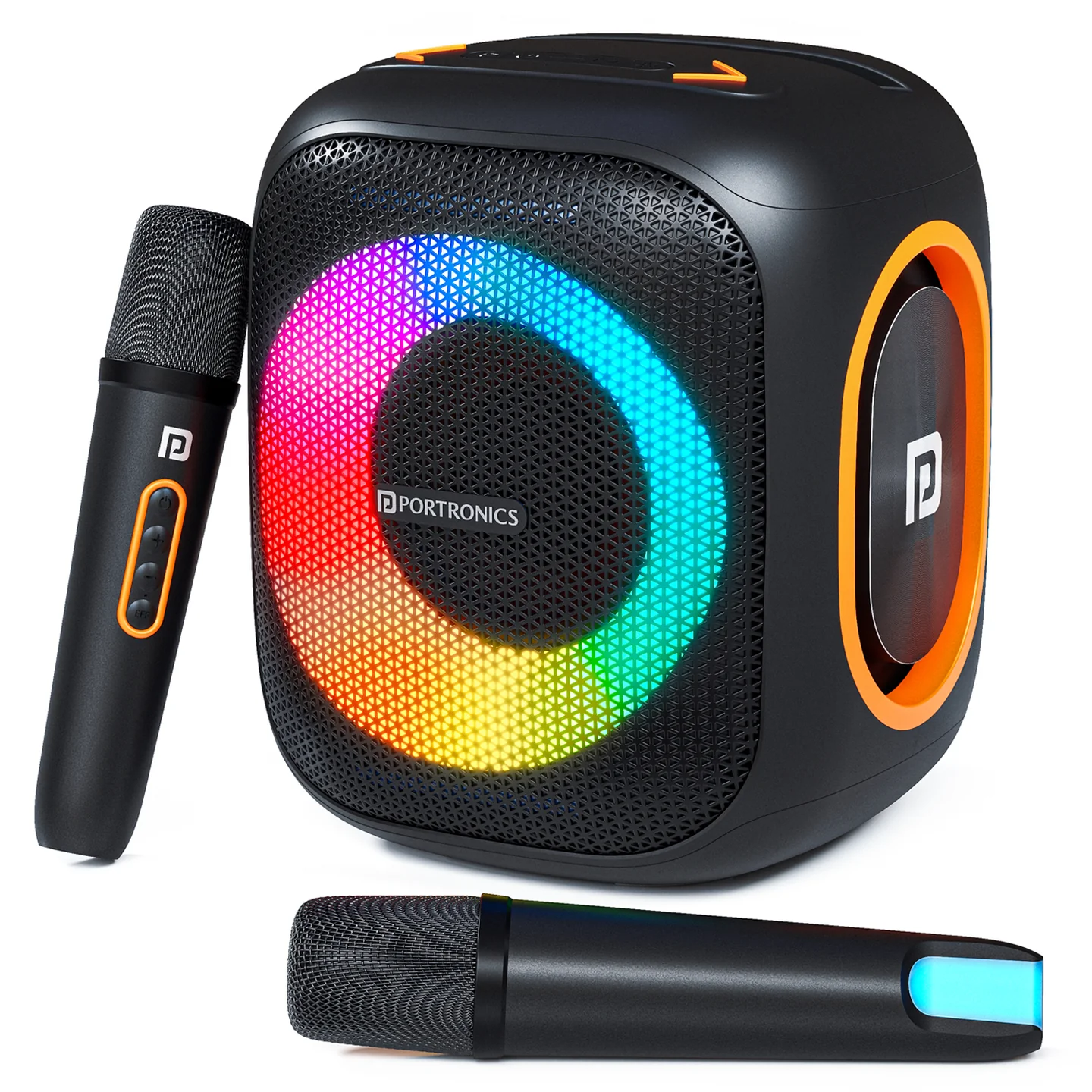
Thank you for purchasing the outdoor Bluetooth speaker Dash 10. To ensure correct operation, please read this user manual carefully before operation. Dash 10 pairs a 50W speaker with dual bass radiators, two wireless karaoke microphones, RGB lighting, a mobile holder space, and Type-C fast charging.
2. Package Contents
- Portable Wireless Speaker — 1
- Wireless Microphone — 2
- Charging Cable — 1
- User Manual — 1
3. Technical Data
| Specification | Details |
|---|---|
| Wireless Standard | 5.3 |
| Transmission Distance | 10 metres |
| Output Power | 50W |
| Playing Time | 4–8 hours |
| Frequency Effect | 80Hz–15kHz |
| Input Power | DC 5V ⎓ 1A |
| Battery | 6000mAh |
| Charging Port | Type-C |
4. Features
- Wireless connection
- Memory function, breakpoint resuming
- Supports BT / U-disk / TF card / AUX playback mode
- Built-in lithium-ion battery
- Supports MP3/WAV/WMA/FLAC/APE music format decoding
- High-fidelity speakers for natural, delicate sound
5. Speaker Controls & Ports
| # | Control | Function |
|---|---|---|
| 1 | Play/Pause (▷) | Short press |
| 2 | Power (⏻) | Long press to power on/off |
| 3 | Lightshow (☀) | Long press: turn light on/off · Short press: switch function mode |
| 4 | Function Mode Switch (⋈) | Short press |
| 5 | Next Song / Volume Up (>) | Short press: next song · Long press: volume up |
| 6 | Previous Song / Volume Down (<) | Short press: previous song · Long press: volume down |
| 7 | TF Jack | Inserting a TF card defaults to TF card playing mode |
| 8 | Type-C Jack | Charging port — inserting the cable charges the device by default |
| 9 | USB Jack | Inserting a USB flash drive sets USB playback mode |
| 10 | AUX Jack | Connect a 3.5mm audio cable |
When using the radio function, insert the charging cable as a radio antenna for normal FM reception.
6. Microphone Controls
| # | Control | Function |
|---|---|---|
| 1 | Power (⏻) | On/Off button; also the reverberation accompaniment switch |
| 2 | "+" | Increase microphone/reverberation volume |
| 3 | "–" | Decrease microphone/reverberation volume |
| 4 | EFF | Switch microphone mode: professional mode, microphone mode, multiple sound modes |
| 5 | Type-C | Microphone charging port |
Detailed instructions:
- Power Switch: press and hold for power on/off; click to adjust microphone/reverberation/accompaniment; double-click to play/pause the song.
- "+" Button: click to turn up microphone volume and reverberation; press and hold for next song.
- "–" Button: click to turn down microphone volume and reverberation; press and hold for last song.
- Microphone (EFF) Button: click to switch Professional mode, Microphone mode, Male-to-female voice, Female-to-male voice, Warcraft voice; double-click to turn vowel effect on/off; press and hold to turn the MC function on/off.
- Type-C port: microphone charging.
7. Direction of Use
- Wireless pairing: open your Bluetooth device and search for "Dash 10" to pair and connect.
- Play indicators: Bluetooth search status — the on/off light flashes quickly (~0.5 sec per flash). Bluetooth paired status — the light stays constantly on. Playback status — the light flashes slowly (~1 sec per flash).
- Charging indicator: red light on while charging; red light off once fully charged.
- Prompt tones:
- A tone plays when turning on/off.
- A tone plays at maximum volume; no tone at minimum volume.
- When low power (6.8V) is detected, the speaker prompts a shutdown warning three times.
8. Mode Switching
- On power-up, the speaker defaults to Bluetooth mode.
- Mode switching sequence: Bluetooth mode → FM mode → TF mode → USB mode → AUX mode, with priority given to whichever media is inserted most recently.
- Default startup volume is 70%.
- Power-saving function: the speaker automatically shuts down after 15 minutes of inactivity.
9. Specifications Summary
| Specification | Details |
|---|---|
| Model | Dash 10 |
| Product Code | POR 2342 |
| Colour | Black |
| Bluetooth Version | 5.3 |
| Speaker Output | 50W |
| Fast Charging | Type-C |
| Dual Wireless Karaoke Mic | Yes |
| Playtime | Up to 6 hours |
| Warranty | 12 months |
10. Support
If the issue persists after performing all troubleshooting steps, please raise a support request.
Our support team will assist you further.
Support
- Visit: www.portronics.com
- Support Portal: support.portronics.com
Was this article helpful?
That’s Great!
Thank you for your feedback
Sorry! We couldn't be helpful
Thank you for your feedback
Feedback sent
We appreciate your effort and will try to fix the article