TABLE OF CONTENTS
- 1. Package Contents
- 2. Features
- 3. Product Specifications
- 4. Slots and Keys Explained
- 5. How to Operate
- 6. Charging
- 7. Important Safety Instructions
- 8. Support
1. Package Contents
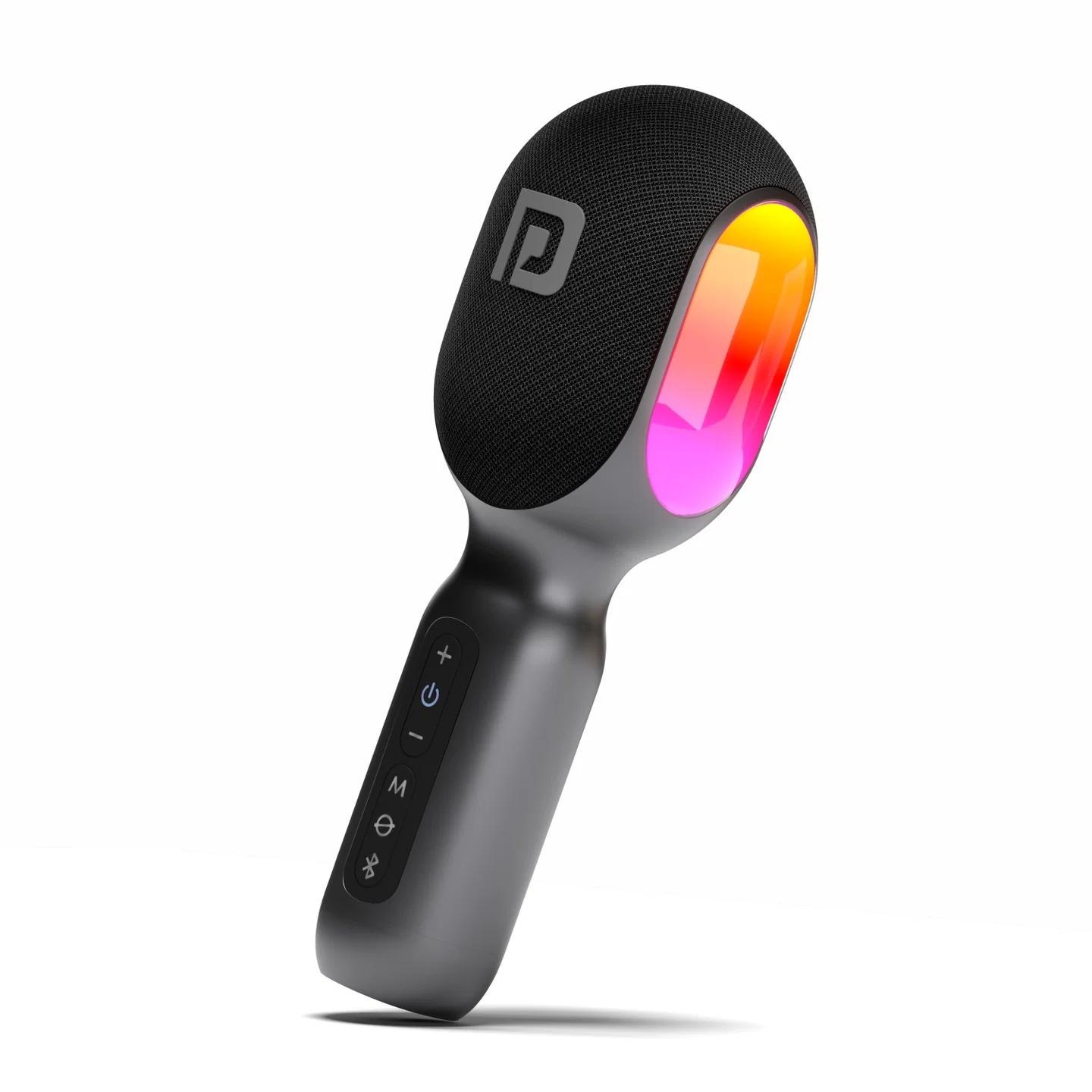
- Karaoke Microphone with Speaker — 1
- Type-C Cable — 1
- User Manual — 1
2. Features
- Bluetooth 5.3: connect with your smartphone and play wireless karaoke and music with a built-in DSP (Digital Signal Processing) effect.
- AUX-in: start singing or recording by connecting 3.5mm headphones and the device.
- FM transmission mode: the FM car system/speaker can scan this microphone's transmit FM frequency (FM87.9, FM88.5, FM89.7).
- Headphone mode: audio and singing play through headphones instead of the microphone.
- TWS (True Wireless Stereo) Function: Dash 2 can pair with another Dash 2 over Bluetooth for enhanced sound output — perfect for singing duets.
- Voice Cancelling Feature: eliminates vocals in songs, turning songs into backing tracks.
- Multiple Lighting modes: 4 modes — flow, breathing, nightlight, and rhythm.
- Multiple Sound modes: 4 modes — speech, original sound, karaoke, and professional.
3. Product Specifications
| Specification | Details |
|---|---|
| Bluetooth Version | 5.3 |
| Bluetooth Profiles | A2DP, AVRCP |
| Bluetooth Frequency | 2.4GHz |
| Bluetooth Chipset | MV Silicon BP1048B2 |
| Bluetooth Distance | Single mode: 10m · TWS mode: 5m |
| AUX In | 3.5mm |
| Battery Capacity | 3.7V, 2500mAh, 9.25Wh |
| Battery Type | Lithium 18650 |
| Input Rating | DC 5V, 1A |
| Microphone Polar Pickup | Condenser |
| Microphone Sensitivity | –40dB |
| Microphone Frequency Range | 100Hz–20kHz |
| Microphone Impedance | 2.2kΩ |
| Microphone Working Modes | Speech, original sound, karaoke, professional |
| Speaker Driver | 52mm full-range driver x1 |
| Speaker Output Power | RMS 7.5W, MAX 10W |
| Speaker Frequency Range | 130Hz–20kHz |
| Speaker Impedance | 3Ω |
| LED Light Modes | Flow, breathing, nightlight, rhythm |
| Charging Time | 3.5 hours @ 5V/1A |
| Playtime | 3 hours @ 100% volume · 10 hours @ 50% volume |
| Charging Cable Length | 1m |
| Dimensions | 75 x 72 x 204mm |
| Net Weight | 335g |
| Charging Jack | USB-C |
| Warranty | 12 months |
4. Slots and Keys Explained
| # | Control | Function |
|---|---|---|
| 1 | "+" | Long press (2s): next track · Short press: volume up (microphone/speaker) |
| 2 | Power | Long press (2s): power on/off · Short press: switch between music volume and microphone volume |
| 3 | "–" | Long press (2s): previous track · Short press: volume down (microphone/speaker) |
| 4 | M | Long press (2s): turn on FM transmitter and switch FM frequency (87.9/88.5/89.7MHz) · Short press: switch microphone working mode |
| 5 | Voice Cancel | Long press (2s): suppress vocals in music · Long press (2s) again: restore vocals |
| 6 | Bluetooth | Long press (3s): enter TWS mode and search for another Dash 2 · Short press twice: disconnect the paired Bluetooth device |
| 7 | Light | Long press (2s): turn LED lighting on/off · Short press: switch LED light modes (flow, breathing, nightlight, rhythm) |
| 8 | AUX-in Port | Connect a 3.5mm AUX cable |
| 9 | Headphone Port | Connect 3.5mm headphones |
| 10 | Type-C Charging Port | Charges the device |
5. How to Operate
5.1 Power On/Off
- Long-press the Power button for 2 seconds to power the microphone on or off.
- There are 4 sound effects: Karaoke, Professional, Speech, and Original Sound.
- Short-press the M button to switch between sound effects.
5.2 Bluetooth
- Turn on Bluetooth on your Android/iOS smartphone, search for "Dash 2," and connect. A voice prompt confirms "Bluetooth connected," followed by a light indication.
- Turn on your phone's music player — the speaker plays the selected music.
- The speaker automatically pairs with the most recently used Bluetooth device. Short-press the Bluetooth icon twice to disconnect the current connection and pair with a different device.
- Open your karaoke/music app and start singing. Short-press the Power button to select music volume or microphone volume, then use "+"/"–" to adjust.
- If there's no signal input for 20 minutes, the microphone shuts down automatically.
5.3 TWS (True Wireless Stereo) Function
Works only in Bluetooth mode, for Duet mode.
- Power on the first Dash 2, search for "Dash 2" on your device, and connect.
- Power on the second Dash 2. Long-press the Bluetooth icon on both microphones simultaneously for 3 seconds — both will prompt "searching for connection," then "TWS channel" once found.
- Once paired, both microphones' power button lights stop twinkling. The microphone connected to your device is the master.
- Two previously TWS-paired Dash 2 units will automatically re-pair the next time both are powered on.
- To disconnect TWS, long-press the Bluetooth icon for 3 seconds on either microphone.
- In TWS mode, if one microphone is powered off, the other powers off too.
Important: TWS pairing is only guaranteed to work reliably between two Dash 2 units from the same production batch. Pairing speakers from different batches may fail or behave inconsistently — check the batch/date code on each unit if TWS pairing doesn't work between two otherwise-identical microphones.
5.4 AUX-in Mode
- Insert the AUX cable to connect the microphone to your device, and insert 3.5mm headphones into the microphone's headphone port.
- Power on the microphone.
- Open your karaoke/music app and start singing or recording.
Note: AUX mode is for voice recording and supports original sound effects only. The audio won't play through the microphone in this mode — you must insert headphones. Unplugging the AUX cable automatically switches the microphone back to Bluetooth mode.
5.5 Headphone Mode
- Power on the microphone and connect it to your device via Bluetooth.
- Insert 3.5mm headphones into the headphone port.
- Open your karaoke/music app and start singing or recording.
In this mode, audio and your singing play through the headphones instead of the microphone — ideal for private singing.
5.6 FM Transmitter
- Power on the microphone.
- Long-press the M button for 2 seconds to turn on the FM transmitter — the microphone broadcasts on the current frequency.
- Long-press the M button repeatedly (2s each time) to switch frequency, or adjust the frequency on your car/device to match the microphone's.
There are 3 FM frequencies available: 87.9MHz, 88.5MHz, 89.7MHz. Make sure your receiving device (car FM or other radio) is set to the same frequency — only one match is allowed at a time.
6. Charging
- The microphone prompts "battery low" every 5 minutes once the battery drops under 10%, with red flashing lights — charge immediately via an adaptor/charger.
- Charging is indicated by a red light; once fully charged, the red indicator turns off.
Notes:
- Use a good-quality adaptor rated 5V/1A.
- Charge immediately when the battery is low.
- Do not charge in sub-zero temperatures — this may damage the battery.
- Don't use the microphone while charging, as output power is lower than normal in this state.
- Below 30% battery, output power is automatically reduced to protect the battery and avoid voice distortion.
7. Important Safety Instructions
- Do not use the speaker in extremely cold or hot environments.
- Avoid dropping the speaker or hitting it with a hard object — this may damage the hardware.
- Be cautious when charging — excessive or prolonged charging will damage battery lifetime.
- Charge the speaker to full capacity when using it for the first time.
- When the battery is low, the lighting flashes red and a voice prompt says "battery low" — charge it promptly.
- If unused for a long time, charge it at least once a month to prevent the lithium battery from being damaged.
- Adjust the volume to an appropriate level to avoid disturbing others.
8. Support
If the issue persists after performing all troubleshooting steps, please raise a support request.
Our support team will assist you further.
Support
- Visit: www.portronics.com
- Support Portal: support.portronics.com
Was this article helpful?
That’s Great!
Thank you for your feedback
Sorry! We couldn't be helpful
Thank you for your feedback
Feedback sent
We appreciate your effort and will try to fix the article