Welcome to your Beem 460, and thanks for choosing Portronics! This guide walks you through unboxing, setup, daily use, and maintenance — everything you need in one place.
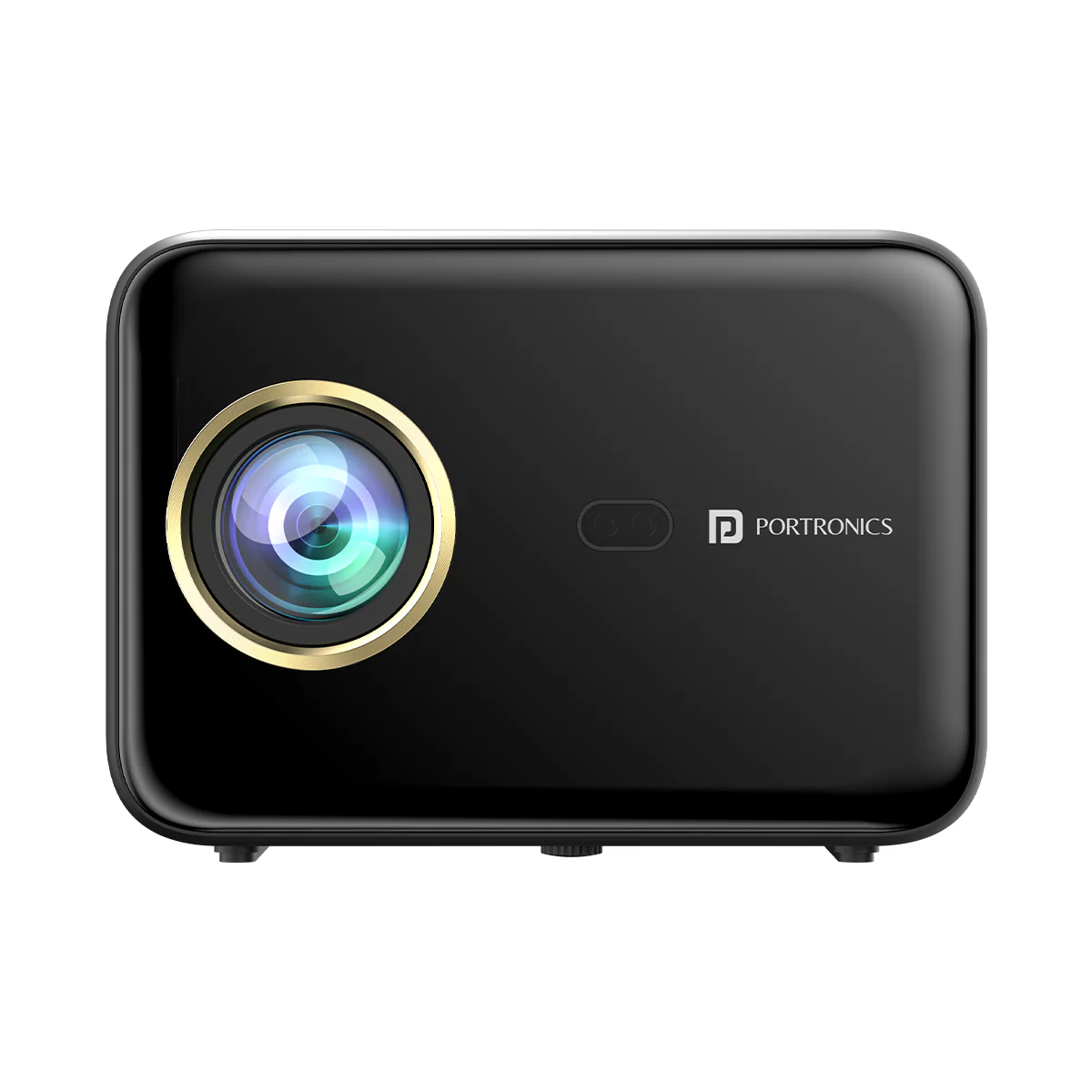
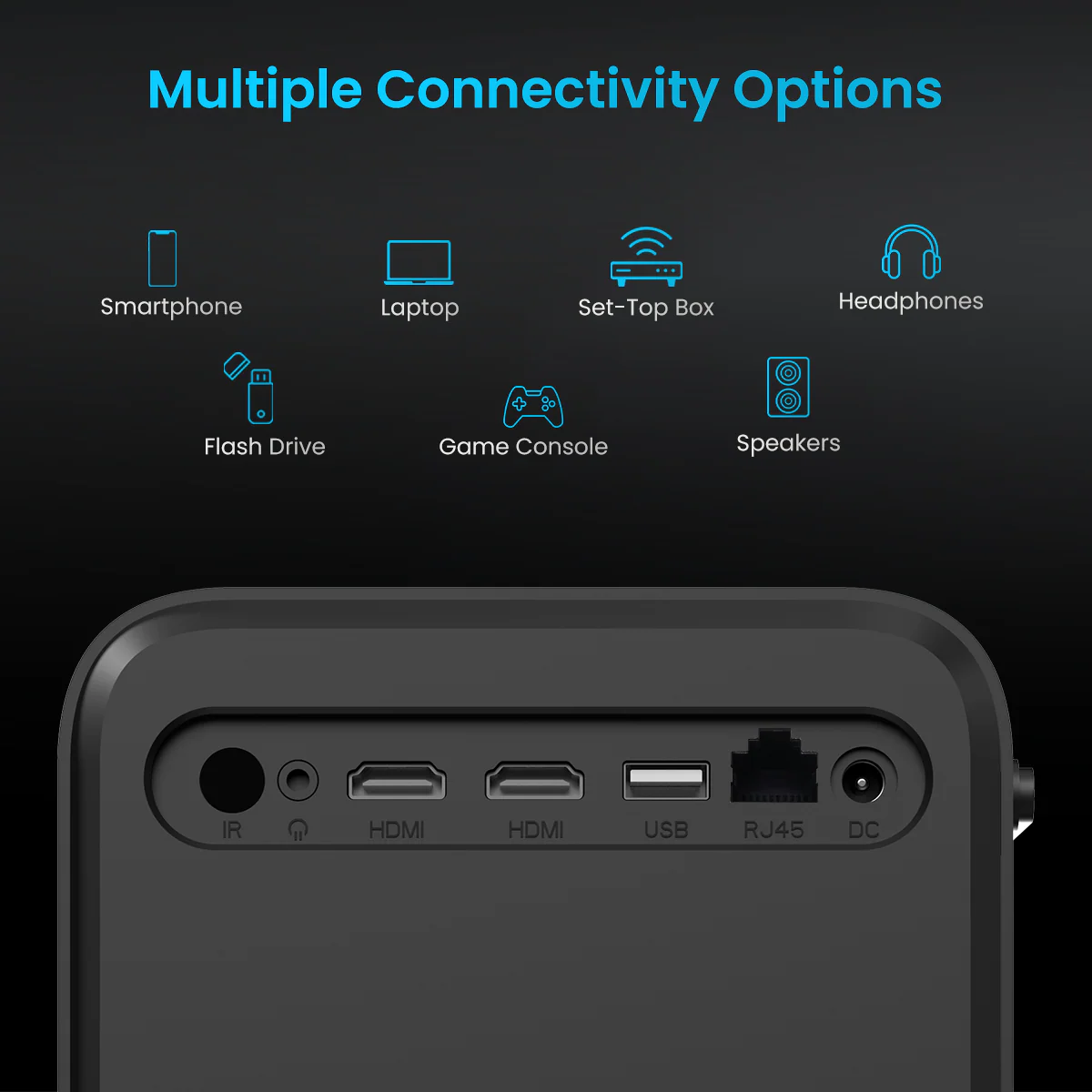
TABLE OF CONTENTS
- 1. Key Specifications
- 2. Package Contents
- 3. Interface Definition
- 4. Remote Control
- 5. Installation
- 6. Powering Up the Projector
- 7. Home Screen Overview
- 8. Project Settings & Screen
- 9. Connecting to HDMI & USB Devices
- 10. Connecting to Wi-Fi
- 11. Screen Mirroring & Apps
- 12. Settings Overview
- 13. Technology Features
- 14. Safety & Attention Notes
- 15. Warranty & Support
1. Key Specifications
| Spec | Detail |
|---|---|
| Model | Beem 460 |
| Product type | Smart LED Projector |
| Operating system | Android 9.0 |
| Resolution | 1080p Full HD (1920×1080) |
| Brightness | 4000 Lumens |
| Screen size | 40" to 200" |
| LED lamp life | 30,000 hours |
| Built-in speaker | 10 Watt (twin stereo) |
| Connectivity | Wi-Fi, Bluetooth |
| Ports | 2 × HDMI, USB, AUX/Audio |
| Focus & keystone | Auto Focus + Auto Keystone Correction |
| Screen mirroring | Wireless mirroring from Android & iOS |
| Pre-installed apps | Netflix, Prime Video, Hotstar, YouTube, and more |
| Weight | ~1.5 kg |
| Warranty | 12 months |
2. Package Contents
- Projector × 1
- Remote Control × 1
- Power Adapter × 1
- USB Cable × 1
- HDMI Cable × 1
- User Manual × 1
3. Interface Definition
Front
- Power On/Off
- Focus Wheel
- Lens
- Camera/IR Receiver
Back
- IR receiver
- Audio port
- HDMI ports (×2)
- Power port
- USB port
4. Remote Control
| Button | Function |
|---|---|
| Power | Turn the projector ON/OFF |
| Up / Down / Left / Right | Navigate on-screen menus |
| OK | Confirm/select action |
| Back | Return to the previous menu |
| Mouse Mode | Toggle mouse-pointer navigation |
| Volume + / – | Increase or decrease speaker volume |
| Menu | Open the settings/apps menu |
| Home | Go to the homepage |
| Mute | Mute or unmute the speaker |
| Focus – / + | Adjust lens focus manually |
5. Installation
Before setting up the projector, consider your screen size and position, along with a nearby electrical outlet.
Front-Desktop Position (recommended and most common)
- Place the projector directly in front of the screen for quick setup and portability.
- Keep the projector level and centered relative to the screen for the sharpest, most rectangular image.
6. Powering Up the Projector
- Plug the power cable into the projector and into a power outlet.
- Press the Power button on the projector or remote to turn it on.
- The projector will power up and display the home screen once startup completes.
7. Home Screen Overview
The home screen gives you quick access to your installed apps, settings, and input sources — including built-in streaming apps like YouTube, Netflix, Prime Video, and Hotstar.
8. Project Settings & Screen
- Auto Keystone Correction automatically squares off the image if the projector isn't perfectly aligned with the screen.
- Auto Focus automatically sharpens the picture without manual adjustment; you can also fine-tune focus manually using the Focus wheel or the remote's Focus –/+ buttons.
- Adjustable screen size ranges from 40" to 200" depending on projection distance.
9. Connecting to HDMI & USB Devices
- The Beem 460 includes 2 HDMI ports, so you can connect two HDMI source devices (e.g., laptop, gaming console, set-top box) at the same time and switch between them from the input/signal menu.
- The USB port lets you play media directly from a USB flash drive.
- An AUX/audio port is available for connecting wired speakers or headphones.
10. Connecting to Wi-Fi
To access apps that require the internet:
- Go to Settings > Wi-Fi
- Turn on the Wi-Fi switch
- Select your network from the list and enter the password to connect
11. Screen Mirroring & Apps
- Wirelessly mirror your screen from Android or iOS smartphones directly to the projector.
- Popular streaming apps (YouTube, Netflix, Spotify, Prime Video, and more) come pre-installed and are accessible from the app tray on the homepage.
12. Settings Overview
The Settings menu lets you configure:
- Network (Wi-Fi)
- Bluetooth
- Projection/display settings
- Language & input
- Date & time
- Applications
- System updates
- Other/general settings
13. Technology Features
- 1080p Full HD native resolution
- 4000 Lumens brightness for bright, sharp visuals even in moderately lit rooms
- 30,000-hour LED lamp life
- Auto Focus and Auto Keystone Correction for hassle-free setup
- Dual 10W stereo speakers for immersive built-in sound
- Wi-Fi and Bluetooth connectivity
- Dual HDMI, USB, and AUX ports for versatile device connections
- Wireless screen mirroring support for Android and iOS
14. Safety & Attention Notes
- Cut off the power switch if the projector will be idle for a long time.
- If you notice any abnormal smoke, noise, or smell, turn the projector off immediately and stop using it.
- Do not disassemble the projector on your own.
- Keep the projector out of reach of children unless supervised by an adult.
- Do not look directly into the lens while the projector is on, to avoid eye strain or discomfort.
- Ensure ventilation openings are not blocked during use.
15. Warranty & Support
Warranty: 12 months, covering product design, feature, and functionality-related faults. Damage due to physical impact, liquid exposure, fire, or misuse is not covered.
Need Help?
- Visit: support.portronics.com
- Demo Video- Click here
Was this article helpful?
That’s Great!
Thank you for your feedback
Sorry! We couldn't be helpful
Thank you for your feedback
Feedback sent
We appreciate your effort and will try to fix the article