TABLE OF CONTENTS
- 1. Overview
- 2. Full Specifications
- 3. In the Box
- 4. Body Overview & Ports
- 5. Remote Control Layout
- 6. Getting Started
- 7. Settings Menu Guide
- 8. Screen Mirroring — Whale OS Cast
- 9. Bluetooth Speaker Mode
- 10. Signal Source (HDMI)
- 11. File Management (USB Playback)
- 12. Cleaning Method
- 13. Advisory for Safe Projector Use
- 14. General Safety Instructions
- 15. Warranty & Support
1. Overview
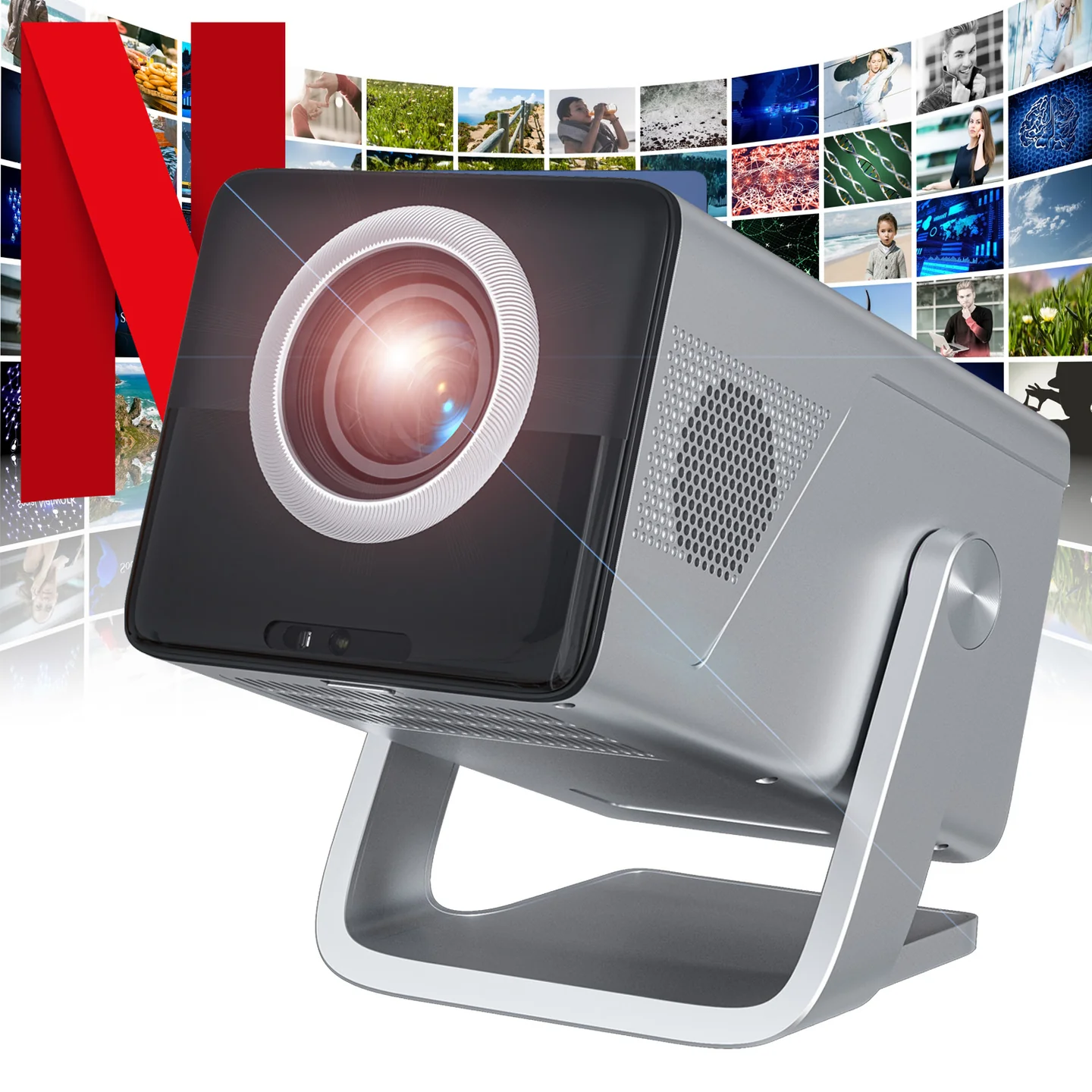
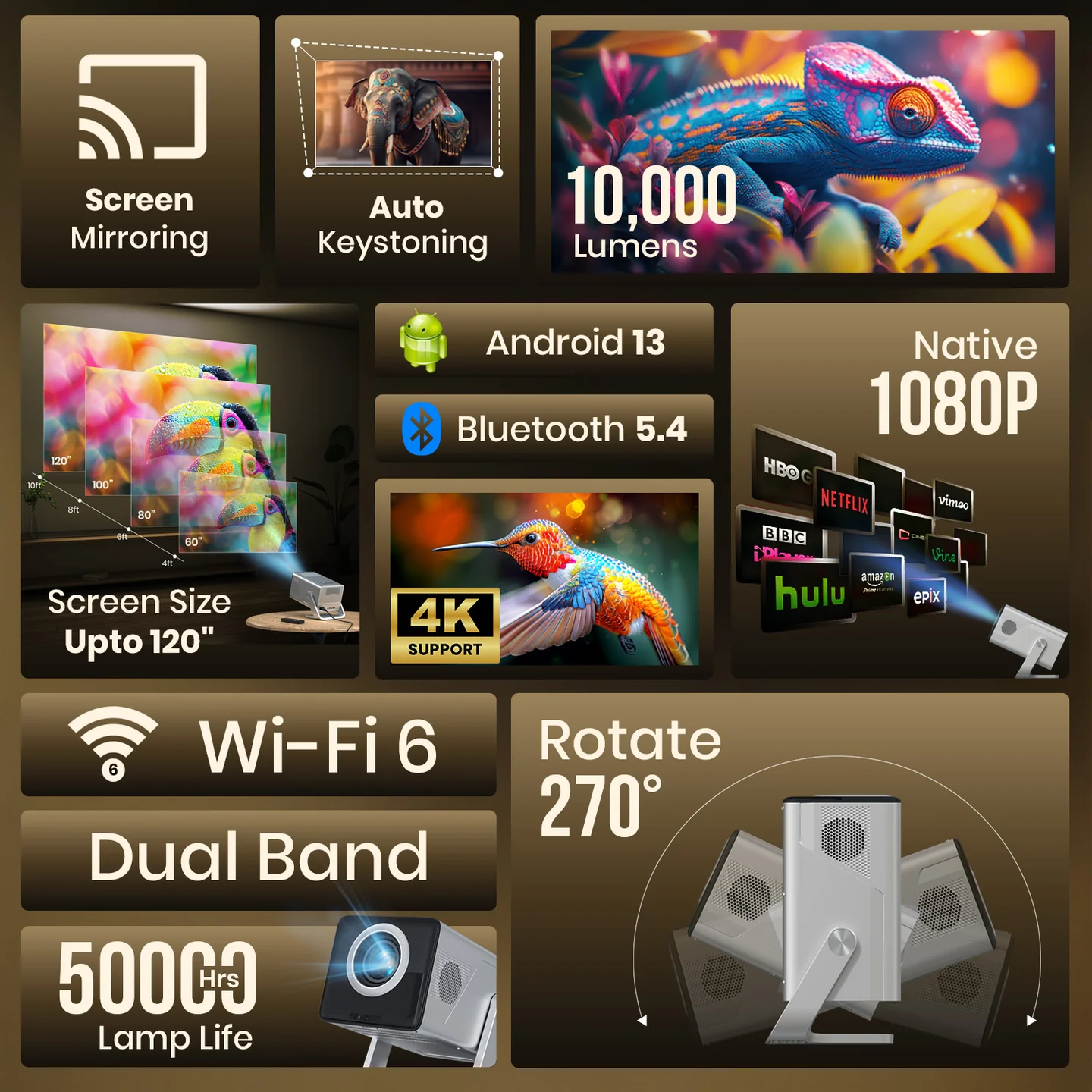
The Beem 570 is a Netflix-certified smart LED projector with native 1080P Full HD resolution, running on a Whale OS / Android 13-based interface. It comes with pre-installed streaming apps (Netflix, YouTube, Prime Video, JioHotstar) and an adjustable-angle design for flexible placement.
2. Full Specifications
| Category | Details |
|---|---|
| Native Resolution | 1080P Full HD |
| Max Screen Size | Up to 100" |
| Brightness | 10,000 Lumens |
| OS / Platform | Whale OS, Android 13-based interface |
| Pre-installed Apps | Netflix (certified), YouTube, Prime Video, JioHotstar |
| Connectivity | HDMI input, USB input, 3.5mm stereo jack, Wi-Fi (dual-band), Bluetooth 5.4 |
| Sound | 5W built-in speaker |
| Design | Adjustable-angle body with fold-out stand, 270° rotate |
| Focus/Keystone | Autofocus, auto keystone correction, auto align, obstacle recognition |
| Lamp Life | ~5,000 hours |
| Built-in Camera | Yes (front-facing, used for auto-align/obstacle avoidance) |
| Warranty | 1 year manufacturer warranty from date of purchase |
3. In the Box
- Projector × 1
- Remote Control × 1 (batteries not included)
- Power Cable × 1
- HDMI Cable × 1
- Projector User Manual × 1
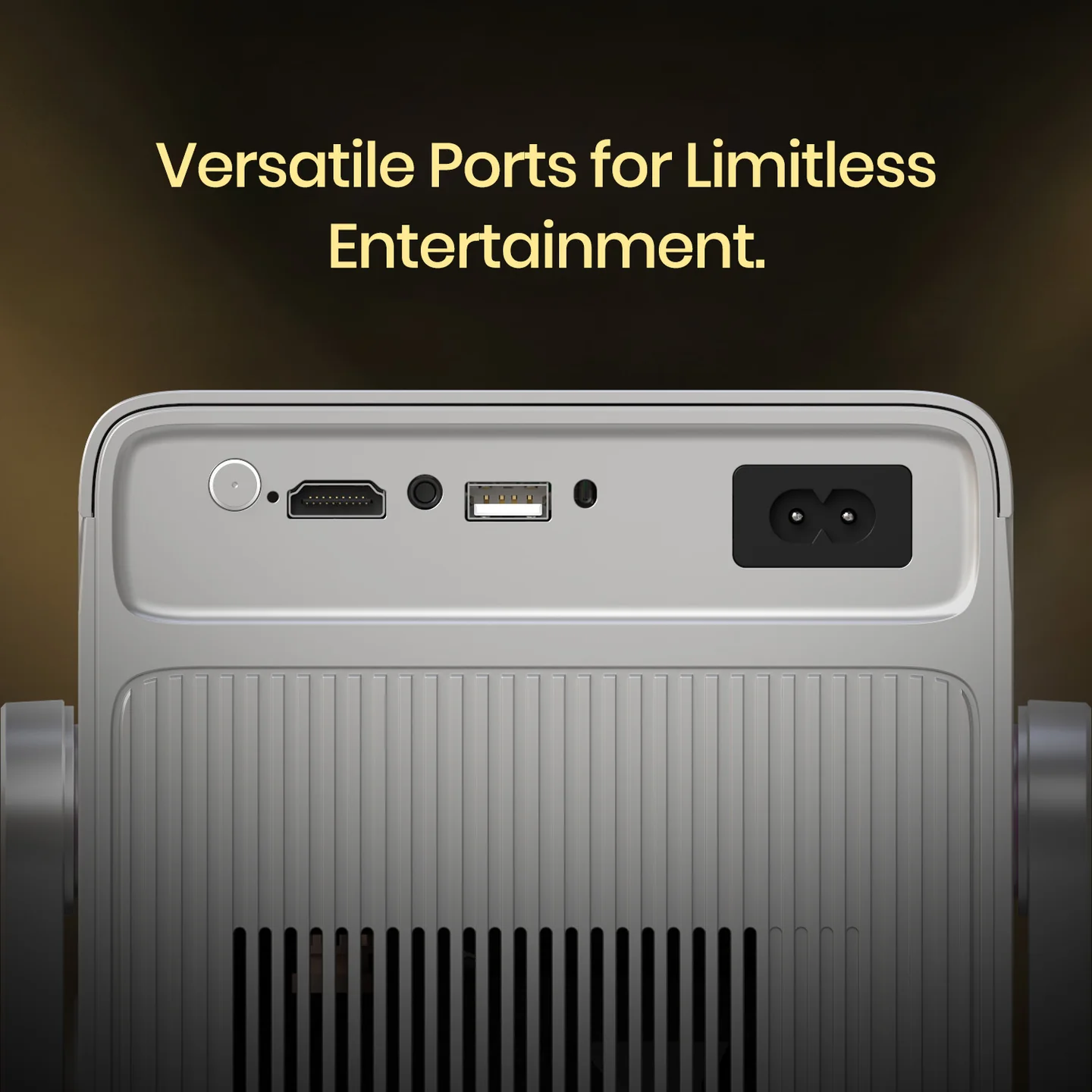
4. Body Overview & Ports
Front: Camera (used for auto-focus/auto-align/obstacle avoidance)
Rear panel:
- 3.5mm Stereo Jack
- USB Input
- HDMI Input
- IR Receiver
- On/Off switch
- Power Socket
Side: Cleaning Entrance (for accessing the dust filter/lens area)
5. Remote Control Layout
| Button | Function |
|---|---|
| Power | Turn projector on/off |
| AI Voice | Activate voice assistant |
| Bluetooth Speaker | Switch projector into Bluetooth speaker mode |
| D-Pad + OK | Navigate menus / select |
| Back | Return to previous screen |
| Home | Go to home screen |
| Input | Switch signal source (HDMI, etc.) |
| Setting | Open settings menu |
| Menu | Open menu |
| Screen Cast | Launch screen mirroring |
| VOL +/- | Volume control |
| Focus +/- | Manually fine-tune focus |
| Netflix / YouTube / Prime Video / JioHotstar | Direct shortcut keys to each app |
Bluetooth remote pairing: Keep the remote close to the projector, then press and hold the Left and Right buttons together for three seconds to pair.
6. Getting Started
- Plug the power cable into the projector.
- Press the power button to turn it on.
- The projector uses autofocus — it will focus automatically. You can fine-tune sharpness using the Focus +/- buttons on the remote if needed.
Tip: Make sure the projector is positioned horizontally/level with the projection screen for the best image and to help auto-keystone and auto-align work correctly.
7. Settings Menu Guide
Network Setting
Settings → Network → Wi-Fi → Connect to Network → choose your network and enter the password.
Bluetooth Setting
Settings → Network → Bluetooth → Search for Bluetooth device → select the device you want to connect to.
Picture Setting
Settings → Picture → adjust personalized picture settings, change picture mode, set eye protection mode.
Lens Setting
Settings → Lens → set projection direction, autofocus behavior, keystone correction (auto keystone correction, obstacle recognition, screen recognition), and digital zoom.
Device Preference
Settings → Device Preference → change language, set date & time, choose keyboard, change device mode, set screen saver/sleep timer, check device info, factory reset, restart projector, Whale OS Cast, energy saver, menu timer.
App Setting
Settings → App Setting → check recently opened apps, view all apps, manage app permissions.
Voice Service
Settings → Voice Service → set language and timbre for the voice assistant.
Software Update
Settings → Software Update → check for and install updates, view current software version.
8. Screen Mirroring — Whale OS Cast
- Connect your phone and the projector to the same Wi-Fi network.
- On the projector: Settings → Device Preference → Whale OS Cast → TV Casting.
- Download the matching TV Casting app on your phone as prompted.
- After installation, search for and select the projector on your phone to start mirroring.
Other options in this menu include File Share and MediaCast.
9. Bluetooth Speaker Mode
- Press the Bluetooth Speaker button on the remote to enter speaker mode.
- On your phone, search for the projector's Bluetooth name and pair.
- To turn off the display while keeping audio playing, select "Turning off the screen"; press Back to exit this state.
10. Signal Source (HDMI)
Press the Input button on the remote (or the signal source icon on the home screen) and choose the HDMI input to view content from an HDMI-connected device.
11. File Management (USB Playback)
- Insert a USB drive into the USB port.
- Open the Files icon on the home screen.
- Browse and open video, music, or picture files stored on the drive.
12. Cleaning Method
- Pry off the side cover at the cleaning entrance.
- Clean the projector internals gently using a cotton swab.
- Reinstall the side cover securely after cleaning.
13. Advisory for Safe Projector Use
Maintain Minimum Distance
- Keep the projector at least 30 cm away from any wall.
- This spacing ensures proper airflow and prevents overheating.
Why this matters
- Ensures efficient cooling and avoids heat buildup.
- Reduces risk of damage to internal components.
- Maintains stable brightness and image quality.
- Extends the projector's lifespan.
Additional Safety Tips
- Do not block ventilation grills.
- Avoid placing the projector inside closed cabinets without ventilation.
- Keep the projector on a stable, flat surface.
- Ensure the surrounding area is clean and dust-free.
14. General Safety Instructions
- Read all instructions before use. Do not modify settings outside what's described in the manual — doing so may void the warranty.
- To reduce risk of fire or electric shock, do not expose the device to rain or moisture. Do not place liquid-filled objects (vases, etc.) on the unit.
- Do not place the projector on soft surfaces like tablecloths or carpets — this can be a fire hazard.
- Avoid areas with excessive dust/dirt or strong magnetic fields.
- Do not block or clog ventilation holes — this prevents overheating.
- Never place the projector in a confined space; always leave clearance for ventilation.
- Protect from direct sunlight, large temperature fluctuations, and moisture; avoid extreme temperatures.
- If the unit has been running a long time, the surface may become hot — shut down and unplug, then let it cool before resuming use.
- Handle with care; avoid touching the lens. Don't allow children to operate it without supervision.
- Use only manufacturer-specified attachments/accessories.
- Avoid extreme vibration, which may damage internal components.
15. Warranty & Support
Warranty: 12 months, covering product design, feature, and functionality-related faults. Damage due to physical impact, liquid exposure, fire, or misuse is not covered.
Need Help?
- Visit: support.portronics.com
- Demo Video- Click here
Was this article helpful?
That’s Great!
Thank you for your feedback
Sorry! We couldn't be helpful
Thank you for your feedback
Feedback sent
We appreciate your effort and will try to fix the article