TABLE OF CONTENTS
- 1. Introduction
- 2. Important Safety Instructions
- 3. What's Inside
- 4. Button Functions
- 5. Bluetooth Pairing
- 6. Call Functionality (Bluetooth Mode Only)
- 7. AUX Mode
- 8. TWS (True Wireless Stereo) Mode
- 9. Charging Instructions
- 10. Specifications
- 11. Additional Notes
- 12. Support
1. Introduction
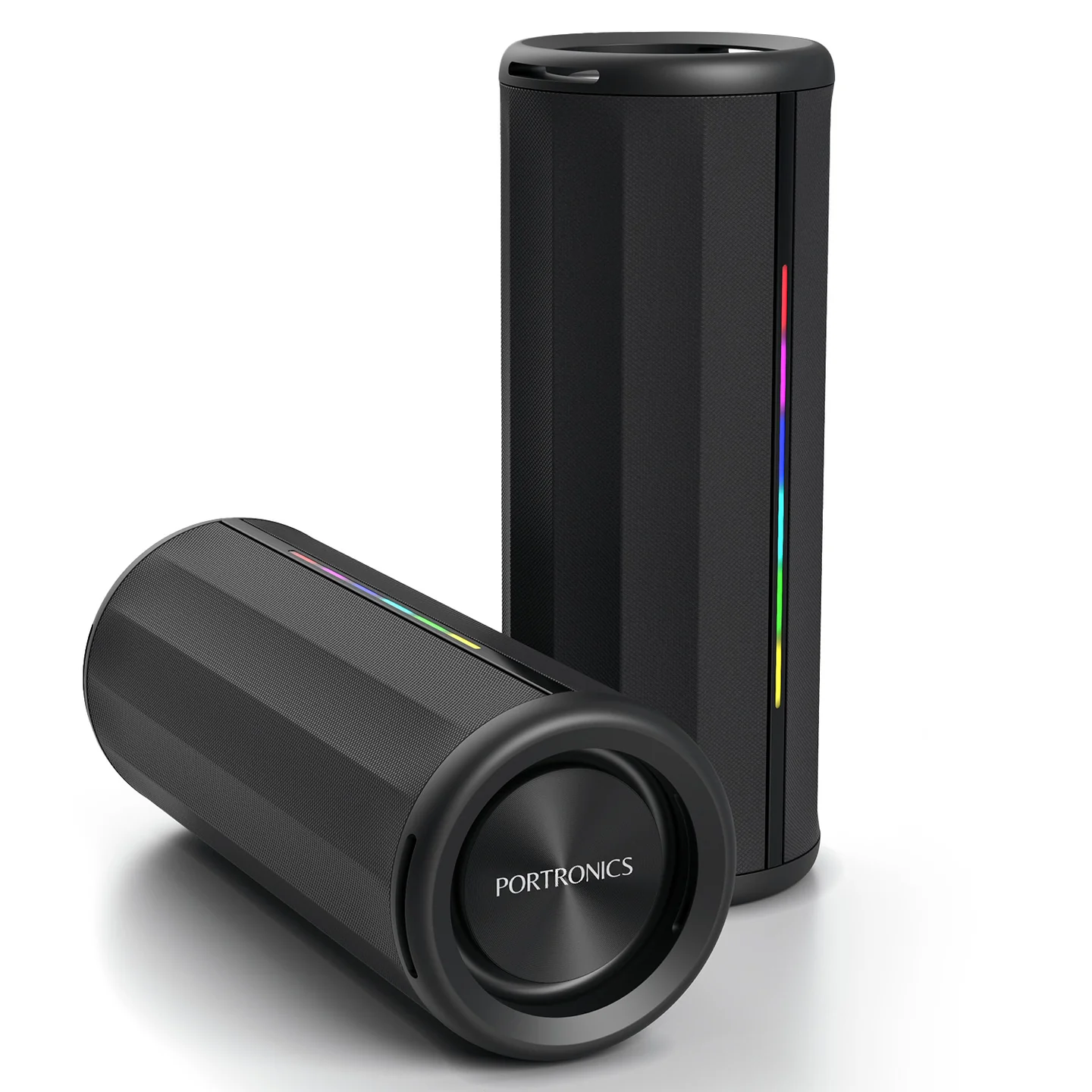
Before using your product, read all accompanying safety information. NOVA is a 40W portable Bluetooth speaker with dual passive radiators, RGB LED strip lights, hands-free calling with a built-in mic, TWS (True Wireless Stereo) support, and Type-C fast charging.
2. Important Safety Instructions
- Keep the speaker away from any source of heat.
- Take care when charging — excessive, prolonged charging can damage battery lifetime.
- Charge the speaker to full capacity before using it for the first time.
- If unused for a long time, charge at least once a month to prevent the lithium battery from degrading due to excessive consumption.
- Adjust the volume to an appropriate level to avoid disturbing others.
3. What's Inside
- NOVA Speaker — 1
- Type-C Charge Cable — 1
- User Manual — 1
4. Button Functions
| Control | Action | Function |
|---|---|---|
| Volume | Short press "+" or "–" | Increase or decrease volume |
| Track Navigation | Long press "+" or "–" | Skip to next or previous track |
| Play/Pause | Short press | Play or pause music |
| Disconnect Bluetooth | Long press Play/Pause | Disconnects the current Bluetooth connection |
| Switch Modes | Short press Power | Cycles between play modes |
5. Bluetooth Pairing
- Short-press the Power button to enter Bluetooth mode.
- Enable Bluetooth on your mobile device and select "Portronics NOVA" from the list of available devices.
- Once pairing is successful, you can start playing music.
6. Call Functionality (Bluetooth Mode Only)
- Answer a call: press the Play/Pause button once.
- End a call: press the Play/Pause button during the call.
- Call back: double-press the Play/Pause button.
7. AUX Mode
Connect a 3.5mm audio cable to the speaker — it automatically switches to Line-In play mode.
8. TWS (True Wireless Stereo) Mode
- Power on two NOVA speakers.
- Double-click the Power button on both speakers simultaneously to enter TWS pairing mode.
- The master speaker issues a voice prompt once paired successfully.
- To disconnect TWS: double-click the Power button on either speaker — a voice prompt confirms disconnection.
- TWS pairing automatically reconnects the next time both speakers are powered on.
Important: TWS pairing is only guaranteed to work reliably between two NOVA units from the same production batch. Pairing speakers from different batches may fail or behave inconsistently — check the batch/date code on the underside of each unit if TWS pairing doesn't work between two otherwise-identical speakers.
9. Charging Instructions
- Use the provided Type-C cable to charge the speaker.
- Indicator Light: a flashing white light on the speaker body indicates charging.
- Charging Time: approximately 3 hours.
- Low Battery Warning: the speaker issues a voice prompt and automatically reduces volume when the battery is low — recharge promptly.
10. Specifications
| Specification | Details |
|---|---|
| Model | NOVA |
| Product Code | POR 2981 |
| Colour | Black |
| Output Power | 40W |
| Battery | 7.4V, 2500mAh |
| Bluetooth Version | V5.3 |
| Bluetooth Range | ≥10m (open area) |
| Playtime | Up to 5 hours (varies by volume level) |
| Charging Input | DC 5V, 2A (max) |
| Dimensions | 89 x 89 x 230mm |
| Weight | 930g |
| Play Modes | Bluetooth, AUX IN, USB, TWS |
11. Additional Notes
- The speaker automatically powers off after 15 minutes of inactivity.
- When turning off the speaker, plug in the charging cable to observe the flashing white light indicating charging.
- Avoid excessive or prolonged charging to preserve battery life.
12. Support
If the issue persists after performing all troubleshooting steps, please raise a support request.
Our support team will assist you further.
Support
- Visit: www.portronics.com
- Support Portal: support.portronics.com
Was this article helpful?
That’s Great!
Thank you for your feedback
Sorry! We couldn't be helpful
Thank you for your feedback
Feedback sent
We appreciate your effort and will try to fix the article