TABLE OF CONTENTS
- At a Glance
- Main Controls
- Power
- Bluetooth
- TWS
- AUX / USB
- FM Radio
- Wireless Microphone
- Charging
- Remote
- Quick Checks
- Still stuck?
At a Glance
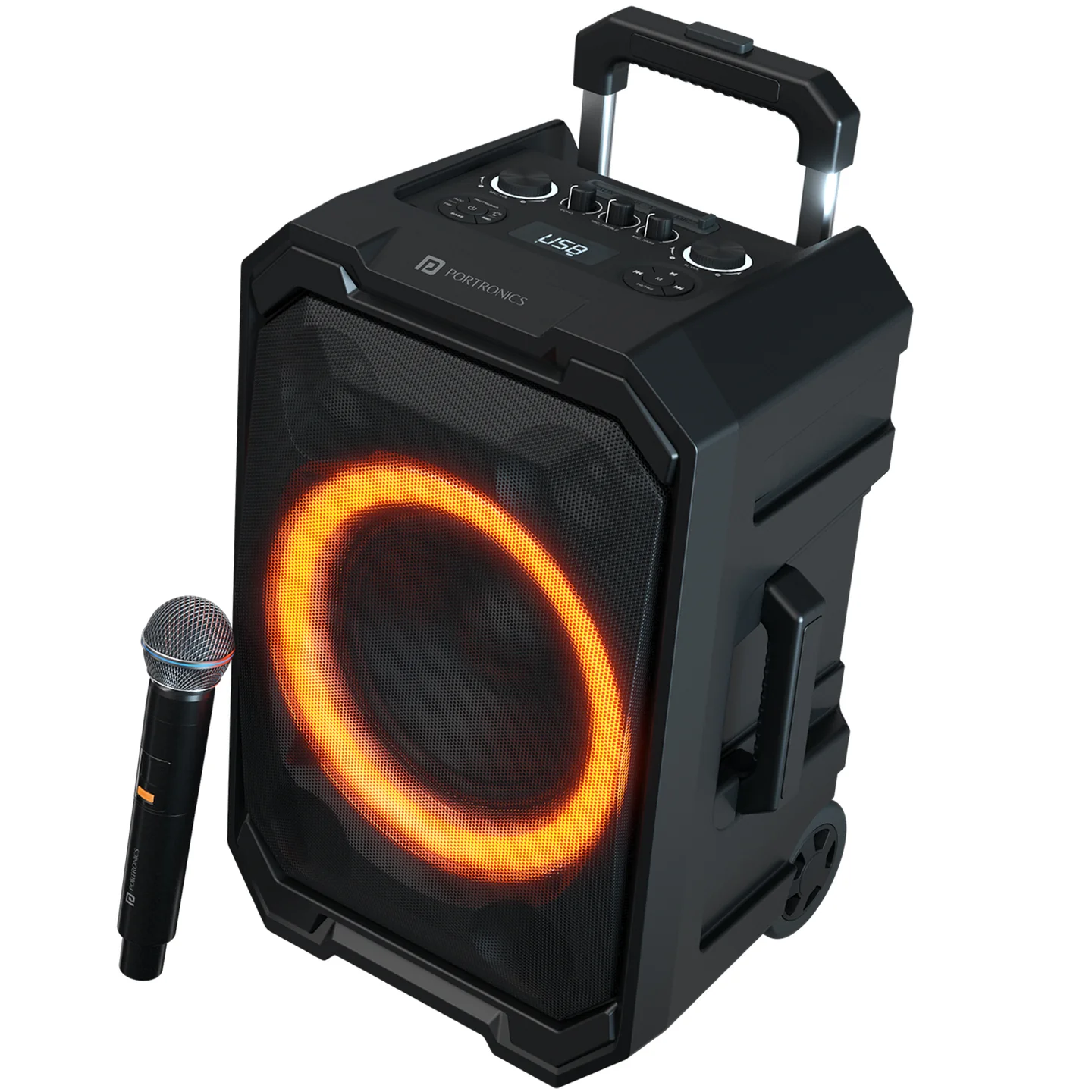
| Item | Details |
|---|---|
| Output | 250W |
| Product Code | POR 2340 |
| Bluetooth | 5.3 |
| Playtime | Up to 6 hours |
| Charging | Type-C |
| Inputs | AUX, USB, MIC |
| TWS | Yes |
| Wireless Mic | Yes |
| Lighting | RGB |
| Portability | Trolley handle + wheels |
Main Controls
| Control | Function |
|---|---|
| Power | ON/OFF |
| MODE | Switch input mode / TWS |
| Play/Pause | Play or pause |
| PREV / NEXT | Track control |
| Volume | Adjust volume |
| Mic controls | Karaoke/mic control |
| Light | RGB lighting |
| Remote | Control speaker functions |
Power
Press and hold the Power button to switch the speaker ON/OFF.
Bluetooth
Switch on the speaker.
Turn on Bluetooth on your phone.
Search for IRON BEATS II.
Connect and play.
TWS
Turn on two identical Iron Beats II speakers.
Put both speakers in Bluetooth mode.
Follow the TWS pairing procedure using the MODE control.
Wait for the pairing confirmation.
Important: TWS pairing is only guaranteed to work reliably between two Iron Beats II units from the same production batch. Pairing speakers from different batches may fail or behave inconsistently. Check the batch/date code on both units if TWS does not work.
AUX / USB
AUX: Connect the audio source and select AUX mode.
USB: Insert a compatible USB drive and select USB mode.
The manual lists USB playback support for MP3.
FM Radio
Use the MODE button to select FM mode and use the speaker controls/remote for station functions.
Wireless Microphone
| Indicator / Action | Function |
|---|---|
| Mic power | Turn mic ON/OFF |
| Mic mute | Mute/unmute |
| Mic charging | Charge using the supplied charging setup |
Charging
Connect the Type-C charging cable to the speaker.
Use a suitable power adapter.
Avoid using the speaker while charging when possible.
Remote
The included remote can be used for common speaker functions such as power, mode, playback, volume and other supported controls.
Quick Checks
No power: Charge the speaker and try again.
Bluetooth not connecting: Disconnect other devices and pair again.
No sound: Check speaker and phone volume.
TWS not pairing: Check that both units are the same model and from the same production batch.
Still stuck?
If the issue persists after performing all troubleshooting steps, please raise a support request.
Our support team will assist you further.
Support
Visit: www.portronics.com
Support Portal: support.portronics.com
Was this article helpful?
That’s Great!
Thank you for your feedback
Sorry! We couldn't be helpful
Thank you for your feedback
Feedback sent
We appreciate your effort and will try to fix the article