TABLE OF CONTENTS
- Quick Reference
- What's in the Box
- First Setup
- Focus & Keystone
- Projection Size
- Wi-Fi & Smart Features
- Bluetooth
- HDMI
- USB
- Audio
- Wireless Screen Mirroring
- Dust Net Cleaning
- Care & Safety
- Still stuck?
Quick Reference
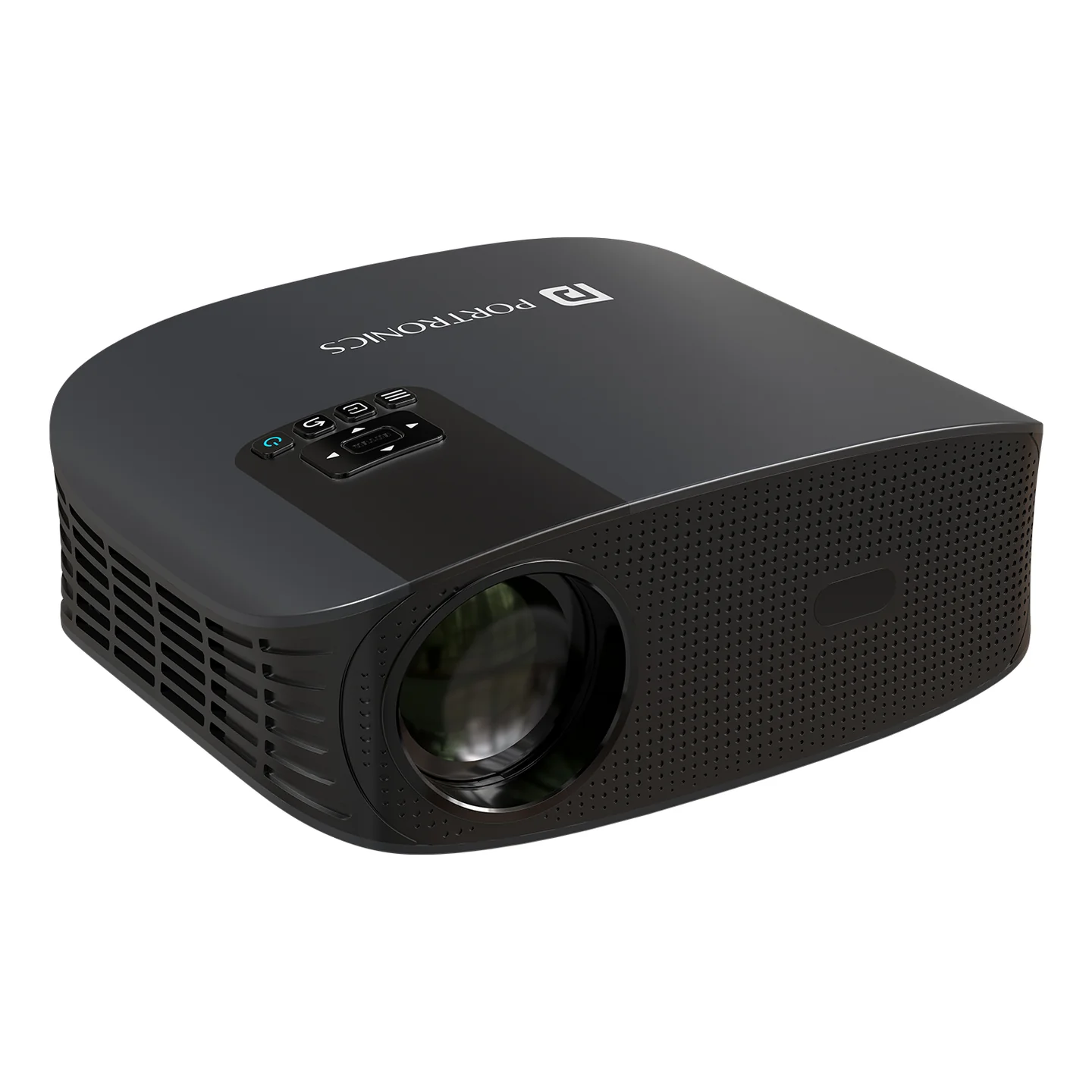
| Feature | Details |
|---|---|
| Product | Beem 490 |
| Product Code | POR 2669 |
| Type | Smart LED Projector |
| Resolution | 1920 × 1080 / Full HD |
| Brightness | 6000 Lumens |
| Screen Size | 39–150 inches |
| Projection Distance | 1.2–4.5 m |
| Focus | Automatic / Electronic focus |
| Keystone | Auto keystone correction |
| Aspect Ratio | 16:9 |
| Light Source | LED |
| Speaker | 5W |
| OS | Android 9.0 based |
| Connectivity | Wi-Fi + Bluetooth |
| Inputs | 2 × USB, 2 × HDMI, AV |
| Audio Output | Earphone / AUX |
| Size | 245 × 192 × 94 mm |
| Weight | Approx. 1.5 kg |
| Power | 100–240V, 50/60Hz |
What's in the Box
Projector
Remote control
Power cable
HDMI cable
AV cable
First Setup
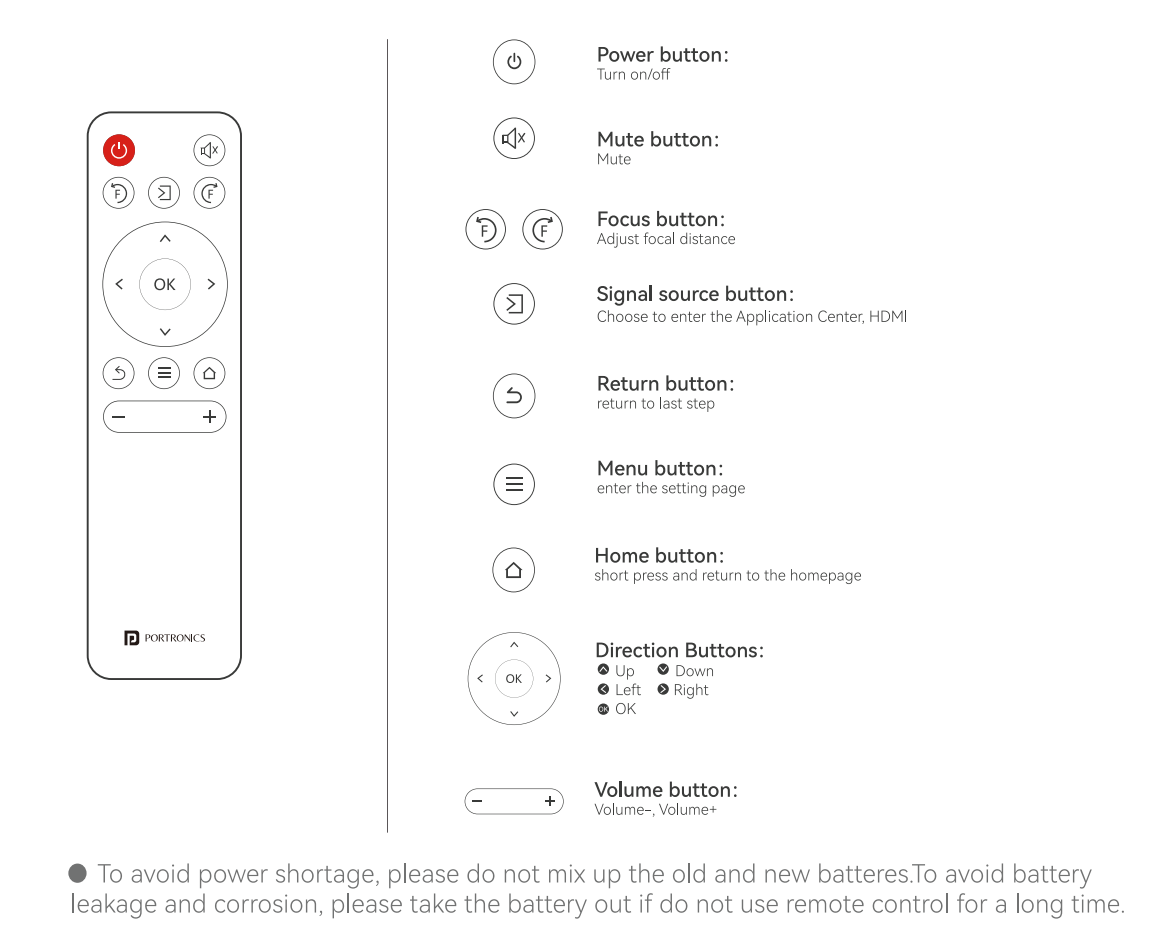
Place the projector on a stable surface.
Connect the supplied power cable.
Turn the projector ON using the top power button or remote.
Allow the projector to complete startup.
Point it toward the projection surface.
Allow Auto Focus and Auto Keystone to adjust the image.
Connect to Wi-Fi for smart features and streaming.
Select the required source such as HDMI or USB.
Focus & Keystone
| Function | How it works |
|---|---|
| Auto Focus | Move/reposition the projector and automatic focus starts |
| Electronic Focus | Use the focus controls on the remote |
| Auto Keystone | Reposition the projector and automatic keystone adjustment starts |
Projection Size
| Distance | Approx. Screen Size |
|---|---|
| 1.35 m | 39" |
| 1.5 m | 47" |
| 2.0 m | 64" |
| 4.5 m | 150" |
For the best result, keep the projector aligned with the screen and use the automatic correction features.
Wi-Fi & Smart Features
The projector includes Wi-Fi and an Android-based smart interface. The current product page lists streaming support for Netflix, Hotstar, Prime Video and YouTube.
Basic Wi-Fi Setup
Open Settings.
Select Wi-Fi Setting.
Choose your Wi-Fi network.
Enter the password.
Wait for the connected status.
The manual's Settings screen includes Wi-Fi, Bluetooth, Projection Image, Language, Date, Application, System Update, Other Settings and About.
Bluetooth
Open Settings → Bluetooth Setting, then search for the required Bluetooth device and connect.
HDMI
Connect a compatible source to either HDMI port, then select HDMI 1 or HDMI 2 from the home screen/source menu.
USB
Connect a USB drive to one of the USB ports. The manual shows USB support through the FileManager for Video, Image, Audio and Office files.
Audio
Use the built-in 5W speaker or connect compatible external audio through the audio/earphone output.
Wireless Screen Mirroring
The current product listing supports wireless screen mirroring from compatible phones, tablets and laptops.
Dust Net Cleaning
Switch OFF and disconnect power.
Remove the dust net from the projector bottom.
Clean the dust net.
Reinstall it by aligning the bottom bayonet correctly.
Regular cleaning helps maintain airflow and performance.
Care & Safety
Do not block the projector's ventilation openings.
Keep at least 30 cm / about 1 ft clearance around the projector.
Do not look directly into the projection lens while it is operating.
Keep the projector away from rain, moisture and liquids.
Use the supplied/approved power supply.
Do not open or repair the projector yourself.
For long viewing sessions, the manual recommends taking a break after about 3–4 hours of use.
Still stuck?
If the issue persists after performing all troubleshooting steps, please raise a support request.
Our support team will assist you further.
Support
Visit: www.portronics.com
Support Portal: support.portronics.com
Was this article helpful?
That’s Great!
Thank you for your feedback
Sorry! We couldn't be helpful
Thank you for your feedback
Feedback sent
We appreciate your effort and will try to fix the article