TABLE OF CONTENTS
- Product Overview
- Quick Reference
- System Setup
- Power and Standby
- Switching Input Modes
- Bluetooth Pairing
- Optical Connection
- HDMI Connection
- USB Playback
- AUX Connection
- Soundbar Button Functions
- Remote Control
- EQ Modes and Sound Adjustment
- Mute and Volume
- Troubleshooting
- Care & Safety
- Still stuck?
Product Overview
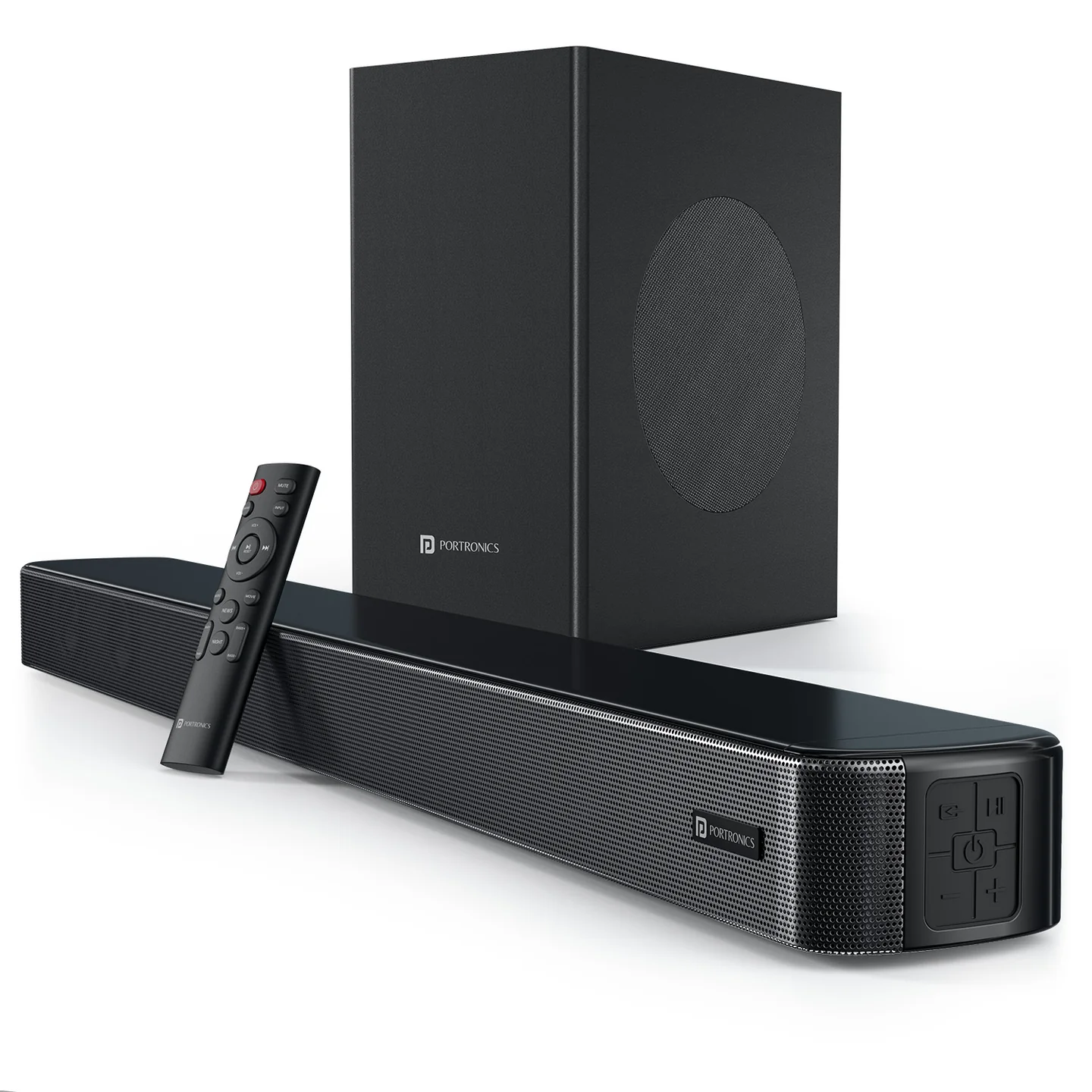
The Portronics Spatial Arc is a 200W 2.1-channel soundbar system with a wired subwoofer. It supports Bluetooth, Optical, HDMI, USB and AUX inputs, multiple EQ presets, adjustable bass and treble, and a remote control.
Quick Reference
| Feature | Details |
|---|---|
| Product | Portronics Spatial Arc |
| Product Code | POR 3316 |
| Output Power | 200W |
| Channel Configuration | 2.1 channel |
| Soundbar Speakers | 4 × 2-inch speakers |
| Subwoofer | 1 × 6.5-inch wired subwoofer |
| Bluetooth | 5.3 |
| Frequency Response | 35Hz–20kHz |
| Signal-to-Noise Ratio | 75 |
| Bluetooth Range | Up to 10 metres |
| Inputs | Bluetooth, Optical (OPT), HDMI, USB and AUX |
| Controls | Soundbar buttons and IR remote |
| Sound Settings | Music, News, Movie and Night EQ modes; Bass and Treble adjustment |
| Soundbar Dimensions | 850 × 65 × 104.7mm |
| Subwoofer Dimensions | 372 × 190 × 305mm |
System Setup
- Place the soundbar and subwoofer on stable, well-ventilated surfaces.
- Connect the subwoofer cable to the soundbar's SUB output, using the matching supplied connection.
- Connect the supplied power adapter to the soundbar's DC power input.
- Plug the adapter into a suitable power outlet.
- The display lights up and shows the current input mode.
- Short-press the Power button on the soundbar or remote to switch it on or bring it out of standby.
Do not force any connector into a port. Confirm the port labels before connecting the cables.
Power and Standby
- Power ON / Standby: Short-press the Power button on the soundbar or remote.
- When power is connected, the LED display lights up and shows the selected input such as BT, OPT, HDMI, USB or AUX.
- If the soundbar is on but there is no sound, first check the input mode and source-device audio output.
Switching Input Modes
Short-press the Mode / INPUT button to move between these inputs:
| Input Mode | Use |
|---|---|
| Bluetooth (BT) | Wireless audio from a paired phone, tablet or computer |
| Optical (OPT) | Digital optical audio from a compatible TV or device |
| HDMI | Audio from a compatible HDMI source; the official listing advertises ARC support |
| USB | Audio playback from a compatible USB source |
| AUX | Analogue audio through a compatible AUX cable |
The display indicates the currently selected input. Select the same input that your source device is connected to.
Bluetooth Pairing
- Turn on the soundbar.
- Short-press the Mode / INPUT button until the display shows BT.
- Open Bluetooth settings on your phone, tablet, laptop or other compatible device.
- Search for Spatial Arc.
- Select it to connect.
- Start playback after the connection is established.
Keep the paired device within approximately 10 metres for a stable connection.
Disconnecting or Clearing Bluetooth Pairing
The manual states that, in Bluetooth mode, a long press of the relevant Pair / Play-Pause control disconnects the device and clears the Bluetooth pairing history, even if a device is currently connected.
After clearing the pairing history:
- Open Bluetooth settings on the source device.
- Remove/forget Spatial Arc if it remains saved.
- Put the soundbar in BT mode and search for Spatial Arc again.
- Select it to pair.
The Pair function is not available in other input modes.
Optical Connection
- Connect a compatible optical audio cable from the TV or source device to the soundbar's OPT input.
- Short-press Mode / INPUT until the display indicates OPT.
- Open the TV or source-device audio settings and select optical/external audio output if required.
- Play audio and adjust the soundbar volume.
HDMI Connection
- Connect a compatible HDMI cable between the HDMI port on the soundbar and the HDMI port on the TV or source device.
- For TV audio using ARC, use the TV's HDMI ARC port and the matching soundbar HDMI/ARC connection.
- Select HDMI with the Mode / INPUT button.
- If there is no audio, check the TV's audio-output settings and select the appropriate HDMI ARC/external speaker output.
USB Playback
- Connect a compatible USB drive to the soundbar's USB port.
- Select USB using the Mode / INPUT button.
- Start playback if it does not begin automatically.
- Use the playback and track controls to manage audio.
In USB mode, the remote's track controls can be used to skip tracks.
AUX Connection
- Connect a compatible audio cable from the source device to the soundbar's AUX input.
- Select AUX using the Mode / INPUT button.
- Start playback on the source device.
- Use the soundbar or remote to control volume and mute/unmute audio.
Soundbar Button Functions
Button functions depend on the active input mode.
| Control | Bluetooth (BT) | USB | Optical / HDMI / AUX |
|---|---|---|---|
| Power Button | Short-press to power on/standby | Short-press to power on/standby | Short-press to power on/standby |
| Mode Button | Short-press to switch inputs | Short-press to switch inputs | Short-press to switch inputs |
| Play/Pause | Short-press play/pause; long-press disconnect/reconnect Bluetooth | Short-press play/pause | Short-press mute/unmute |
| “−” / “+” buttons | Short-press for previous/next track; long-press for volume down/up | Short-press for previous/next track; long-press for volume down/up | Short-press for volume down/up; long-press for faster volume change |
Remote Control
The remote provides separate controls for power, mute, Pair, input selection, reset, playback, volume, EQ, treble and bass.
| Remote Button | Function |
|---|---|
| Power | Short-press to power on or enter standby |
| MUTE | Short-press to mute/unmute in any mode |
| PAIR | In BT mode, long-press to disconnect and clear Bluetooth pairing history |
| INPUT | Short-press to cycle BT, OPT, HDMI, USB and AUX |
| RESET | Short-press: in AUX/OPT/HDMI mode, mute/unmute; in BT/USB mode, play/pause. Long-press: restore master volume, treble, bass and surround settings to default |
| Play/Pause | Short-press for play/pause in BT/USB; mute/unmute in AUX/OPT/HDMI |
| Track “−” / “+” | In BT/USB, short-press to skip previous/next track; in USB mode, long-press for fast forward/rewind |
| Volume “−” / “+” | Short-press to decrease/increase master volume; long-press for faster volume adjustment |
| MUSIC / NEWS / MOVIE / NIGHT | Short-press to select the desired EQ mode |
| TREB + / − | Increase/decrease treble |
| BASS + / − | Increase/decrease bass |
EQ Modes and Sound Adjustment
Use the remote to select the mode that best suits the content:
- MUSIC: for music playback.
- NEWS: for spoken content.
- MOVIE: for film and video audio.
- NIGHT: for night-time listening.
The remote's TREB +/− buttons adjust treble, while BASS +/− adjust bass.
To restore default sound settings, long-press the remote's RESET button. The manual says this restores master volume, treble, bass and surround sound settings to default.
Mute and Volume
- Press MUTE on the remote to mute or unmute in any input mode.
- Use the remote's volume buttons for master volume.
- On the soundbar, the button behaviour may change depending on whether BT/USB or OPT/HDMI/AUX is selected.
- The soundbar's display shows the current input; select the correct source mode before adjusting settings.
Troubleshooting
No sound
- Check that the power adapter is connected and the system is on.
- Confirm the soundbar display shows the correct input mode.
- Check the source device's audio output and volume.
- Check that the subwoofer cable and source cable are connected securely.
- Try another input mode or source device if available.
Bluetooth pairing fails
- Select BT mode.
- Move the source device within Bluetooth range.
- Turn off other nearby Bluetooth devices if they are making the device search difficult.
- If the soundbar has an old pairing saved, use the BT Pair control to clear pairing history, then pair again.
Remote controls do not work as expected
Button functions vary by input mode. Check the remote-control table above and confirm that the required input (BT, USB, OPT, HDMI or AUX) is selected.
Care & Safety
- Place the soundbar and subwoofer on stable surfaces with ventilation around them.
- Use the supplied power adapter or a compatible one with the correct rating.
- Keep the system away from water, moisture and excessive heat.
- Do not open or modify the soundbar, subwoofer or power adapter.
- Turn the system off before connecting or disconnecting cables.
- Keep cables away from places where they can be tripped over or pulled.
- Avoid prolonged listening at maximum volume.
- Stop using the system if the adapter, cable or product is visibly damaged.
Still stuck?
If the issue persists after performing all troubleshooting steps, please raise a support request.
Our support team will assist you further.
Support
- Visit: www.portronics.com
- Support Portal: support.portronics.com
Was this article helpful?
That’s Great!
Thank you for your feedback
Sorry! We couldn't be helpful
Thank you for your feedback
Feedback sent
We appreciate your effort and will try to fix the article