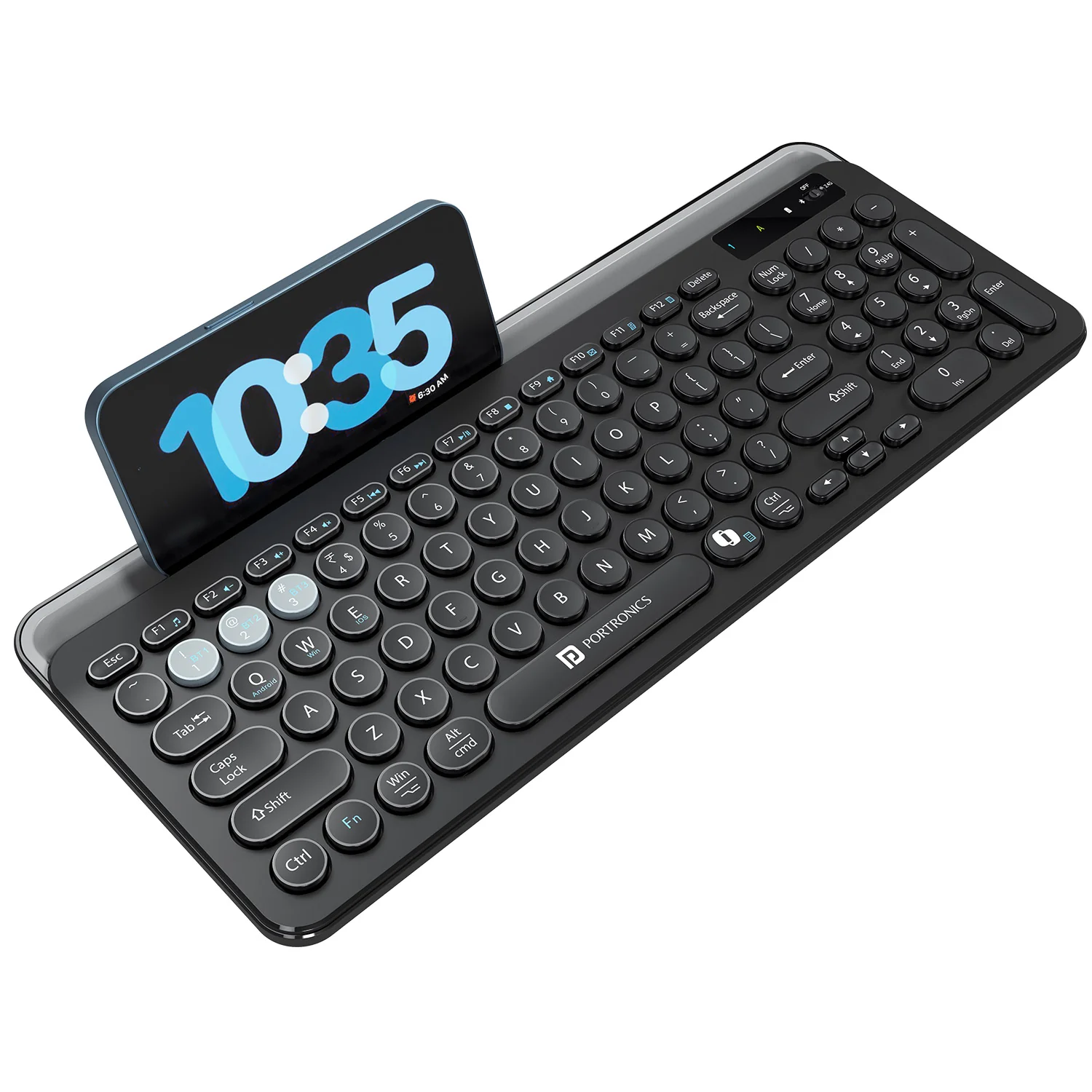
How to connect Bubble 3.0 using Bluetooth/Dongle ?

Modified on Fri, 6 Mar at 11:46 AM


Section A: Connecting via 2.4 GHz USB Receiver

Step 1: Turn ON the Keyboard
Turn on the keyboard and slide the switch to 2.4 GHz mode.

Step 2: Insert the USB Receiver
Insert the USB receiver (dongle) into the USB port of your laptop or desktop.
The keyboard will connect automatically (no pairing required).

Step 3: Connection Check
The keyboard should start working immediately.

If it does not respond:

  • Reinsert the USB receiver

  • Try another USB port

  • Ensure the keyboard is powered ON


Section B: Connecting via Bluetooth

The Bubble 3.0 keyboard supports up to 3 Bluetooth devices (BT1 / BT2 / BT3).


Step 1: Turn ON Bluetooth Mode
Turn the keyboard ON and slide the switch to BT mode.

Step 2: Select Bluetooth Channel

  • Fn + 1 → BT1

  • Fn + 2 → BT2

  • Fn + 3 → BT3


Step 3: Enter Pairing Mode
Press and hold the selected key (Fn + 1 / 2 / 3) for 3–5 seconds until the indicator light starts blinking.


Step 4: Connect on Your Device

For Windows

  1. Open Settings → Bluetooth & Devices

  2. Turn Bluetooth ON

  3. Click Add Device → Bluetooth

  4. Select Bubble 3.0 BT1 / BT2 / BT3

  5. Click Connect

For macOS

  1. Open System Settings → Bluetooth

  2. Turn Bluetooth ON

  3. Select Bubble 3.0 BT1 / BT2 / BT3

  4. Click Connect


Step 5: Connection Confirmation
Once connected:

  • The indicator light stops blinking

  • The keyboard will start working normally.


Was this article helpful?

That’s Great!

Thank you for your feedback

Sorry! We couldn't be helpful

Thank you for your feedback

Let us know how can we improve this article!

Select at least one of the reasons
CAPTCHA verification is required.

Feedback sent

We appreciate your effort and will try to fix the article