Portronics Bubble Pro
TABLE OF CONTENTS
- Portronics Bubble Pro
- 2. Connectivity Guide
- 3. Touchpad Functions
- 4. Troubleshooting Guide
- Still Facing Issues?
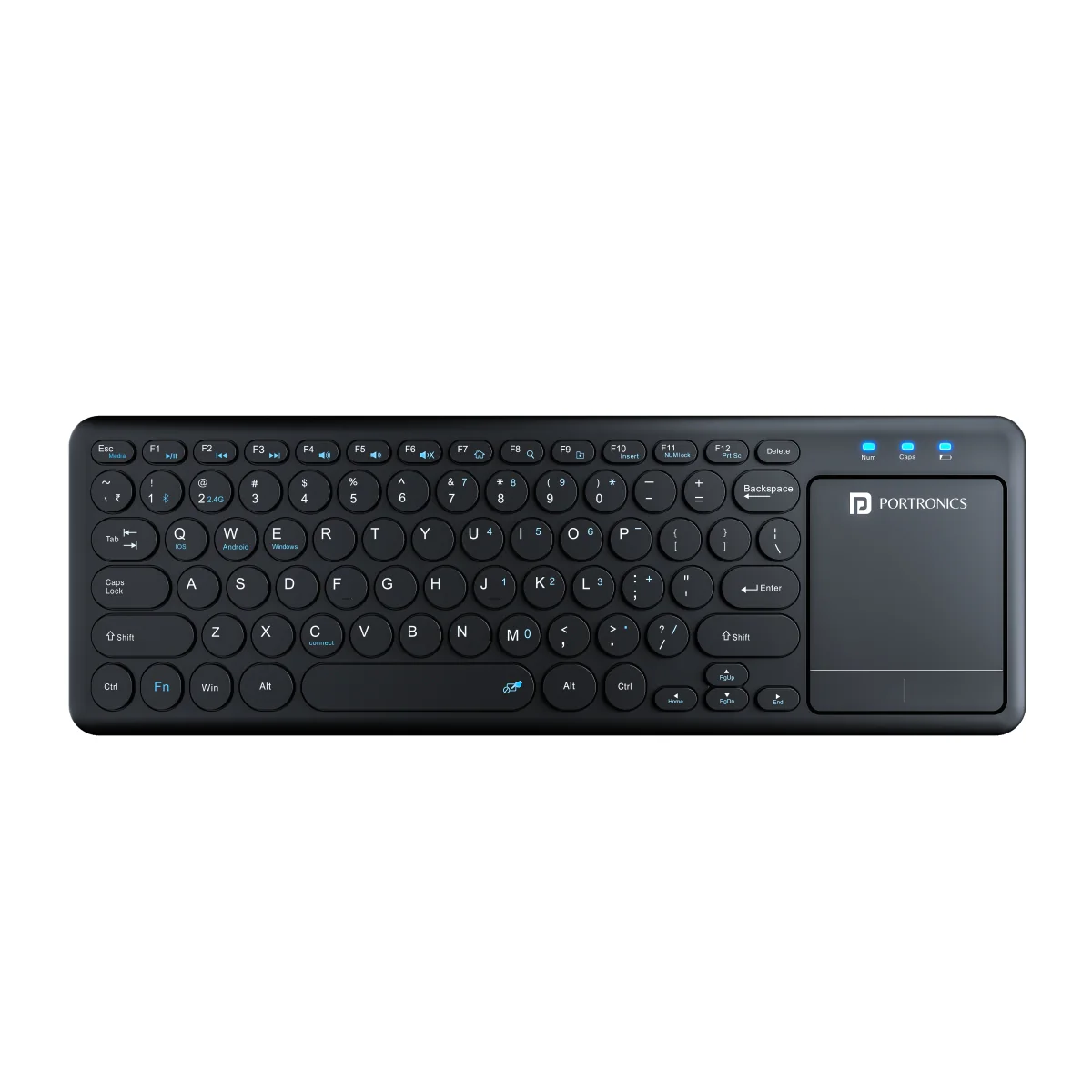
1. Product Overview
Model: Portronics Bubble Pro
Type: Wireless Keyboard with Built-in Touchpad
Connectivity Modes
2.4 GHz USB Receiver
Bluetooth 5.3
Power Supply
2 × AAA Batteries
Touchpad Support
Integrated touchpad for cursor control
Compatibility
Windows 8 or later
macOS 10 or later
Android 5.0 or later
iOS 12 or later
Keyboard Specifications
Number of Keys: 78 Keys
Material: ABS Plastic
2. Connectivity Guide
A. Connecting via 2.4 GHz USB Receiver
Step 1: Turn ON the Keyboard
Turn ON the keyboard using the power switch located at the back of the keyboard.
Step 2: Insert the USB Receiver
Remove the USB receiver from the battery compartment.
Insert the receiver into the USB port of your laptop, PC, or tablet.
Step 3: Activate 2.4 GHz Mode
Press Fn + 2 (2.4G).
Press Fn + C (Connect) for 2–3 seconds.
Step 4: Automatic Connection
The keyboard will automatically connect to your device.
No manual pairing is required.
If the Keyboard Does Not Respond
Remove and reinsert the USB receiver.
Try another USB port.
Ensure the keyboard power switch is ON.
B. Connecting via Bluetooth
Step 1: Turn ON the Keyboard
Switch ON the keyboard using the power switch.
Step 2: Activate Bluetooth Mode
Press Fn + 1 (BT).
Press and hold Fn + C for about 3–5 seconds.
The LED indicator will start blinking, indicating that the keyboard has entered pairing mode.
Step 3: Enable Bluetooth on Your Device
For Windows
Open Settings
Go to Bluetooth & Devices
Turn Bluetooth ON
Click Add Device
Select Bubble Pro Keyboard
Click Connect
For macOS
Open System Settings
Select Bluetooth
Turn Bluetooth ON
Locate Bubble Pro Keyboard
Click Connect
Step 4: Connection Confirmation
Once the keyboard connects successfully:
The indicator light will stop blinking
The keyboard will start responding while typing
The keyboard is ready for use
3. Touchpad Functions
The keyboard includes a built-in touchpad for cursor control.
Cursor Movement
Move one finger across the touchpad to move the cursor.
Scrolling
Slide two fingers on the touchpad to scroll the screen.
Left Click
Tap once on the touchpad.
Right Click
Tap with two fingers on the touchpad.
These gestures allow complete mouse control directly from the keyboard.
4. Troubleshooting Guide
Issue 1: Keyboard Not Appearing in Bluetooth List
Recommended Checks
Ensure the keyboard is in Bluetooth pairing mode.
Restart Bluetooth on your device.
Restart the keyboard and try pairing again.
Issue 2: Keyboard Connected but Not Typing
Recommended Checks
Remove the keyboard from the Bluetooth device list.
Restart your laptop or PC.
Reconnect the keyboard again.
Ensure the keyboard is not connected to another device.
Issue 3: Keyboard Not Working via USB Receiver
Recommended Checks
Ensure the USB receiver is properly inserted.
Try another USB port.
Check that the keyboard power switch is ON.
Issue 4: Keyboard Entered Sleep Mode
To save battery, the keyboard automatically enters sleep mode after inactivity.
Solution
Press any key to wake up the keyboard.
Issue 5: Unable to Use Numpad on the Keyboard
Press Fn + F11 to enable or disable the numpad on the keyboard.
Issue 6: Disable the Trackpad
Press Fn + Spacebar to enable or disable the touchpad.
Still Facing Issues?
If the issue persists after performing all troubleshooting steps, please Click here raise a support request.
Our support team will assist you further.
Was this article helpful?
That’s Great!
Thank you for your feedback
Sorry! We couldn't be helpful
Thank you for your feedback
Feedback sent
We appreciate your effort and will try to fix the article