Portronics Bubble Wireless Keyboard – Connectivity Guide
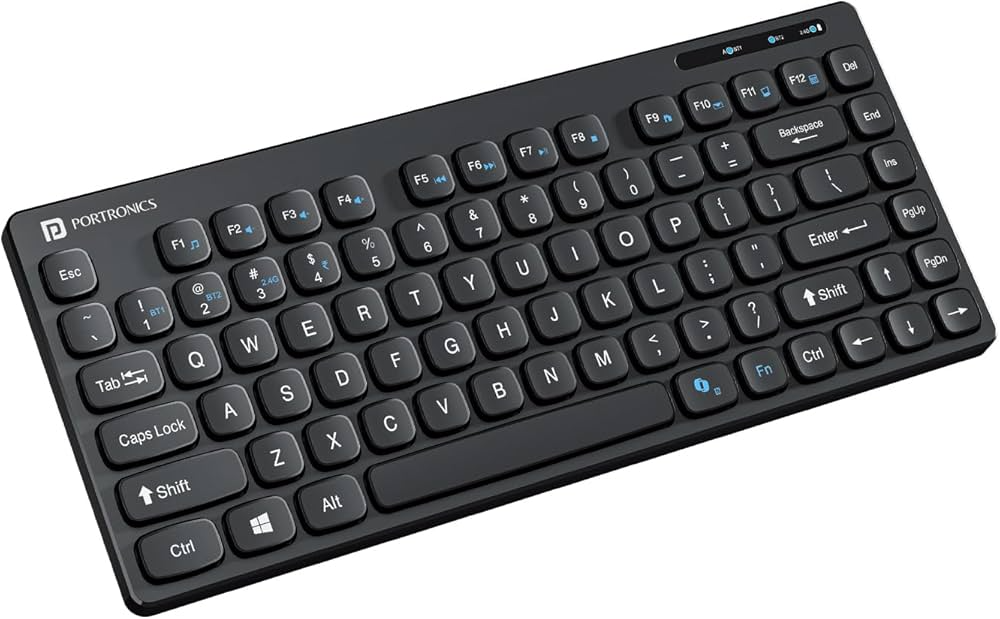
A. Connecting via 2.4 GHz USB Receiver
Step 1: Turn ON the Keyboard
Turn on the keyboard using the power switch located on the upper back side of the keyboard.
Step 2: Insert the USB Receiver
Locate the USB receiver stored at the back of the keyboard.
Insert the receiver into the USB port of your laptop, desktop, or tablet.
Step 3: Activate 2.4 GHz Mode
Press Fn + 3 (2.4G) to switch the keyboard to 2.4 GHz wireless mode.
Step 4: Automatic Connection
After inserting the USB receiver, the keyboard will automatically connect to your device.
No manual pairing or driver installation is required.
Step 5: Start Using the Keyboard
Once the device detects the keyboard, it will be ready for use immediately.
B. Connecting via Bluetooth
Step 1: Turn ON the Keyboard
Turn on the keyboard using the power switch located on the upper back side of the keyboard.
Step 2: Select Bluetooth Mode
Press Fn + 1 (BT1) or Fn + 2 (BT2) to choose the Bluetooth channel.
The indicator light on the keyboard will glow according to the selected mode.
Step 3: Enter Pairing Mode
Press and hold Fn + 1 (BT1) or Fn + 2 (BT2) for 5–7 seconds.
The indicator light will start blinking rapidly, indicating that the keyboard has entered pairing mode.
Step 4: Enable Bluetooth on Your Device
For Windows
Open Settings
Go to Bluetooth & Devices
Turn Bluetooth ON
Click Add Device
Select Bluetooth
Choose Bubble BT1 / BT2 from the device list
Click Connect
For macOS
Open System Settings
Select Bluetooth
Turn Bluetooth ON
Locate Bubble BT1 / BT2 in the device list
Click Connect
Step 5: Connection Confirmation
Once the keyboard is successfully connected:
The indicator light will stop blinking
The keyboard will respond normally when typing
The keyboard is ready for use
Was this article helpful?
That’s Great!
Thank you for your feedback
Sorry! We couldn't be helpful
Thank you for your feedback
Feedback sent
We appreciate your effort and will try to fix the article