Portronics Toad III Plus Complete Guide
Portronics Toad III Plus Mouse – Bluetooth & 2.4GHz Connection Guide
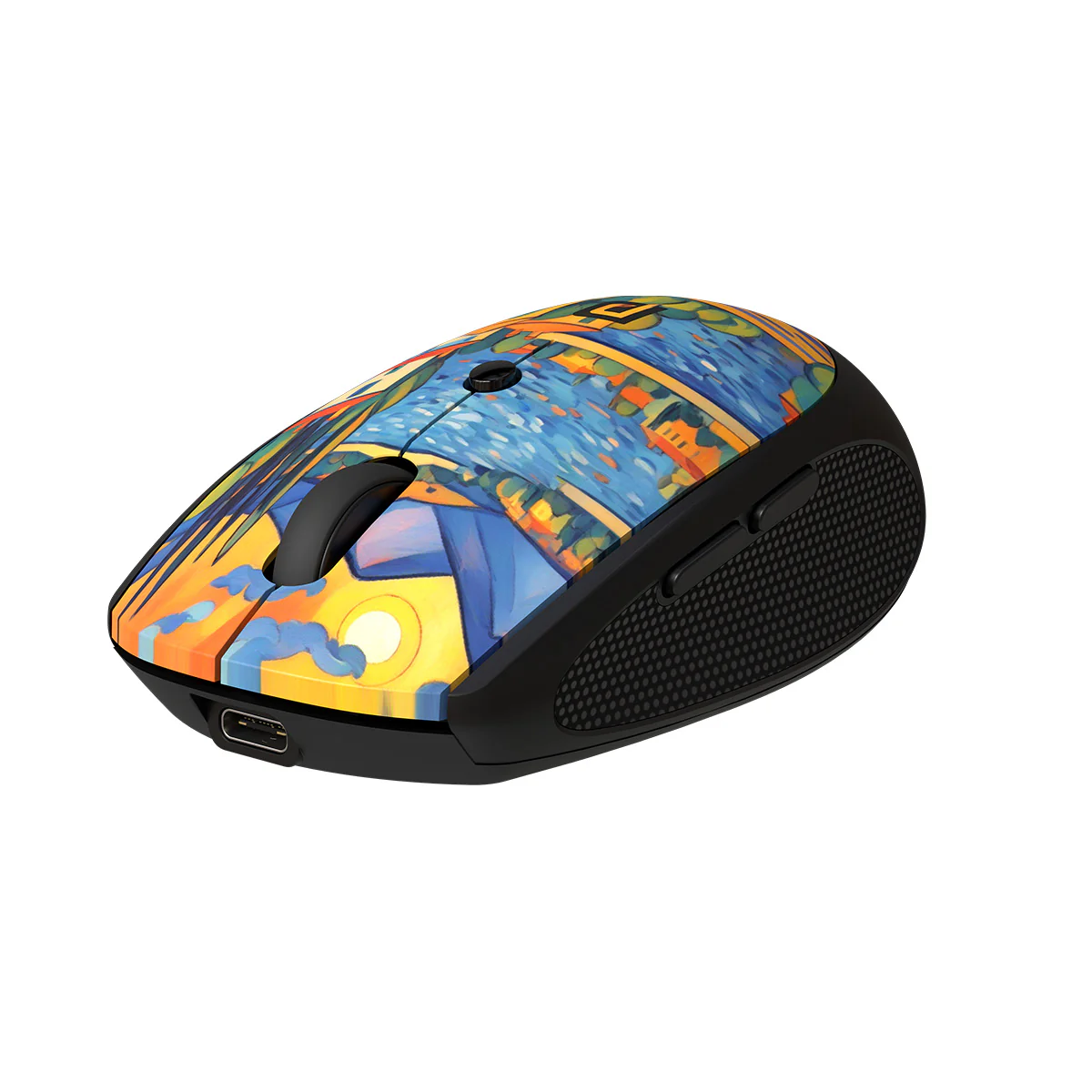
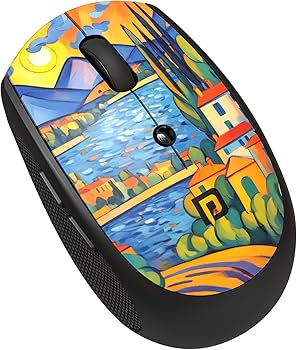
1. Product Overview
Model: Portronics Toad III Plus
Type: Rechargeable Wireless Mouse
Connectivity Modes:
- 2.4 GHz USB Receiver
- Bluetooth
Charging Port:
- USB Type-C
Power Source:
- Rechargeable Battery
Additional Features:
- Adjustable DPI (800 / 1200 / 1600)
- Forward & Backward Buttons
- Dual Connectivity Support
Section A: Connecting via 2.4 GHz USB Receiver
Step 1: Turn ON the Mouse
- Toggle the power switch to ON.
Step 2: Select 2.4 GHz Mode
- Press the Connectivity Mode Button
- Ensure the green light flashes (2.4 GHz mode)
Step 3: Insert USB Receiver
- Insert the USB receiver into your laptop/PC
- Press any mouse button to activate
Step 4: Connection Confirmation
Once connected:
- The red LED at the bottom will illuminate
- The mouse will start working immediately
If not working:
- Reinsert the USB receiver
- Try another USB port
- Ensure the mouse is ON
Section B: Connecting via Bluetooth
Step 1: Turn ON the Mouse
- Switch ON the mouse
Step 2: Select Bluetooth Mode
- Press the Connectivity Mode Button
- Ensure the blue light flashes
Step 3: Enter Pairing Mode
- Press and hold the Connectivity Mode Button
- The blue light will blink rapidly (pairing mode)
- For first-time use, pairing mode may start automatically
Step 4: Connect Device
For Windows
- Open Settings → Bluetooth & Devices
- Turn Bluetooth ON → Click Add Device
- Select Toad III Plus → Click Connect
For macOS
- Open System Settings → Bluetooth
- Turn Bluetooth ON
- Select Toad III Plus → Click Connect
Step 5: Connection Confirmation
Once connected:
- The mouse will start responding normally
Section C: Charging the Mouse
How to Charge
- Connect the mouse using the Type-C charging cable
- Plug into a USB power source
Charging Guidelines
- Charge the mouse for ~3 hours before first use
- Avoid using Type-C to Type-C cable
Section D: Additional Functions
Adjust DPI
- Press the DPI button below the scroll wheel
- Switch between:
- 800 DPI
- 1200 DPI
- 1600 DPI
Forward & Backward Buttons
- Side buttons allow:
- Forward navigation
- Backward navigation
Switching Modes
- Press the Connectivity Mode Button toswitch between:
- Bluetooth
- 2.4 GHz mode
Section E: Troubleshooting Guide
Issue 1: Mouse Not Working
Recommended Checks:
- Ensure the mouse is powered ON
- Charge the mouse fully
- Restart your device
Issue 2: Not Working in USB Mode
Recommended Checks:
- Ensure the USB receiver is inserted properly
- Try another USB port
- Ensure 2.4 GHz mode (green light) is active
Issue 3: Not Appearing in Bluetooth
Recommended Checks:
- Ensure the mouse is in pairing mode (blue blinking light)
- Restart Bluetooth on your device
- Keep the mouse closer during pairing
Issue 4: Cursor Lag or Not Moving
Recommended Checks:
- Clean the sensor
- Use on a flat surface
- Avoid reflective/glass surfaces
Issue 5: Mouse Not Charging
Recommended Checks:
- Use the provided charging cable
- Avoid Type-C to Type-C cable
- Check charging port
Issue 6: Frequent Disconnection
Recommended Checks:
- Stay within wireless range
- Avoid interference
- Reconnect the mouse
Still Facing Issues?
If the issue persists after performing all troubleshooting steps, please Click here raise a support request.
Our support team will assist you further.
Was this article helpful?
That’s Great!
Thank you for your feedback
Sorry! We couldn't be helpful
Thank you for your feedback
Feedback sent
We appreciate your effort and will try to fix the article