TABLE OF CONTENTS
- 1. Product Overview
- Section A: Power & Modes
- Section B: How to Connect via Bluetooth
- Section C: How to Connect via 2.4 GHz USB Receiver
- Section D: Multi-Device Pairing
- Section E: Charging Instructions
- Section F: Troubleshooting Guide
- Section G: Care & Maintenance
- Reset Method
- Important Notes
- Still Facing Issues?
1. Product Overview
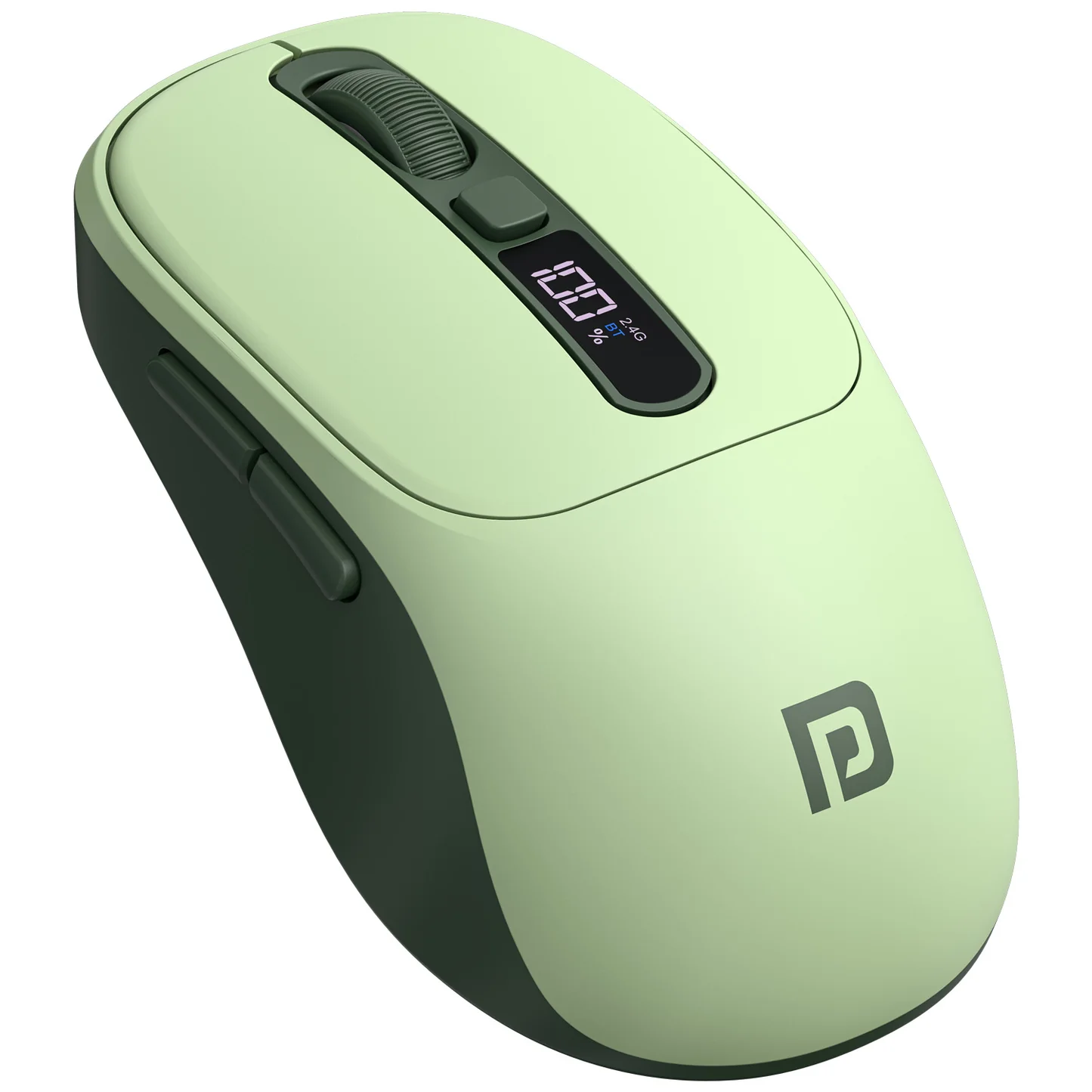
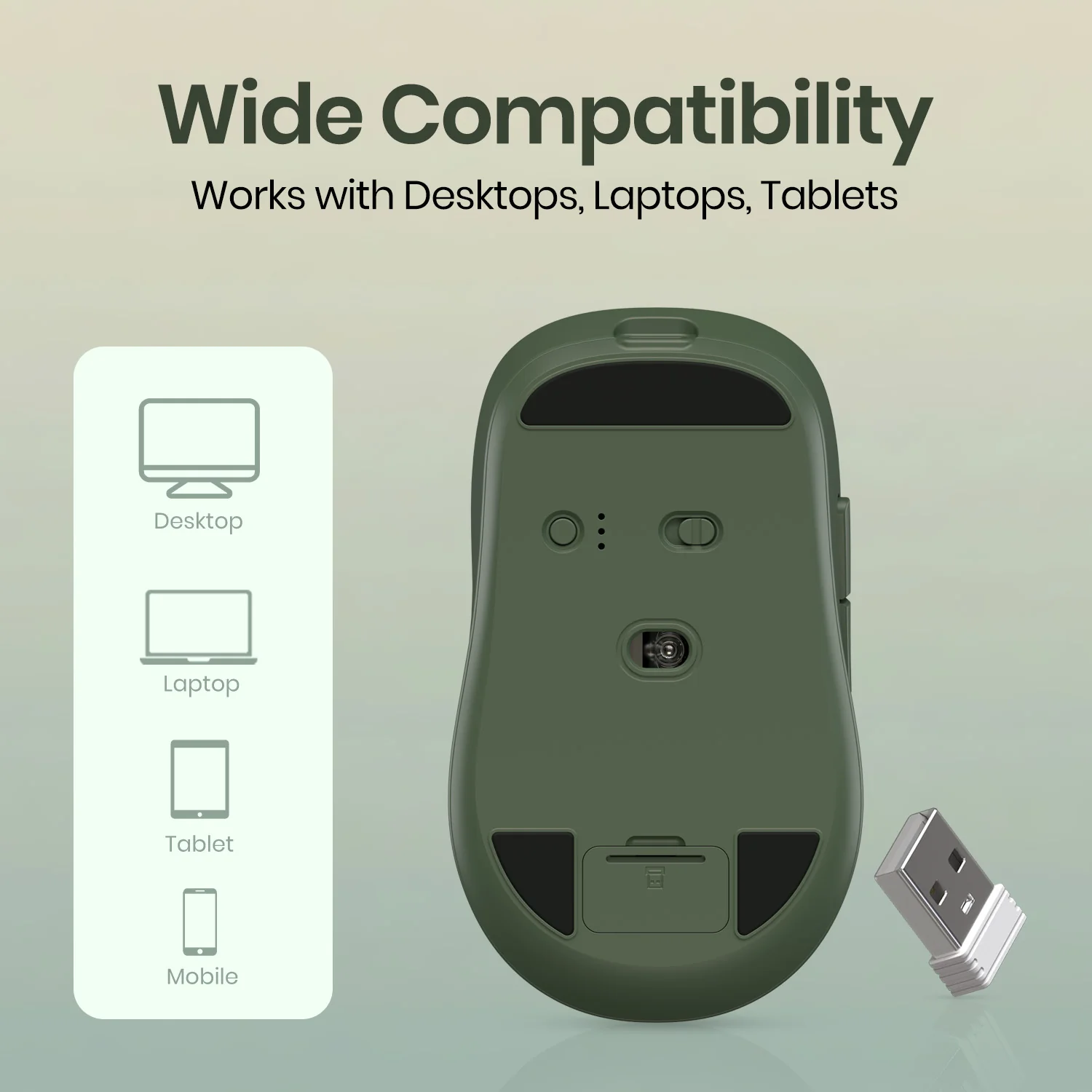
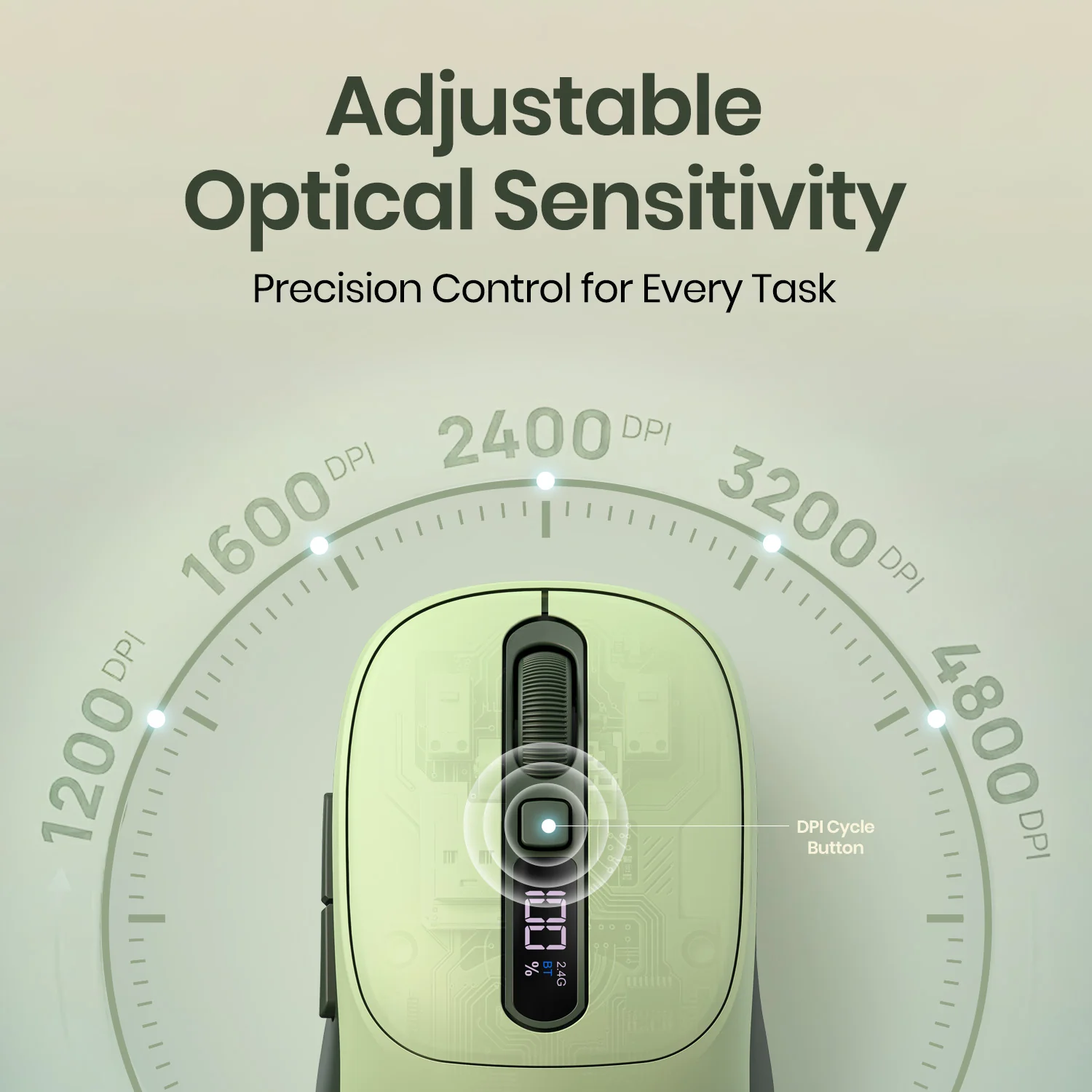
Model: Portronics Toad 9
Type: Wireless Optical Mouse
Connectivity Modes:
- 2.4 GHz USB Receiver
- Bluetooth
Box Contents
- Wireless Mouse
- Charging Cable
- USB Receiver
- User Manual
Section A: Power & Modes
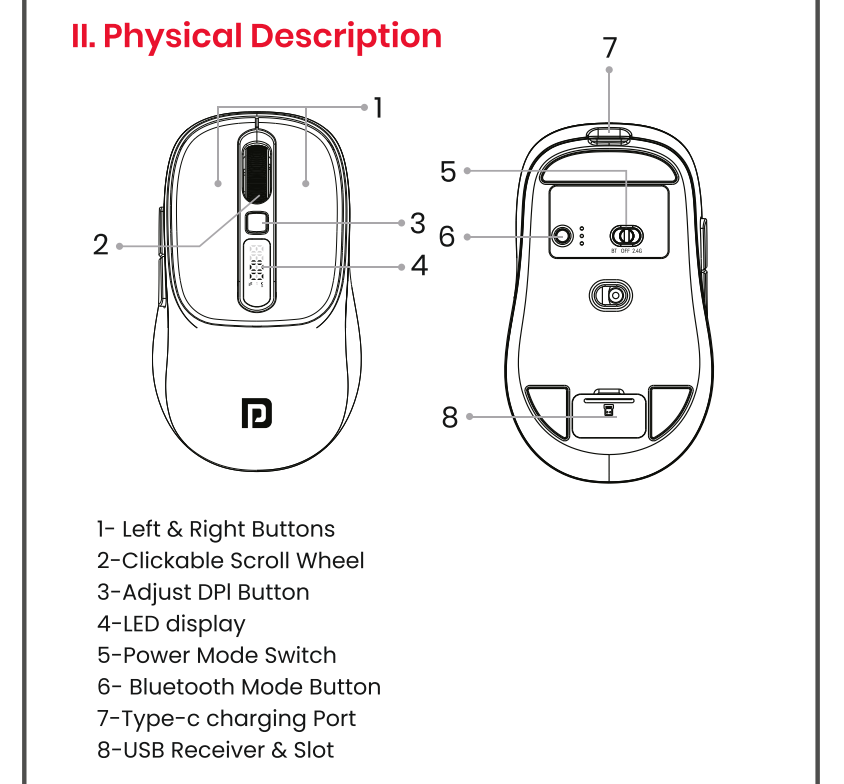
The mouse supports three switch positions:
- Position 1: Bluetooth Mode (Power ON)
- Position 2: Power OFF
- Position 3: 2.4 GHz USB Mode
Section B: How to Connect via Bluetooth
Step 1: Power ON
- Switch to Bluetooth mode (Position 1).
Step 2: Activate Pairing Mode
- Press and hold the Bluetooth mode button for 2 seconds.
- LED light will blink indicating pairing mode.
Step 3: Enable Bluetooth on Device
For Windows:
- Go to Settings → Bluetooth & Devices
- Turn Bluetooth ON
- Click Add Device → Bluetooth
- Select Portronics Toad 9 / Toad 9 Plus
- Click Connect
For macOS:
- Open System Settings → Bluetooth
- Turn Bluetooth ON
- Select Portronics Toad 9 / Toad 9 Plus
- Click Connect
Step 4: Connection Confirmation
- Once paired, the LED light will turn steady.
- The mouse is ready to use.
Section C: How to Connect via 2.4 GHz USB Receiver
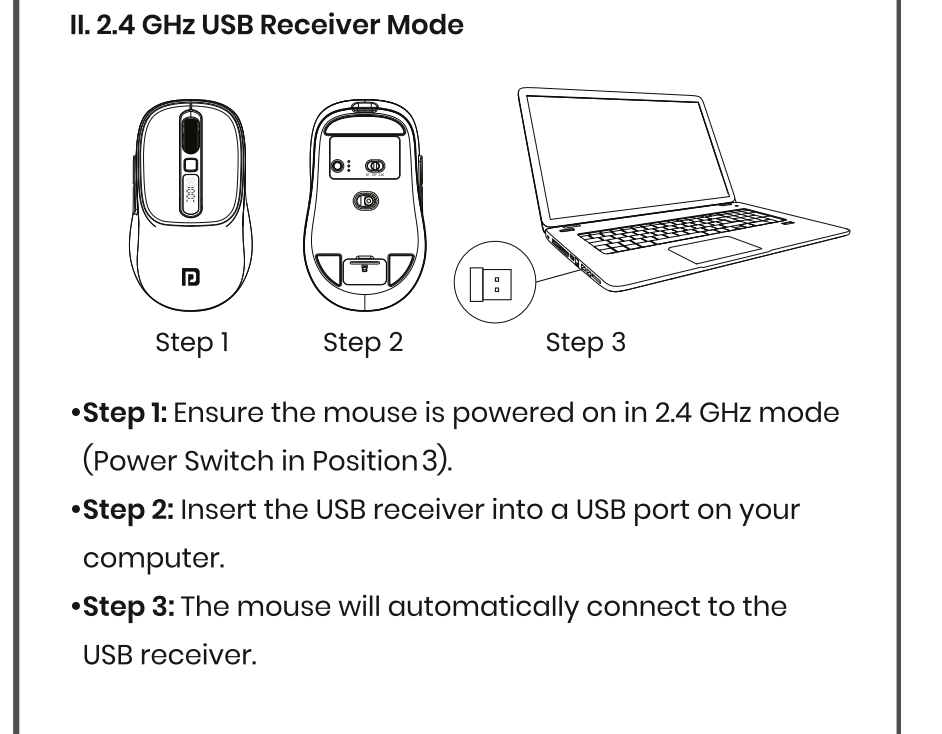
Step 1: Power ON
- Switch to 2.4 GHz mode (Position 3).
Step 2: Insert USB Receiver
- Plug the USB receiver into your laptop/PC.
Step 3: Auto Connection
- The mouse will automatically connect (plug & play).
Section D: Multi-Device Pairing
- Supports up to 3 devices (1 via 2.4 GHz + 2 via Bluetooth).
- Press the Bluetooth mode button to switch between paired devices.
- For 2.4 GHz usage, switch to Position 3.
Section E: Charging Instructions
- Use the provided USB to Type-C cable.
- Charging indicator shows “CH” while charging and 100% when fully charged.
- Approximate charging time: 3 hours.
Section F: Troubleshooting Guide
Issue 1: Mouse Not Connecting
- Ensure the mouse is fully charged.
- Check if the correct mode is selected.
- Restart Bluetooth or system.
- Ensure USB receiver is properly connected.
Issue 2: Cursor Movement Slow or Erratic
- Clean the mouse sensor.
- Use on a proper surface.
- Adjust DPI settings.
Issue 3: Mouse Buttons Not Working
- Ensure the mouse is powered ON.
- Check for obstructions around buttons.
Issue 4: Battery Drains Quickly
- Fully charge the mouse.
- Avoid extreme temperature conditions.
Section G: Care & Maintenance
- Turn OFF the mouse before cleaning.
- Use a soft, dry cloth for cleaning.
- Avoid liquids, chemicals, or abrasive materials.
Reset Method
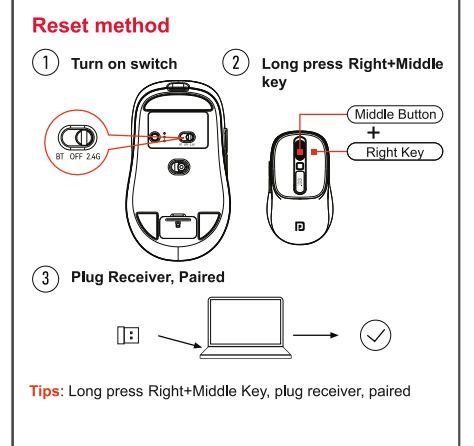
- Turn ON the mouse
- Long press Right + Middle buttons together
- Insert USB receiver to complete pairing
Important Notes
- Use only recommended charging cable.
- Avoid exposure to water, heat, and physical damage.
- Warranty covers manufacturing defects only.
Still Facing Issues?
If the issue persists after performing all troubleshooting steps, please Click here raise a support request.
Our support team will assist you further.
Was this article helpful?
That’s Great!
Thank you for your feedback
Sorry! We couldn't be helpful
Thank you for your feedback
Feedback sent
We appreciate your effort and will try to fix the article