TABLE OF CONTENTS
- Product Overview
- Key Features
- Box Contents
- Manual Specifications
- Power On / Off
- Auto Power Off
- Bluetooth Pairing
- TWS Pairing
- RGB Lighting
- Hands-Free Calling
- USB Playback
- FM Radio
- Music Controls
- Factory Reset
- Charging
- Important Notes
- Safety
- Current Website Information
- Source Discrepancy / Support Note
Product Overview
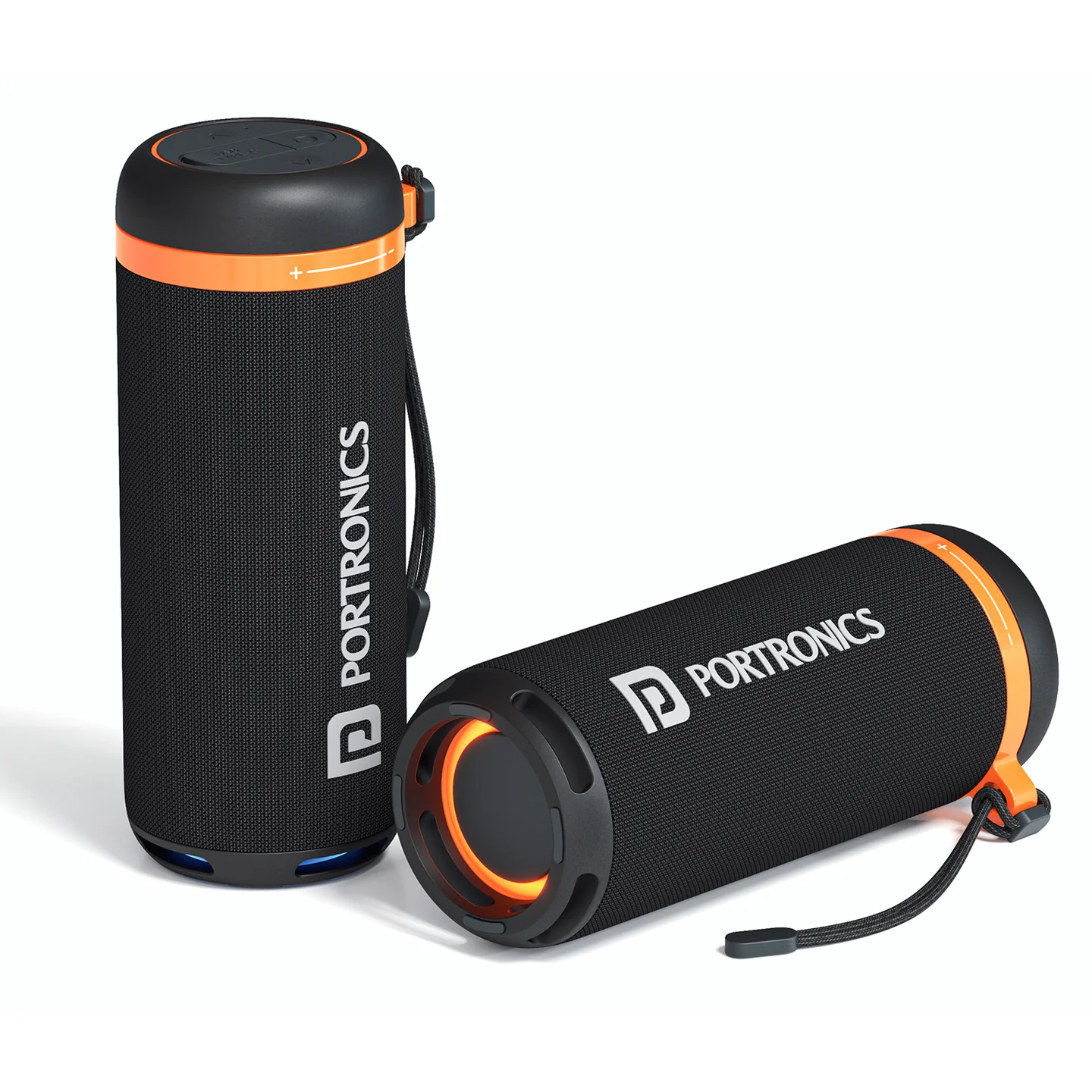
Product: Breeze 7
Product Code: POR 2854
Color: Black
Category: 15W Portable Bluetooth Speaker
Key Features
15W sound output
Bluetooth V5.4
Up to 6 hours playtime
USB Type-C charging
Rotational volume control
TWS (True Wireless Stereo)
Built-in hands-free microphone
RGB lighting
USB playback
FM radio
Portable design with included lanyard
Box Contents
1x Bluetooth Speaker
1x Type-C Charging Cable
1x Lanyard
1x User Manual
Manual Specifications
Bluetooth Version: V5.4
Speaker Size: 2 inches x 2
Power Output: 15W, 4Ω
Battery: 1800mAh (3.7V)
Frequency Response: 80Hz–18kHz
Bluetooth Range: 10 meters
Dimensions: 78mm (Diameter) x 200mm (Height)
Power On / Off
Turn ON: Press and hold the Power button for 2 seconds.
Turn OFF: Press and hold the Power button for 2 seconds in any mode.
Auto Power Off
The speaker automatically turns off after 10 minutes when:
There is no Bluetooth connection or music for more than 10 minutes, or
The speaker is in USB mode and playback is paused for 10 minutes.
Bluetooth Pairing
Power on the speaker.
The speaker automatically enters Bluetooth mode.
On the phone/device, search for Breeze 7.
Select Breeze 7 to connect.
The blue light blinks while pairing and remains ON once connected.
TWS Pairing
Turn on two Breeze 7 speakers.
Ensure both speakers are in Bluetooth mode.
On one speaker, press and hold the Backward button for 2 seconds.
A sound indicates successful pairing.
Connect the phone to the speaker via Bluetooth to play music on both speakers.
To exit TWS, press and hold the Backward button for 2 seconds.
Important: TWS pairing is only guaranteed to work reliably between two Iron Beats 5 Prime units from the same production batch. Pairing speakers from different batches may fail or behave inconsistently — check the batch/date code on each unit if TWS pairing doesn't work between two otherwise-identical speakers.
RGB Lighting
RGB lights turn on automatically when the speaker is powered on.
Hands-Free Calling
Answer call: Short-press Power.
Reject call: Press and hold Power for 2 seconds.
End call: Short-press Power or use the phone.
Transfer call to phone: Press and hold Power for 2 seconds.
USB Playback
Switch to USB mode: Press and hold the Forward button to change modes.
Next/previous track: Short-press Forward/Backward.
Play/pause: Short-press Power.
FM Radio
Forward: Long-press to switch modes; short-press is listed for previous song.
Power: Short-press to mute; double-press to search and automatically save stations.
Backward: Short-press is listed for next song.
Music Controls
Forward/Backward buttons can change tracks.
Volume is adjusted using the rotational volume control.
Power button: press to play/pause music.
Power button: double-press to activate the voice assistant.
Bluetooth disconnect: press and hold Forward + Backward together for 2 seconds.
Factory Reset
Press and hold Forward + Backward together for 5 seconds.
This restores factory settings and clears Bluetooth pairing records.
Charging
Use a standard 5V/2A charger.
Charging time is about 2.5 hours.
Red light blinks when battery is low.
Red light remains ON while charging.
Red light turns OFF when fully charged.
Do not use the speaker while charging to protect the battery.
Important Notes
Default volume is 50%.
Playtime varies depending on volume and music style.
Do not charge other devices through the speaker's USB port.
Safety
Keep the speaker in a normal-temperature environment.
Avoid exposure to water or moisture.
Do not disassemble or modify the speaker.
Clean with a soft cloth; the manual states water may be used if necessary.
Avoid using the speaker at maximum volume for long periods.
If the issue persists after performing all troubleshooting steps, please raise a support request.
Our support team will assist you further.
Support
- Visit: www.portronics.com
- Support Portal: support.portronics.com
Was this article helpful?
That’s Great!
Thank you for your feedback
Sorry! We couldn't be helpful
Thank you for your feedback
Feedback sent
We appreciate your effort and will try to fix the article