TABLE OF CONTENTS
- Product Overview
- Quick Reference
- What's in the Box
- Controls
- Power ON / OFF
- Bluetooth Pairing
- Playback Modes
- Music Controls
- TWS Stereo Pairing
- Hands-Free Calling
- Wireless Karaoke Microphone
- Sunset Lamp / LED Effects
- Charging
- Reset Function
- Battery & Runtime
- Low Battery
- Care & Safety
- Still stuck?
Product Overview
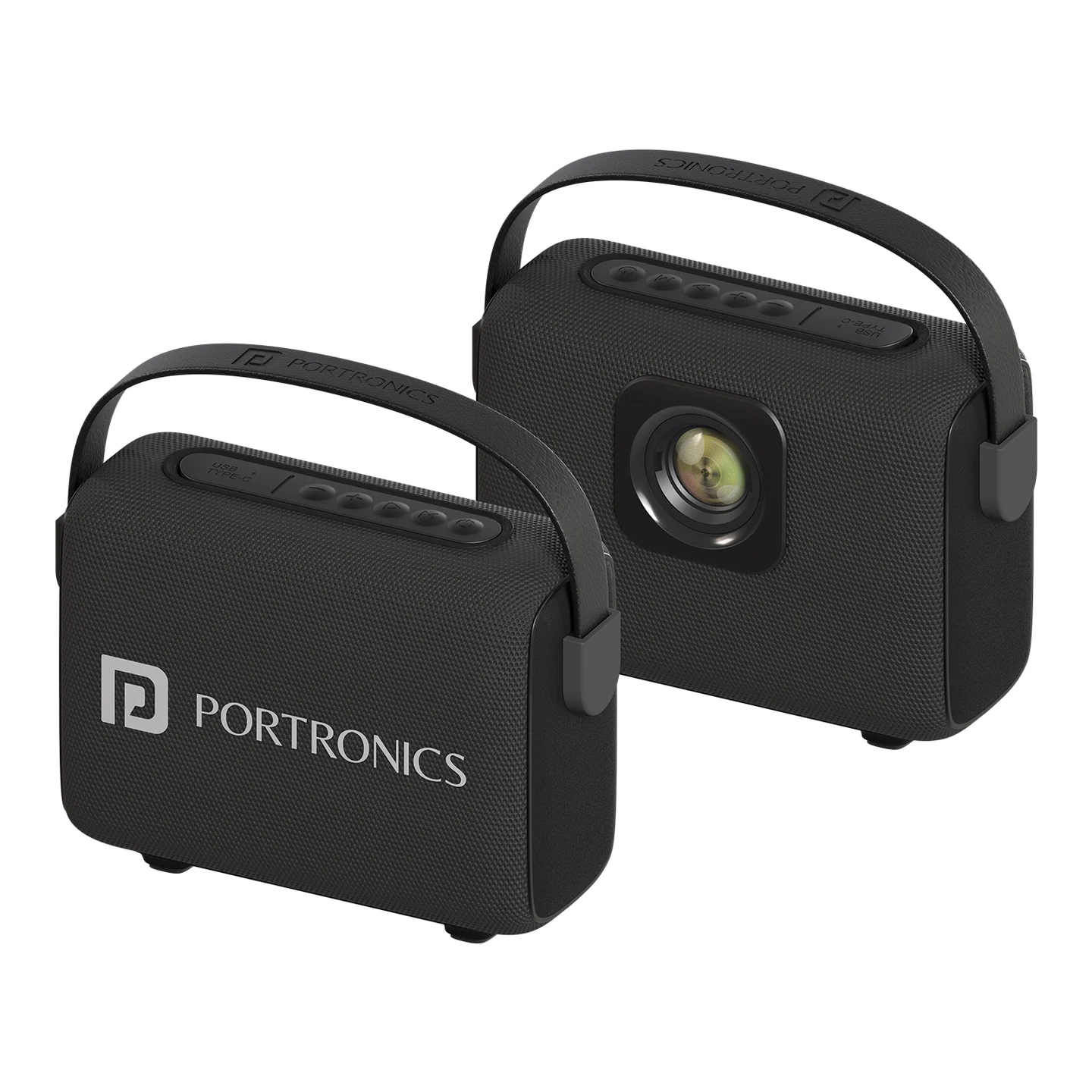
The Portronics Resonate 2 is a 14W wireless Bluetooth speaker with a wireless karaoke microphone. It supports Bluetooth, USB and TF card playback, hands-free calling, TWS stereo pairing and multiple LED illumination modes.
Quick Reference
| Feature | Details |
|---|---|
| Product | Portronics Resonate 2 |
| Output Power | 14W |
| Bluetooth | 5.3 |
| Bluetooth Range | Up to 10 metres |
| Battery | 3.7V / 2000mAh |
| Frequency Response | 40Hz – 16kHz |
| Charging | Type-C |
| Charging Input | 5V/2A |
| Charging Time | Approx. 3 hours |
| TWS | Supported |
| Wireless Karaoke Mic | Included |
| Playback | Bluetooth / USB / TF |
| Hands-Free Calling | Supported |
| LED Illumination | Sunset / Green / Purple / Breathing / RGB beat-sync |
What's in the Box
| Item | Quantity |
|---|---|
| Resonate 2 Speaker | 1 |
| Charging Cable | 1 |
| User Manual | 1 |
| Karaoke Mic | 1 |
Charging adapter is not included. Use a suitable rated 5V/2A charger.
Controls
| Control | Function |
|---|---|
| Power button | Turn the speaker ON/OFF |
| Mode button | Switch playback modes; long press for TWS pairing/disconnection |
| Play/Pause | Play or pause audio |
| Play/Pause — Long Press | Disconnect/reconnect Bluetooth |
| Play/Pause — Double Press | Activate voice assistant |
| Volume Down | Decrease volume / previous track |
| Volume Up | Increase volume / next track |
| Mute | Mute audio/microphone as applicable |
| Microphone controls | Power, volume and mute |
| Type-C port | Charging |
| USB port | USB flash-drive playback |
Power ON / OFF
Press and hold the Power button to turn the speaker ON or OFF.
The speaker can automatically reconnect to a previously connected phone when it is turned on again or switched back to Bluetooth mode.
Bluetooth Pairing
- Turn on the Resonate 2.
- The speaker enters Bluetooth mode.
- Turn on Bluetooth on your phone or other device.
- Select Resonate 2 from the available Bluetooth devices.
- Once paired, start playback.
The speaker supports automatic reconnection when the phone is within range.
Playback Modes
Short-press the Mode button to switch between the available playback modes, including:
- Bluetooth
- USB
- TF card
Select the mode that matches your connected source.
Music Controls
| Action | Control |
|---|---|
| Play / Pause | Short press Play/Pause |
| Volume Down | Short press Volume Down |
| Previous Track | Long press Volume Down |
| Volume Up | Short press Volume Up |
| Next Track | Long press Volume Up |
| Bluetooth Reconnect / Disconnect | Long press Play/Pause |
| Voice Assistant | Double press Play/Pause |
TWS Stereo Pairing
TWS allows two identical Resonate 2 speakers to work together for wireless stereo sound.
- Turn on two identical Resonate 2 speakers.
- Make sure both speakers are in Bluetooth mode.
- Select one speaker.
- Press and hold the Mode button for about 2 seconds.
- Wait for the pairing tone.
- After TWS pairing is successful, connect the paired speaker to your phone through Bluetooth.
- Start wireless playback.
Disconnecting TWS
Press and hold the Mode button for about 2 seconds again to disconnect TWS.
Reconnecting TWS
If TWS is disconnected because of shutdown or a mode change, the speakers can automatically reconnect when switched on again or returned to Bluetooth mode.
Important: TWS pairing is only guaranteed to work reliably between two Resonate 2 units from the same production batch. Pairing speakers from different batches may fail or behave inconsistently. Check the batch/date code on both units if TWS pairing doesn't work.
Hands-Free Calling
When the speaker is connected to your phone through Bluetooth:
- Press Play/Pause once to answer an incoming call.
- Press and hold Play/Pause to switch the call back to the phone.
- Press Play/Pause once to end the call.
Wireless Karaoke Microphone
Connecting the Microphone
- Press and hold the microphone's Power button to turn it on.
- The microphone automatically pairs with the speaker.
- A stable blue indicator confirms the connection.
Microphone Controls
- Use + / − to increase or decrease microphone volume.
- Press the Mute button to temporarily silence the microphone.
- Press Mute again to resume.
A red LED on the microphone indicates that it is muted.
Sunset Lamp / LED Effects
The speaker supports multiple lighting modes:
| Mode | Effect |
|---|---|
| Mode 1 | Sunset light stays on constantly |
| Mode 2 | Green light stays on constantly |
| Mode 3 | Purple light stays on constantly |
| Mode 4 | Sunset light flashes with a breathing effect |
| Mode 5 | RGB lights flash with the beat of the music |
The speaker automatically enters Mode 1 when powered on.
Charging
- Connect the supplied Type-C charging cable to the speaker.
- Use a suitable 5V/2A charger.
- Allow approximately 3 hours for charging.
- Do not use the speaker while it is charging.
Reset Function
To restore the speaker to factory settings:
- Press and hold Volume Down for more than 5 seconds.
- The speaker powers off.
- Bluetooth and TWS connection memory is cleared.
- The speaker returns to factory settings.
Battery & Runtime
The speaker uses a 3.7V / 2000mAh battery.
The specified playtime is up to 5 hours under typical product conditions. Actual runtime varies with volume, lighting, Bluetooth and microphone use.
Low Battery
When the battery is low:
- The speaker may automatically reduce its volume.
- A low-battery voice prompt can alert you.
- Connect the Type-C cable and recharge the speaker.
Care & Safety
- Use the speaker in a normal-temperature environment.
- Keep it away from rain and moisture.
- Do not expose it to excessive heat.
- Do not disassemble, repair or modify the speaker yourself.
- Disconnect power before cleaning.
- Use a soft cloth; avoid harsh chemicals.
- Avoid listening at maximum volume for prolonged periods.
- The speaker contains a built-in lithium battery; do not expose it to fire.
- Do not use the speaker while charging.
Still stuck?
If the issue persists after performing all troubleshooting steps, please raise a support request.
Our support team will assist you further.
Support
- Visit: www.portronics.com
- Support Portal: support.portronics.com
Was this article helpful?
That’s Great!
Thank you for your feedback
Sorry! We couldn't be helpful
Thank you for your feedback
Feedback sent
We appreciate your effort and will try to fix the article