TABLE OF CONTENTS
- Product Overview
- Quick Reference
- What's in the Box
- Parts & Controls
- Power ON / OFF
- First-Time Bluetooth Pairing
- Reconnecting or Pairing with Another Phone
- Button Controls
- Music & Volume Controls
- Hands-Free Calling
- Voice Assistant
- LED Indicator Guide
- Charging
- Retractable Wire
- Resetting the Headset
- Care & Safety
- Still stuck?
Product Overview
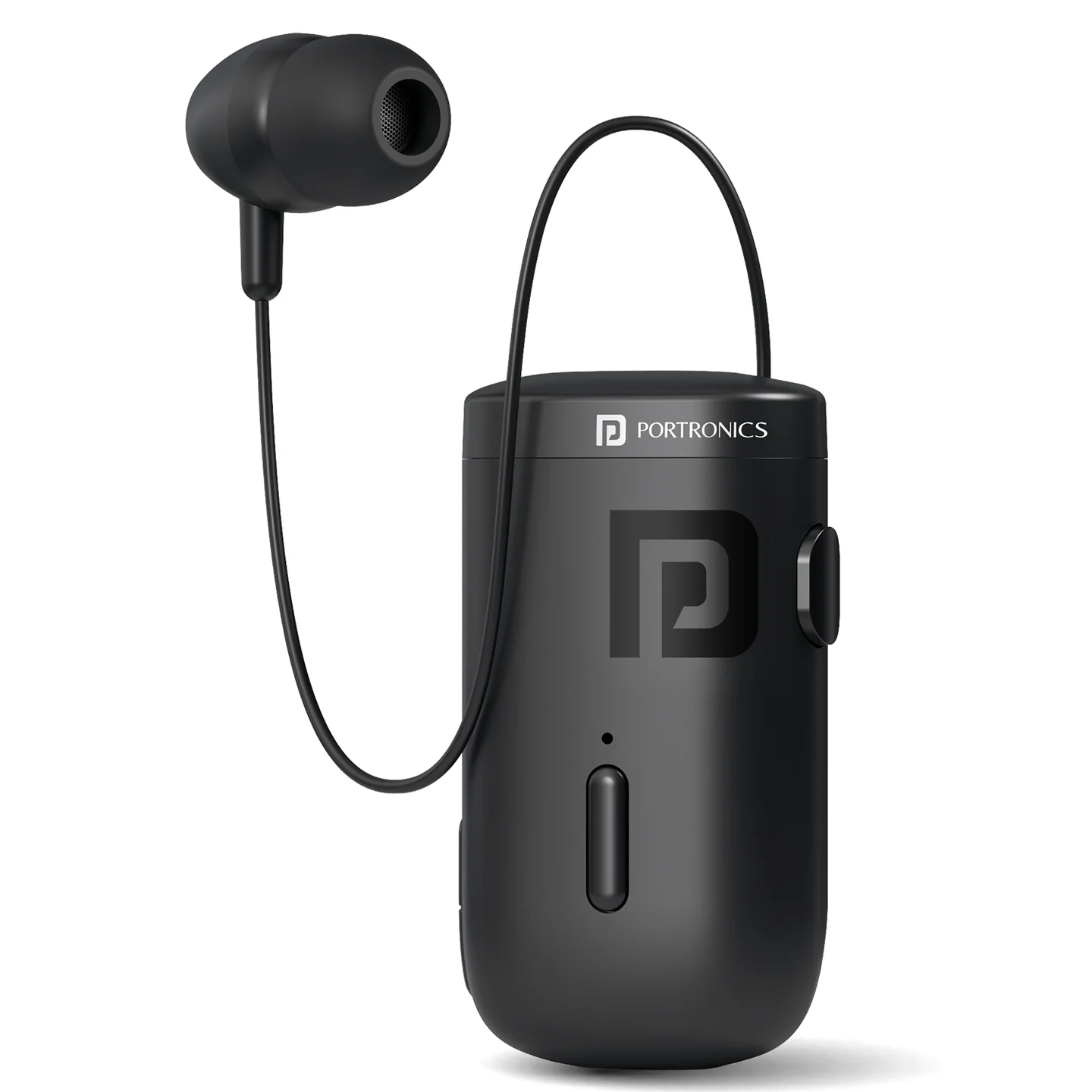
The Portronics Harmonics Klip 6 is a lightweight, retractable Bluetooth calling headset designed for hands-free calls and music. It features a clip-on body, retractable earphone wire, vibration/call alerts and USB Type-C charging.
Quick Reference
| Feature | Details |
|---|---|
| Product | Portronics Harmonics Klip 6 |
| Product Code | POR 3112 |
| Bluetooth | 5.3 |
| Bluetooth Profiles | AVRCP, A2DP, HSP, HFP |
| Wireless Range | Up to 10 metres |
| Playtime / Talk Time | Up to 30 hours |
| Standby Time | Up to 48 hours |
| Charging Port | USB Type-C |
| Charging Time | Approx. 1.5 hours |
| Weight | 30g |
| Design | Retractable earphone wire with clip |
| Microphone | Built-in |
What's in the Box
| Item | Quantity |
|---|---|
| Harmonics Klip 6 Headset | 1 |
| USB Type-C Charging Cable | 1 |
| User Manual | 1 |
Parts & Controls
| Part / Control | Function |
|---|---|
| Retract Button | Retracts the earphone wire |
| LED Indicator | Shows power, pairing, charging and call status |
| Multi-Function Button (MFB) | Power, pairing, call and voice-assistant controls |
| Volume Up / Down Buttons | Adjust volume; long press to change tracks |
| Microphone | Voice pickup during calls |
| Type-C Charging Port | Charges the headset |
| Clip | Attaches the headset body to clothing |
Power ON / OFF
- Power ON: Press and hold the MFB to turn on the headset.
- Power OFF: Press and hold the MFB for approximately 4 seconds.
- When powered on, the LED flashes blue.
- When powered off, the LED flashes red.
First-Time Bluetooth Pairing
- Press and hold the MFB for about 6 seconds until the red and blue LEDs flash alternately.
- Enable Bluetooth on your phone.
- Search for Harmonics Klip 6 in the available devices list.
- Select it to pair.
- Once pairing is complete, the LED status changes to indicate connection.
Tip: Wear the headset while pairing, as recommended in the manual.
Reconnecting or Pairing with Another Phone
If the headset loses its Bluetooth connection or you want to connect another phone:
- Press and hold the MFB for about 6 seconds until the red and blue LEDs flash alternately.
- Open Bluetooth settings on the phone.
- Select Harmonics Klip 6 to connect.
- Turn off Bluetooth on other nearby devices if they are causing pairing interference.
The headset can reconnect to the last paired device when it is available and within range.
Button Controls
| Action | Control |
|---|---|
| Answer a call | Press MFB once |
| End a call | Press MFB once |
| Reject an incoming call | Press and hold MFB for about 2 seconds |
| Redial the last number | Press MFB twice |
| Activate voice assistant | Press and hold MFB for about 2 seconds |
| Power ON | Press and hold MFB |
| Power OFF | Press and hold MFB for about 4 seconds |
| Increase volume | Use Volume Up |
| Decrease volume | Use Volume Down |
| Next track | Press and hold Volume Up |
| Previous track | Press and hold Volume Down |
| Retract earphone wire | Use the Retract button |
Music & Volume Controls
- Press Volume Up or Volume Down to adjust the listening volume.
- Press and hold Volume Up to move to the next track.
- Press and hold Volume Down to return to the previous track.
- Keep the headset within approximately 10 metres of the connected phone for stable audio.
Hands-Free Calling
- Connect the headset to your phone through Bluetooth.
- Press the MFB once to answer an incoming call.
- Press the MFB once again to end the call.
- Press and hold the MFB for about 2 seconds to reject an incoming call.
- Press the MFB twice to redial the last number.
Handling a Second Incoming Call
If another call arrives while you are already on a call:
- Press the MFB once to hold the current call and answer the incoming call.
- After the second call, press the MFB once to end it and return to the first call.
Call-waiting behaviour also depends on whether the connected phone and mobile network support the feature.
Voice Assistant
Press and hold the MFB for approximately 2 seconds to activate the supported voice assistant.
The voice assistant must be enabled on your smartphone.
LED Indicator Guide
| LED Behaviour | Meaning |
|---|---|
| Flashing blue | Headset is powered on |
| Red and blue flashing alternately | Bluetooth pairing mode |
| Blue light flashing | Call status / connected operation as indicated by the manual |
| Red light | Charging |
| Blue light steady | Charging completed |
| Red flashes every 5 seconds | Low battery |
| Flashing red twice during reset | Reset indication |
Charging
- Connect the supplied USB Type-C cable to the headset's charging port.
- Connect it to a suitable USB power source.
- Allow approximately 1.5 hours for charging.
- The red LED indicates charging; a steady blue light indicates that charging is complete.
Important: Do not use the headset while it is charging. The manual recommends using the supplied/original charging cable and a suitable quality-certified power source.
Retractable Wire
The headset wire can be pulled out for use and retracted when you are finished.
- Extend only as much wire as you need.
- Keep the wire straight and free from knots.
- Use the Retract button to return the wire to the body.
- Do not yank, twist or force the wire.
Resetting the Headset
If Bluetooth connection issues persist:
- Make sure the headset is powered off.
- Press and hold the MFB until the headset powers on and then powers off again.
- Confirm that the LED flashes red twice to indicate the reset.
- Pair the headset with your phone again.
Care & Safety
- Keep the headset away from water and excessive moisture.
- Avoid exposing it to extreme heat or humidity.
- Keep the phone within approximately 10 metres for reliable connectivity.
- Do not pull or force the retractable wire.
- Charge the headset at least once every six months if it is not being used.
- Clean with a soft cloth; use only slightly damp cloth with diluted soap if needed.
- Do not drop the headset on hard surfaces.
- Do not take the headset apart.
- When not in use, switch it off and store it in a cool, dry place.
- Avoid prolonged listening at maximum volume.
Still stuck?
If the issue persists after performing all troubleshooting steps, please raise a support request.
Our support team will assist you further.
Support
- Visit: www.portronics.com
- Support Portal: support.portronics.com
Was this article helpful?
That’s Great!
Thank you for your feedback
Sorry! We couldn't be helpful
Thank you for your feedback
Feedback sent
We appreciate your effort and will try to fix the article