TABLE OF CONTENTS
- Product Overview
- Quick Reference
- What's in the Box
- Parts & Controls
- Charging the Headphones
- Powering On and Off
- First-Time Bluetooth Pairing
- Reconnecting to Bluetooth
- Music Controls
- Hands-Free Calling
- Active Noise Cancellation (ANC)
- Wired AUX Listening
- LED Indicator Guide
- Battery and Playtime
- Bluetooth Troubleshooting and Re-Pairing
- Care & Safety
- Still stuck?
Product Overview
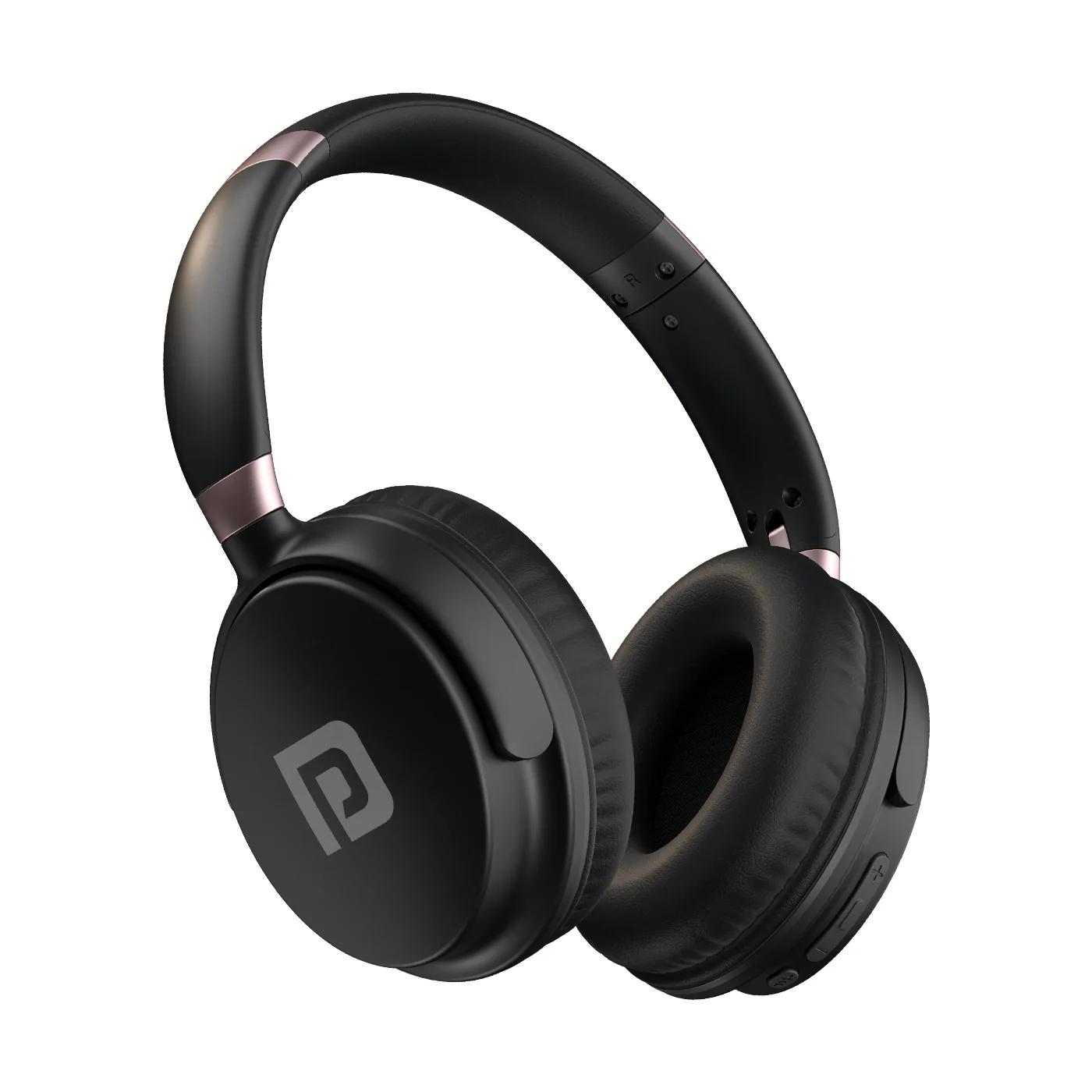
The Portronics Muffs M3 are foldable wireless over-ear headphones with Bluetooth 5.3, Active Noise Cancellation (ANC), a built-in microphone and a 3.5mm AUX option for wired listening.
Quick Reference
| Feature | Details |
|---|---|
| Product | Portronics Muffs M3 |
| Product Code | POR 2574 |
| Bluetooth | 5.3 |
| Bluetooth Range | Up to 10 metres |
| Speaker Size | 40mm |
| Battery | 3.7V / 300mAh |
| Playtime | Up to 40 hours |
| Charging Port | USB Type-C |
| Charging Time | Approx. 2.5 hours |
| Active Noise Cancellation | Up to −22dB |
| Wired Audio | 3.5mm AUX |
| Microphone | Built-in |
| Impedance | 32Ω SPL (at 1kHz) |
What's in the Box
| Item | Quantity |
|---|---|
| Muffs M3 Headphones | 1 |
| Type-C Charging Cable | 1 |
| AUX Audio Cable | 1 |
| User Manual | 1 |
Parts & Controls
| Control / Port | Function |
|---|---|
| Power Button | Turns headphones on/off; playback and call controls |
| “+” Control Area | Next track; long-press for volume up |
| “−” Control Area | Previous track; long-press for volume down |
| ANC Button | Turns ANC on/off |
| LED Indicator | Shows pairing and charging status |
| Type-C Port | Charges the headphones |
| AUX Port | Connects a wired audio cable |
| Built-in Microphone | Supports hands-free calls |
Charging the Headphones
- On the right earcup, connect the Type-C charging cable to the Type-C port.
- Connect the other end to a compatible USB port or suitable USB charger.
- The solid red LED indicates that the headphones are charging.
- When charging is complete, the LED turns blue.
- A full charge takes approximately 2.5 hours.
Powering On and Off
- Power ON: Press and hold the Power Button on the right side of the headphones for about 3 seconds, until the LED turns on.
- Power OFF: Press and hold the Power Button for about 4 seconds, until the LED turns off.
- If the headphones are not used for approximately 5 minutes, they automatically turn off to save battery.
First-Time Bluetooth Pairing
- Turn on the headphones by pressing and holding the Power Button for about 3 seconds.
- The red and blue LEDs blink to indicate that the headphones are ready to pair.
- Turn on Bluetooth on your phone, tablet or computer.
- Search for Muffs M3 and select it to connect. The manual also refers to the saved device as Muffs M3-ANC in its troubleshooting section.
- When the device is connected, the indicator turns off and the headphones can play audio.
Reconnecting to Bluetooth
- Turn on the headphones.
- Enable Bluetooth on the previously paired device.
- Keep the device within range.
- The headphones are designed to reconnect automatically to the last Bluetooth device when it is available and in range.
If automatic reconnection fails, remove/forget the Muffs M3 entry from Bluetooth settings and pair again.
Music Controls
Follow the control directions specified:
| Action | Control |
|---|---|
| Play / Pause | Press the Power Button once |
| Next Track | Tap the “+” control area |
| Previous Track | Tap the “−” control area |
| Volume Up | Press and hold the “+” control area |
| Volume Down | Press and hold the “−” control area |
Hands-Free Calling
The built-in microphone supports calls through a connected phone.
| Action | Control |
|---|---|
| Answer a call | Press the Power Button once |
| Redial the last number | Press the Power Button twice |
| Reject an incoming call | Press and hold the Power Button |
| End a call | Use the Power Button call control as supported by the connected phone |
Audio—including music, games, videos and notifications—can be routed through the headphones while connected over Bluetooth.
Active Noise Cancellation (ANC)
- Press the ANC Button once.
- The white LED turns on to indicate that ANC is enabled.
- Press the ANC Button again to turn ANC off; the white LED turns off.
ANC activation with a voice prompt. Refer to the voice prompt and indicator to confirm the state.
Wired AUX Listening
Muffs M3 can also be used with the included AUX cable.
- Connect one end of the 3.5mm AUX cable to the headphones.
- Connect the other end to the audio output of your phone, computer or other compatible device.
- Start playback on the connected device.
Use the AUX connection when you prefer wired audio or when Bluetooth is unavailable.
LED Indicator Guide
| LED | Meaning |
|---|---|
| Red and blue blinking | Ready to pair with a Bluetooth device |
| Indicator turns off | Bluetooth connection established |
| Solid red | Charging |
| Blue | Fully charged |
| LED turns on during power-on | Headphones are switching on |
| LED turns off during power-off | Headphones are switched off |
Battery and Playtime
3.7V / 300mAh battery and up to 40 hours of playtime. Actual runtime varies with volume, ANC use, Bluetooth conditions and listening habits.
Bluetooth Troubleshooting and Re-Pairing
If the headphones do not reconnect:
- Open the Bluetooth settings menu on your phone or computer.
- Select Muffs M3 or Muffs M3-ANC, depending on how it appears on your device.
- Choose Forget or Remove.
- Turn the headphones on and pair them again.
- If they remain connected to another device, press and hold the Power Button while the headphones are on to disconnect them, then repeat pairing.
Care & Safety
- Listen at a moderate volume to help protect your hearing.
- Keep the headphones away from water and excessive moisture.
- Do not use damaged charging cables or adapters.
- Do not drop, crush or dismantle the headphones.
- Keep the charging port clean and dry.
- Store the headphones in a cool, dry place.
- Avoid prolonged listening at maximum volume.
- Use the supplied or a compatible charging cable.
Still stuck?
If the issue persists after performing all troubleshooting steps, please raise a support request.
Our support team will assist you further.
Support
- Visit: www.portronics.com
- Support Portal: support.portronics.com
Was this article helpful?
That’s Great!
Thank you for your feedback
Sorry! We couldn't be helpful
Thank you for your feedback
Feedback sent
We appreciate your effort and will try to fix the article