TABLE OF CONTENTS
- 1. Introduction
- 2. Package Contains
- 3. Buttons & Their Functions
- 4. Charging the Headphones
- 5. Bluetooth Connection & Pairing
- 6. Making & Managing Calls
- 7. Media Controls
- 8. Safety & Tips
- 9. Technical Specifications
- 10. Support
1. Introduction
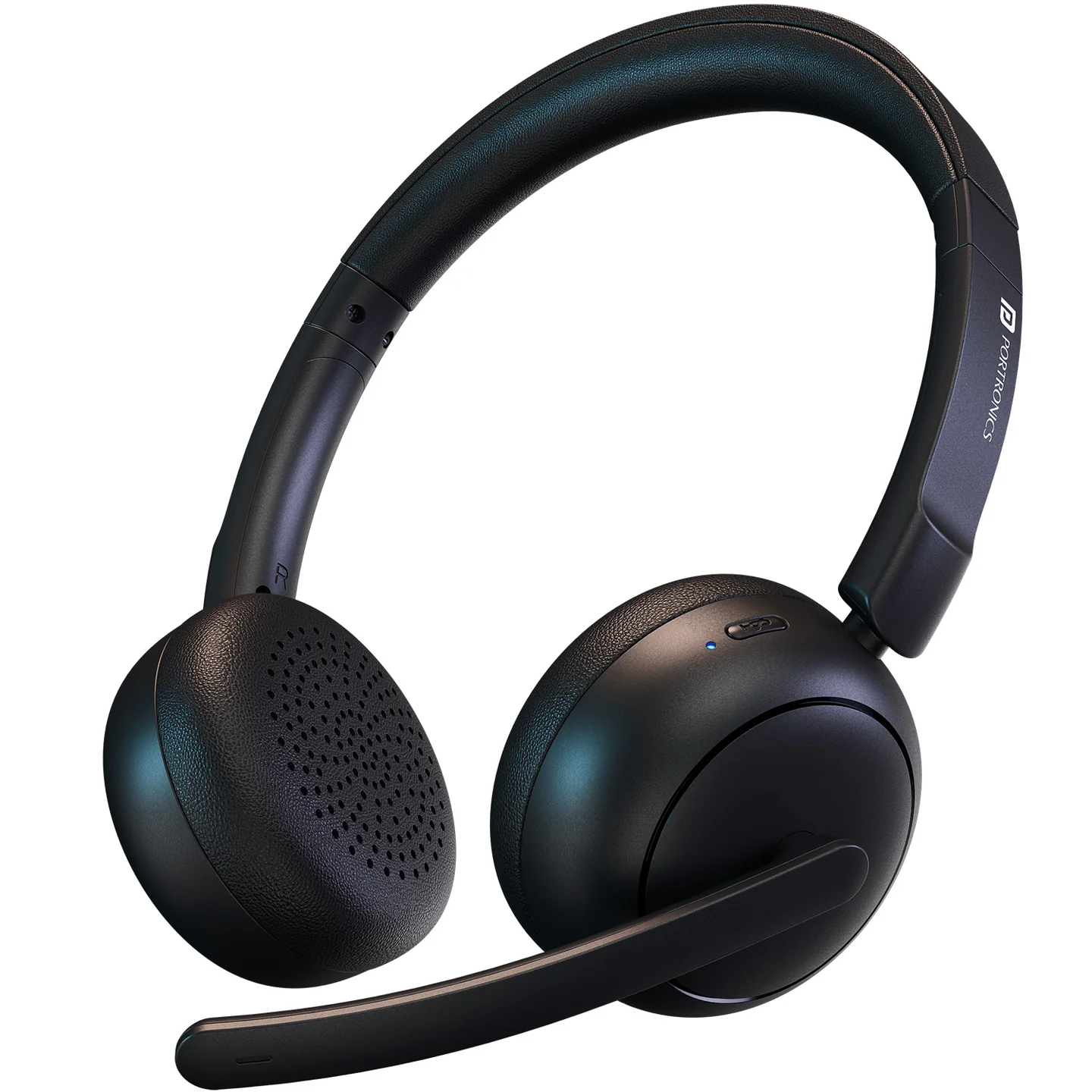
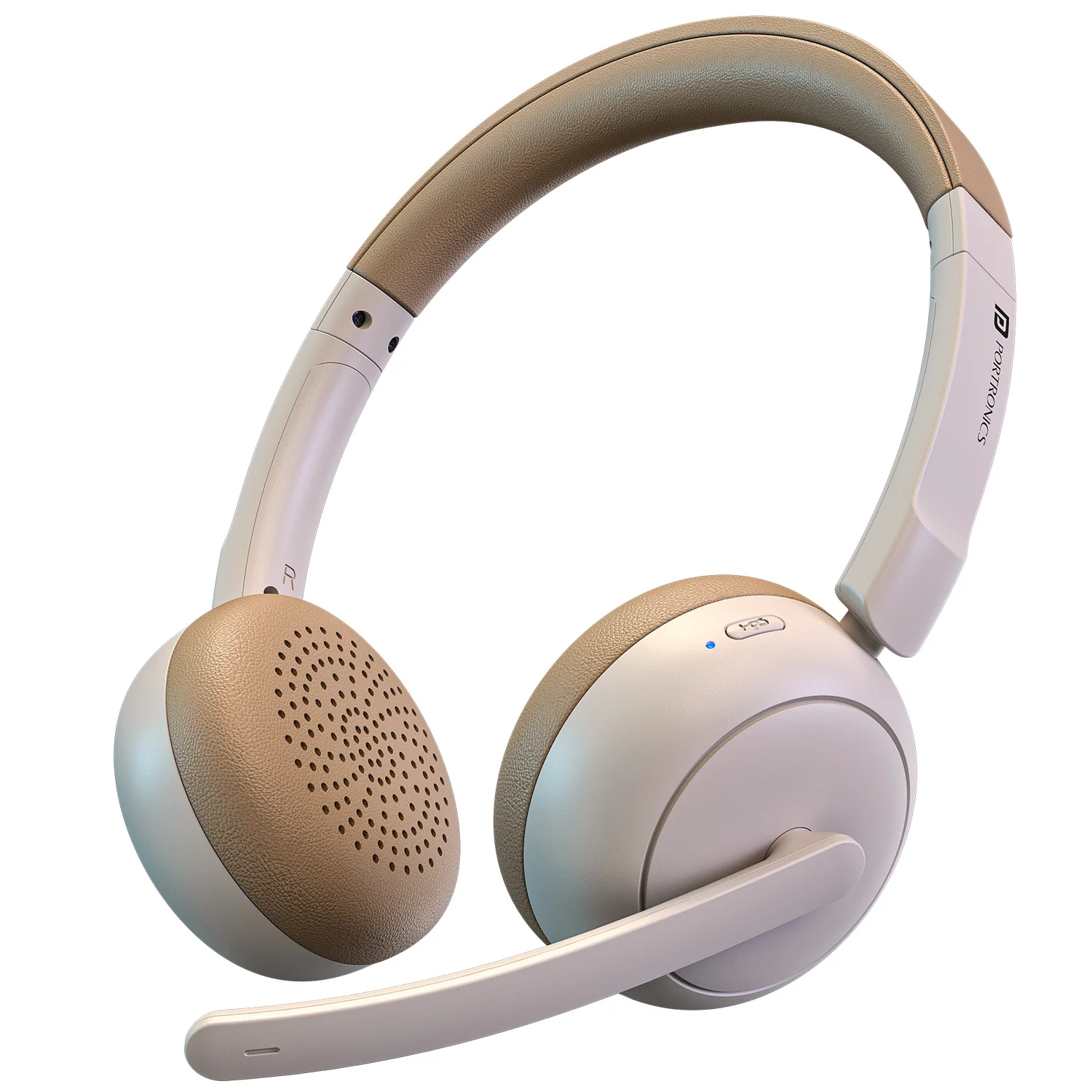
Thank you for choosing the Portronics Muffs A3 wireless headphone. Muffs A3 offers up to 50 hours of playtime, Dual ENC (Environmental Noise Cancellation) microphones with a flexible boom mic for clear calls, Bluetooth 6.0, a 40mm dynamic driver, an adjustable headband, and Type-C fast charging.
2. Package Contains
- Muffs A3 Headphones — 1
- USB-C Charging Cable — 1
- User Manual — 1
3. Buttons & Their Functions
1. Power Button
- Long press: Turn headphones ON/OFF.
- First-time use: Automatically enters Pairing Mode.
| LED State | Meaning |
|---|---|
| Solid Blue | Headphones ON |
| No Light | Headphones OFF |
| Flashing Red + Blue | Pairing mode |
2. Multi-Function Button — Music & Calls
- Press once: Play/Pause music.
- Press once: Answer call.
- Press once: Hang up call.
- Press & hold: Reject call.
- Press twice: Redial last number.
- Press 3 times: Enable/Disable voice assistant.
3. Microphone Mute Button
- Press once: Mute/Unmute the microphone.
- LED Indicator: Red light ON means the microphone is muted.
4. Volume & Track Buttons (+ / −)
- "+" Button: Press once for Volume Up; hold for Next Track.
- "−" Button: Press once for Volume Down; hold for Previous Track.
5. Flexible Boom Mic
- Adjust the boom mic's position for optimal voice pickup during calls, meetings, and gaming.
6. Charging LED
| LED State | Meaning |
|---|---|
| Flashing Red | Battery low |
| Solid Red | Charging |
| Light Off | Fully charged |
4. Charging the Headphones
- Plug the supplied USB-C cable into the headphone's charging port.
- Watch the charging LED — solid red means charging, off means fully charged.
- Charging Time: 3–4 hours.
- Battery Life: Up to 50 hours.
Do not use the headphones while they're charging.
5. Bluetooth Connection & Pairing
- Bluetooth Version: 6.0
- Working Range: Up to 10 meters
How to Pair
- Turn ON the headphones — they enter Pairing Mode automatically.
- Open Bluetooth settings on your phone, laptop, or other device.
- Select "Muffs A3" from the list of available devices.
- Once connected, the flashing lights will stop and the LED turns solid blue.
If the connection fails, toggle Bluetooth OFF/ON on your device and try again.
6. Making & Managing Calls
Muffs A3 uses Dual ENC (Environmental Noise Cancellation) microphones together with the flexible boom mic to reduce background noise and keep your voice clear during calls, meetings, gaming sessions, and online classes.
| Action | Control |
|---|---|
| Answer a call | Single press Multi-Function Button |
| Hang up a call | Single press Multi-Function Button |
| Reject an incoming call | Press & hold Multi-Function Button |
| Redial last number | Press Multi-Function Button twice |
| Enable/Disable voice assistant | Press Multi-Function Button 3 times |
| Mute/Unmute microphone | Press Microphone Mute Button once |
7. Media Controls
| Action | Control |
|---|---|
| Play/Pause music | Single press Multi-Function Button |
| Volume Up | Press "+" once |
| Volume Down | Press "−" once |
| Next Track | Hold "+" |
| Previous Track | Hold "−" |
8. Safety & Tips
- Do not use the headphones while charging.
- Keep away from water and extreme heat.
- Clean with a soft, dry cloth.
- If connection fails, toggle Bluetooth OFF/ON on your device and try again.
9. Technical Specifications
| Specification | Details |
|---|---|
| Battery Capacity | 400mAh |
| Driver Size | 40mm |
| Frequency Range (Speaker) | 20Hz – 20kHz |
| Microphone Sensitivity | −33 ± 2dB |
| Microphone Frequency | 100Hz – 16kHz |
| Bluetooth Version | V6.0 |
| Bluetooth Range | Up to 10 meters |
| Charging Port | Type-C |
| Working Time | Up to 50 hours |
| Charging Time | 3–4 hours |
| Adjustable Headband | Yes |
| Colors | Black, Beige |
10. Support
If the issue persists after performing all troubleshooting steps, please raise a support request.
Our support team will assist you further.
Support
- Visit: www.portronics.com
- Support Portal: support.portronics.com
Was this article helpful?
That’s Great!
Thank you for your feedback
Sorry! We couldn't be helpful
Thank you for your feedback
Feedback sent
We appreciate your effort and will try to fix the article