TABLE OF CONTENTS
- 6. Getting Started
- 10. Troubleshooting Guide
- Issue: Device Does Not Power ON
- Issue: Portronics Tune XXXX Does Not Appear
- Issue: Unable to Pair with Android Auto
- Issue: Unable to Pair with Apple CarPlay
- Issue: Android Auto / CarPlay Does Not Start Automatically
- Issue: Connection Disconnects Frequently
- Issue: Device Connects but No Android Auto / CarPlay Appears
- Issue: Device Was Working Earlier but Stops Connecting
- Issue: Slow Connection or Delay
- 11. Safety Instructions
- 12.Still Facing Issues?
1. Overview
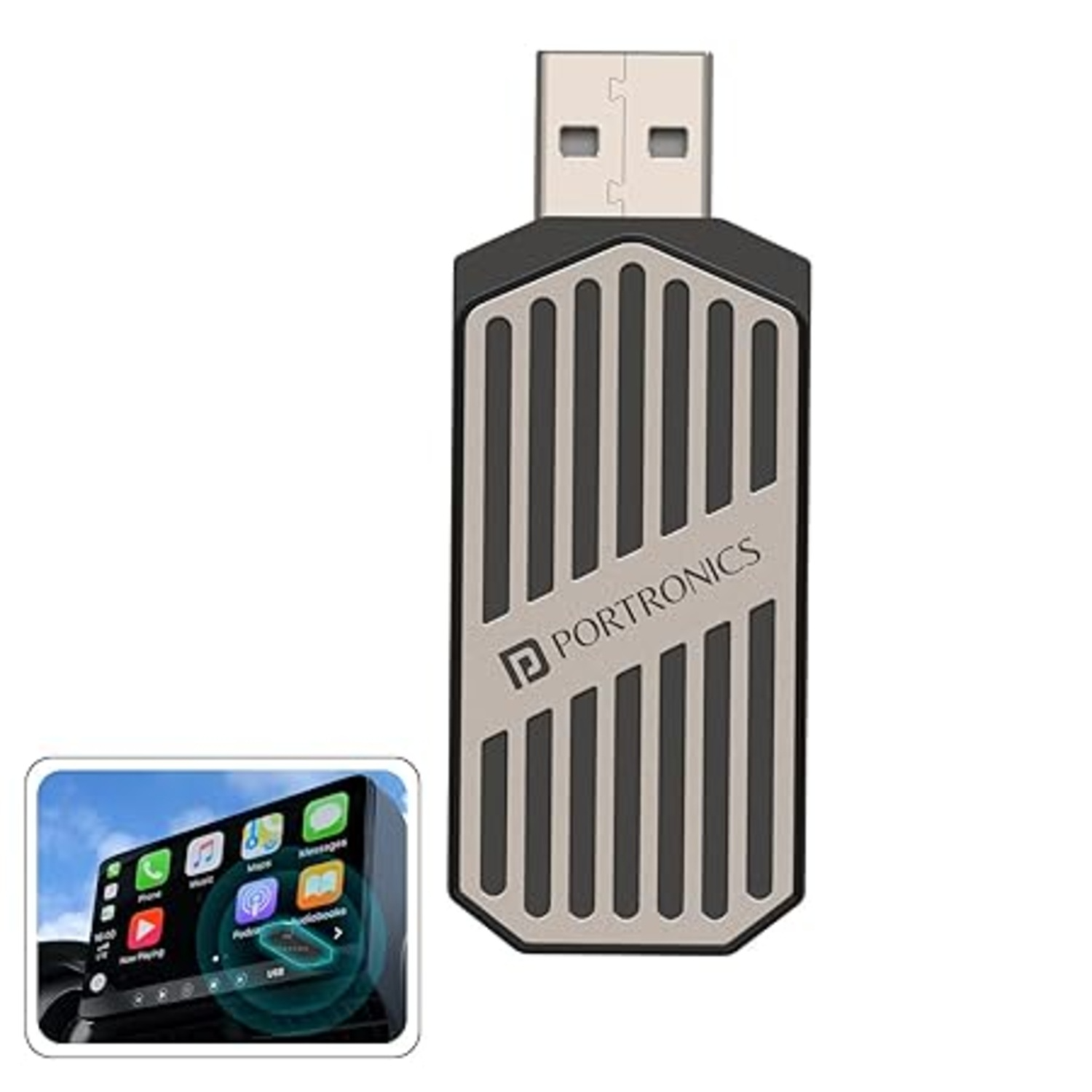
The Portronics Tune (POR 2759) is a wireless car adapter that converts your car's wired Android Auto or Apple CarPlay into a wireless connection. Once paired, your smartphone automatically connects to your car's infotainment system every time you start the vehicle, eliminating the need for a USB cable.
Important: Tune works only with OEM (company-fitted) infotainment systems that already support wired Android Auto or wired Apple CarPlay. It is not compatible with aftermarket infotainment systems.
2. Full Specifications
| Category | Details |
|---|---|
| Model | POR 2759 |
| Product Type | Wireless Android Auto & Apple CarPlay Adapter |
| Compatibility | OEM Car Infotainment Systems |
| Smartphone Compatibility | Android 12 or above, iOS 15 or above |
| Connectivity | Bluetooth + Wi-Fi |
| Installation | Plug & Play (USB) |
| Supported Features | Wireless Android Auto, Wireless Apple CarPlay |
| Warranty | 6 Months |
3. In the Box
- Tune Wireless Car Receiver ×1
- User Manual ×1
4. Product Features
- Wireless Android Auto
- Wireless Apple CarPlay
- Plug & Play Installation
- Bluetooth Connectivity
- Wi-Fi Connectivity
- Automatic Reconnection
- Compact Design
- Fast Pairing
- Compatible with OEM Wired Android Auto / Apple CarPlay Systems
5. Compatibility
Supported
- OEM infotainment systems with Wired Android Auto
- OEM infotainment systems with Wired Apple CarPlay
- Android Smartphones (Android 12 or later)
- iPhones (iOS 15 or later)
Not Supported
- Cars without Wired Android Auto or Wired Apple CarPlay
- Most aftermarket infotainment systems
- Manual Bluetooth pairing with the car display
6. Getting Started
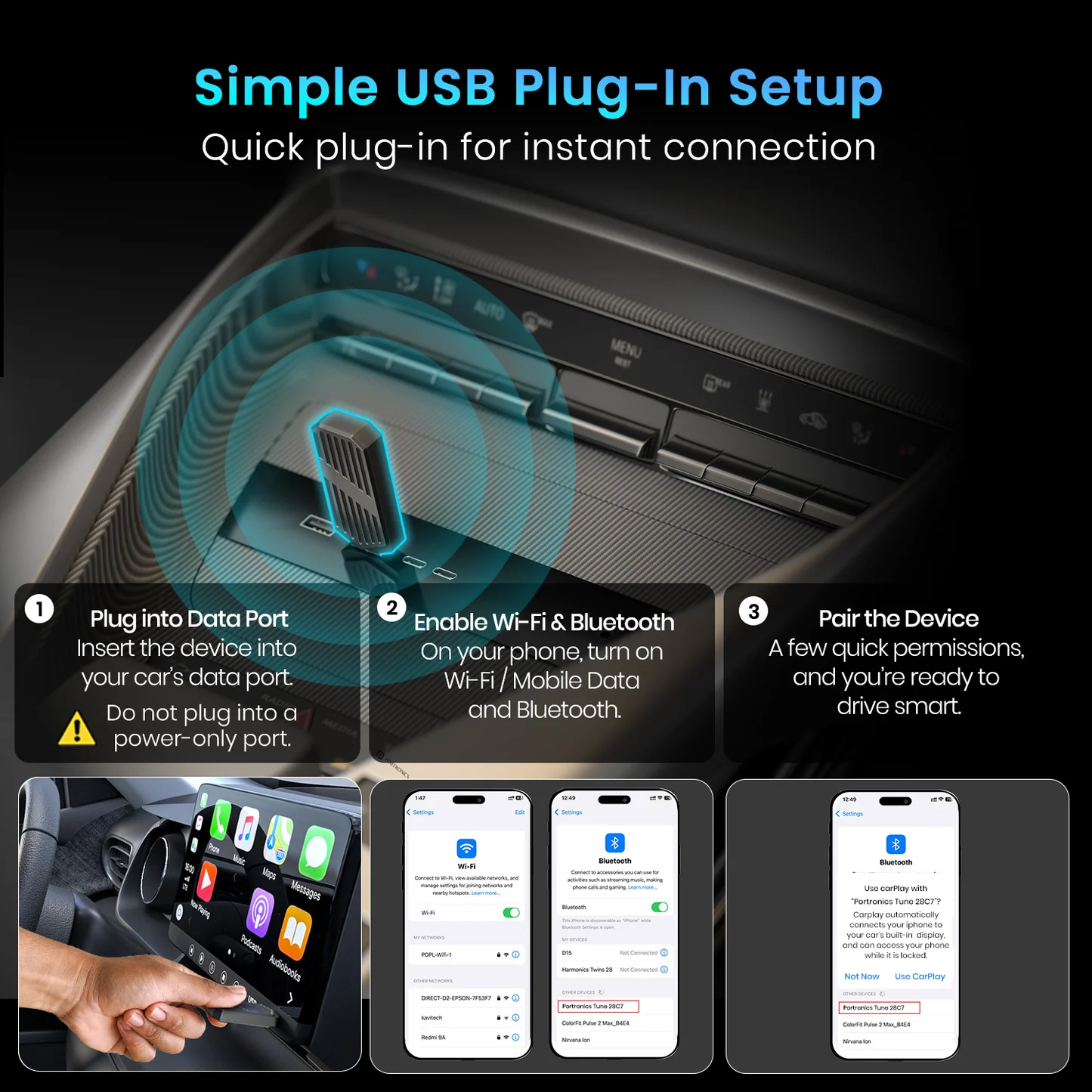
Step 1 – Connect the Device
- Plug the Tune adapter into your car's USB port.
- Turn ON the car ignition.
- Wait for the infotainment display to recognize the device.
Step 2 – Reset the Display
- If prompted, restart or refresh the infotainment display.
- Wait until Portronics Tune XXXX appears on the screen.
Step 3 – Pair Your Smartphone
Enable:
- Bluetooth
- Wi-Fi
on your smartphone.
Step 4 – Connect
Search for:
Portronics Tune XXXX
Tap to pair.
Once connected, the device automatically launches:
- Android Auto
- Apple CarPlay
depending on your smartphone.
7. Android Pairing
On your Android phone:
Settings → Connections → Android Auto → Vehicles → Select Your Car → Forget This Car (if previously paired).
Reconnect to Portronics Tune XXXX via Bluetooth.
Within 2–3 minutes, Android Auto launches automatically.
8. iPhone Pairing
On your iPhone:
Settings → General → CarPlay → My Cars → Select Your Car → Forget This Car (if previously paired).
Reconnect to Portronics Tune XXXX.
Within 2–3 minutes, Apple CarPlay launches automatically.
9. Important Notes
- Enable both Bluetooth and Wi-Fi.
- Do not manually connect your phone's Bluetooth to the car stereo.
- Connect only to Portronics Tune XXXX.
- After the first successful pairing, the adapter reconnects automatically whenever you start the vehicle.
- Allow all requested permissions during the initial setup on both Android and iPhone.
10. Troubleshooting Guide
Issue: Device Does Not Power ON
Possible Causes
- Adapter is not inserted properly.
- USB port has no power.
- Car ignition is OFF.
Troubleshooting
- Ensure the adapter is firmly connected to the car USB port.
- Turn ON the vehicle ignition.
- Try another USB port (if available).
- Reinsert the adapter and wait for the display to detect it.
Issue: Portronics Tune XXXX Does Not Appear
Possible Causes
- Device has not completed booting.
- Bluetooth is disabled.
- Display has not refreshed.
Troubleshooting
- Wait approximately 30–60 seconds after connecting.
- Restart the infotainment system.
- Ensure Bluetooth is enabled on the phone.
- Reinsert the adapter.
Issue: Unable to Pair with Android Auto
Possible Causes
- Existing Android Auto pairing.
- Bluetooth not enabled.
- Android Auto cache.
Troubleshooting
- Go to:
Settings → Connections → Android Auto → Vehicles
- Forget the previously connected car.
- Restart Bluetooth.
- Pair again with Portronics Tune XXXX.
- Wait 2–3 minutes for Android Auto to launch.
Issue: Unable to Pair with Apple CarPlay
Possible Causes
- Previous CarPlay profile.
- Bluetooth pairing conflict.
Troubleshooting
- Go to:
Settings → General → CarPlay
- Remove the previously connected vehicle.
- Pair again with Portronics Tune XXXX.
- Wait for CarPlay to launch automatically.
Issue: Android Auto / CarPlay Does Not Start Automatically
Possible Causes
- Bluetooth or Wi-Fi disabled.
- Phone permissions denied.
Troubleshooting
- Ensure Bluetooth and Wi-Fi are both ON.
- Grant all Android Auto or CarPlay permissions.
- Disconnect and reconnect the adapter.
- Restart the phone.
Issue: Connection Disconnects Frequently
Possible Causes
- Weak Bluetooth signal.
- Wi-Fi interference.
- Phone moved too far away.
Troubleshooting
- Keep the phone inside the vehicle.
- Restart Bluetooth and Wi-Fi.
- Reconnect the adapter.
- Restart the smartphone.
Issue: Device Connects but No Android Auto / CarPlay Appears
Possible Causes
- Vehicle is incompatible.
- OEM infotainment does not support wired Android Auto/CarPlay.
Troubleshooting
- Verify that the car supports wired Android Auto or wired Apple CarPlay.
- Ensure the infotainment system is OEM.
- Test the phone using a USB cable directly with the car.
Issue: Device Was Working Earlier but Stops Connecting
Possible Causes
- Cached Bluetooth pairing.
- Phone software update.
- Infotainment software issue.
Troubleshooting
- Forget the Bluetooth connection.
- Forget Android Auto or CarPlay pairing.
- Pair the device again from the beginning.
- Restart both the smartphone and infotainment system.
Issue: Slow Connection or Delay
Possible Causes
- Bluetooth interference.
- Weak Wi-Fi connection.
Troubleshooting
- Restart Bluetooth and Wi-Fi.
- Remove unnecessary paired Bluetooth devices.
- Reconnect to Portronics Tune XXXX.
- Wait for the wireless connection to stabilize.
11. Safety Instructions
- Use only with compatible OEM infotainment systems.
- Do not unplug the adapter while driving.
- Avoid exposing the adapter to water, excessive heat, or direct sunlight.
- Insert and remove the adapter gently.
- Keep the USB connector clean and free from dust.
12.Still Facing Issues?
If the issue persists after performing all troubleshooting steps, please Click here raise a support request.
Our support team will assist you further.
Was this article helpful?
That’s Great!
Thank you for your feedback
Sorry! We couldn't be helpful
Thank you for your feedback
Feedback sent
We appreciate your effort and will try to fix the article