TABLE OF CONTENTS
- 1. Product Overview
- 2. Package Contents
- 3. Keyboard Layout & Controls
- 4. Getting Started
- 5. Power ON / OFF
- 6. Connectivity Modes
- 7. Multi-Device Switching
- 8. OS Switching (Important Feature)
- 9. Reset Method
- 10. Power Saving & Battery
- 11. Troubleshooting
- 12. Care & Maintenance
- 13. Important Notes
- Still Facing Issues?
1. Product Overview
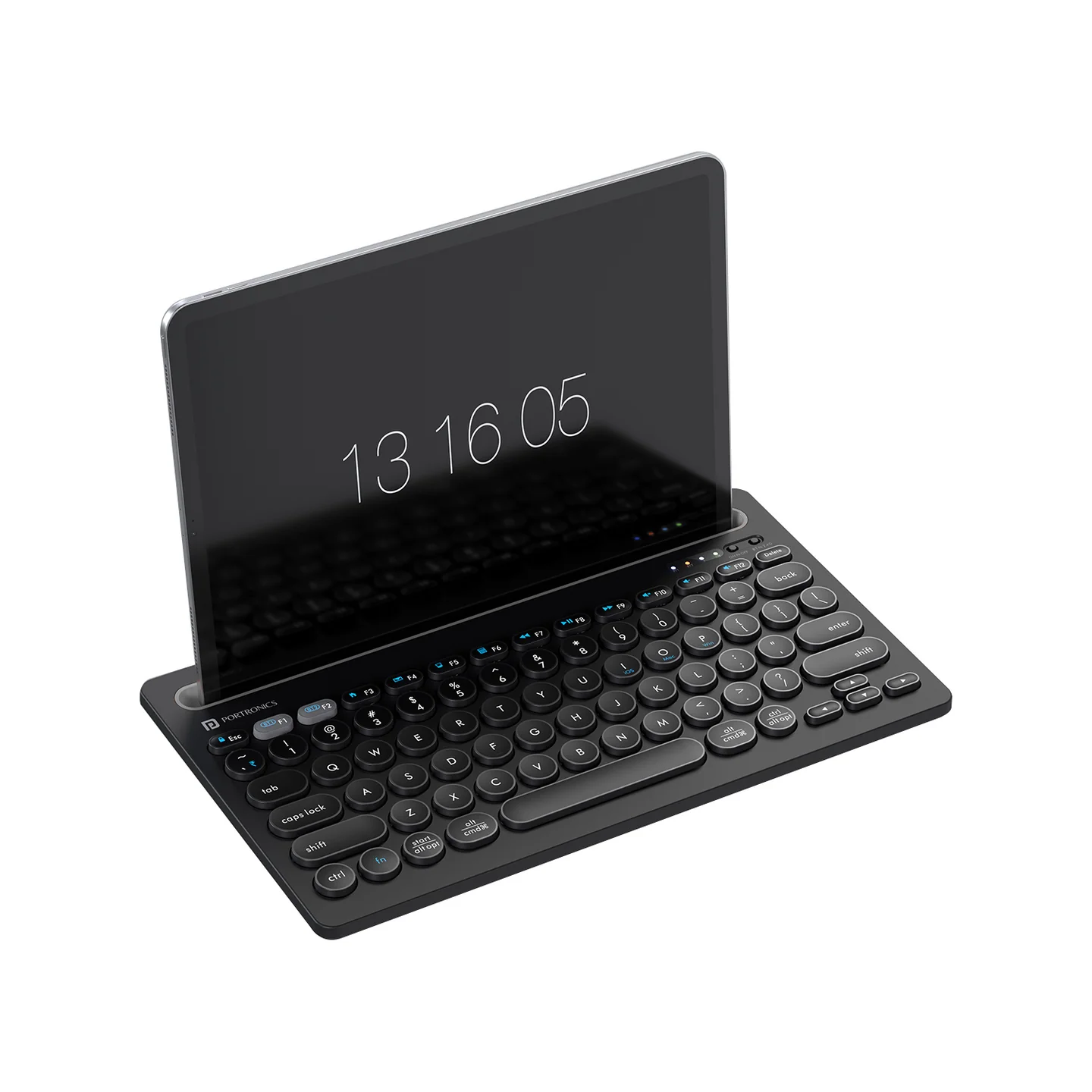
Model: Portronics Bubble Dock
Type: Wireless Multi-Device Keyboard with Dock/Stand
Key Features
- Multi-device connectivity (2.4 GHz + Dual Bluetooth)
- Built-in device stand (tablet/mobile holder)
- Multimedia shortcut keys
- Rechargeable battery (USB Type-C)
2. Package Contents
- Wireless Keyboard
- USB Receiver
- Charging Cable (USB to Type-C)
- User Manual
3. Keyboard Layout & Controls
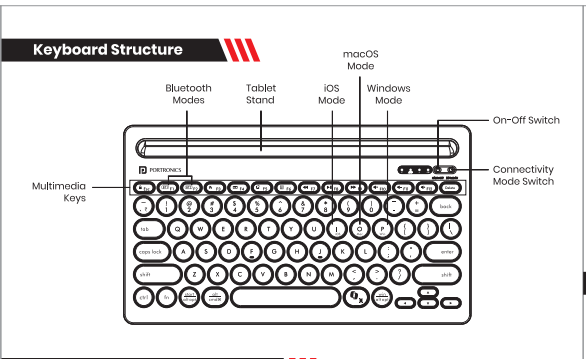
- Connectivity Mode Switch
- Power ON/OFF Switch
- Bluetooth Keys (BT1 / BT2)
- Multimedia Keys
- Device Stand Slot (Dock area)
4. Getting Started
- Charge the keyboard using the provided USB Type-C cable
- Recommended first charge: ~2 hours
- LED indicator:
- Green light = Charging
- Turns OFF = Fully charged
5. Power ON / OFF
- Locate the switch (top-right backside)
- Slide to:
- ON → Start using
- OFF → Save battery
6. Connectivity Modes
A. 2.4 GHz USB Receiver Mode
- Remove USB receiver from keyboard back compartment
- Insert into your device
- Turn keyboard ON
- Switch mode to 2.4G
- Indicator light blinks → connection ready
✔ No pairing required
✔ Instant plug-and-play
B. Bluetooth Mode (BT1 / BT2)
Supports 2 devices simultaneously
Steps:
- Turn ON keyboard
- Switch mode to BT
- Press Fn + F1 (BT1) or Fn + F2 (BT2)
- Hold for a few seconds → LED starts blinking
- Enable Bluetooth on your device
- Select Bubble Dock → Connect
✔ To reconnect: press the same BT key
✔ To re-pair: repeat pairing steps
7. Multi-Device Switching
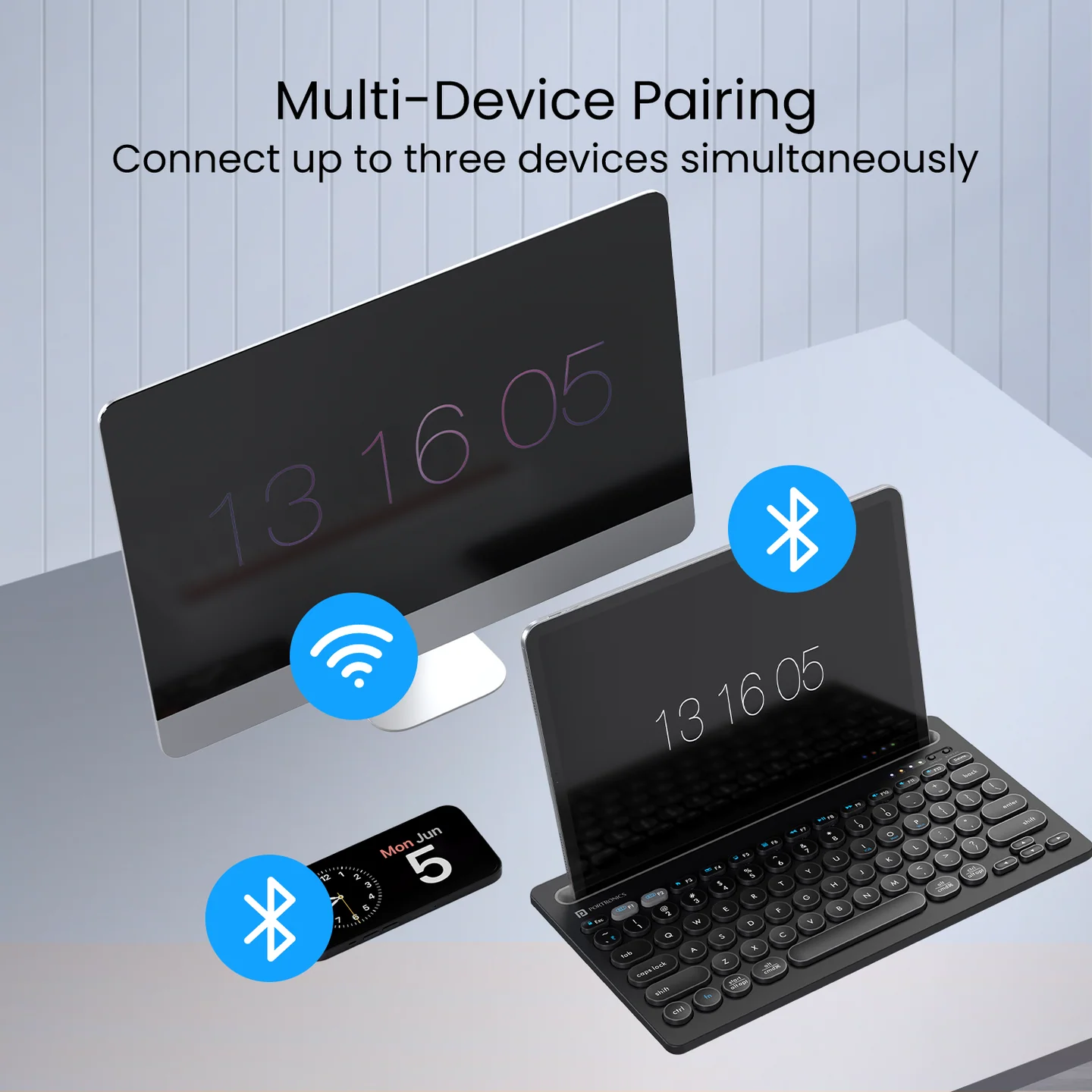
- Supports 3 devices total:
- 1 via USB (2.4 GHz)
- 2 via Bluetooth
Switching:
- Between USB & BT → Toggle switch
- Between BT1 & BT2 → Press Fn + F1 / F2
8. OS Switching (Important Feature)
(Manual section: “Switching Between OS”)
- Windows: Press Fn + P (hold 4 sec)
- macOS: Press Fn + O (hold 4 sec)
- iOS: Press Fn + I (hold 4 sec)
✔ Ensures correct key mapping
9. Reset Method
(Manual bottom section)
- Turn ON the keyboard
- Press ESC + Q together for 3 seconds
- LED will flash → reset complete
- Reconnect device
10. Power Saving & Battery
- Auto sleep after inactivity
- Press any key to wake
- Recharge via Type-C
11. Troubleshooting
Keyboard Not Connecting
- Check mode (BT / 2.4G)
- Reinsert USB receiver
- Re-pair Bluetooth
Not Responding
- Charge battery
- Restart keyboard
Connection Drops
- Stay within range (~10 meters)
- Avoid interference
Pairing Issues
- Reset keyboard (ESC + Q)
- Reconnect from scratch
12. Care & Maintenance
- Keep away from liquids
- Store in dry environment
- Do not drop or shake
- Clean with soft cloth
13. Important Notes
- Avoid extreme temperatures
- Do not use with wet hands
- Prevent dust exposure
Still Facing Issues?
If the issue persists after performing all troubleshooting steps, please Click here raise a support request.
Our support team will assist you further.
Was this article helpful?
That’s Great!
Thank you for your feedback
Sorry! We couldn't be helpful
Thank you for your feedback
Feedback sent
We appreciate your effort and will try to fix the article