TABLE OF CONTENTS
- 1. Introduction
- 2. Box Contents
- 3. Buttons & Their Functions
- 4. Ports
- 5. Power On & Off
- 6. How to Use — Pairing
- 7. How to Use — Mode Switching
- 8. How to Use — Active Noise Cancellation
- 9. How to Use — Media & Call Handling
- 10. Using the AUX Cable
- 11. Charging
- 12. Listen Responsibly
- 13. Specifications
- 14. Support
1. Introduction
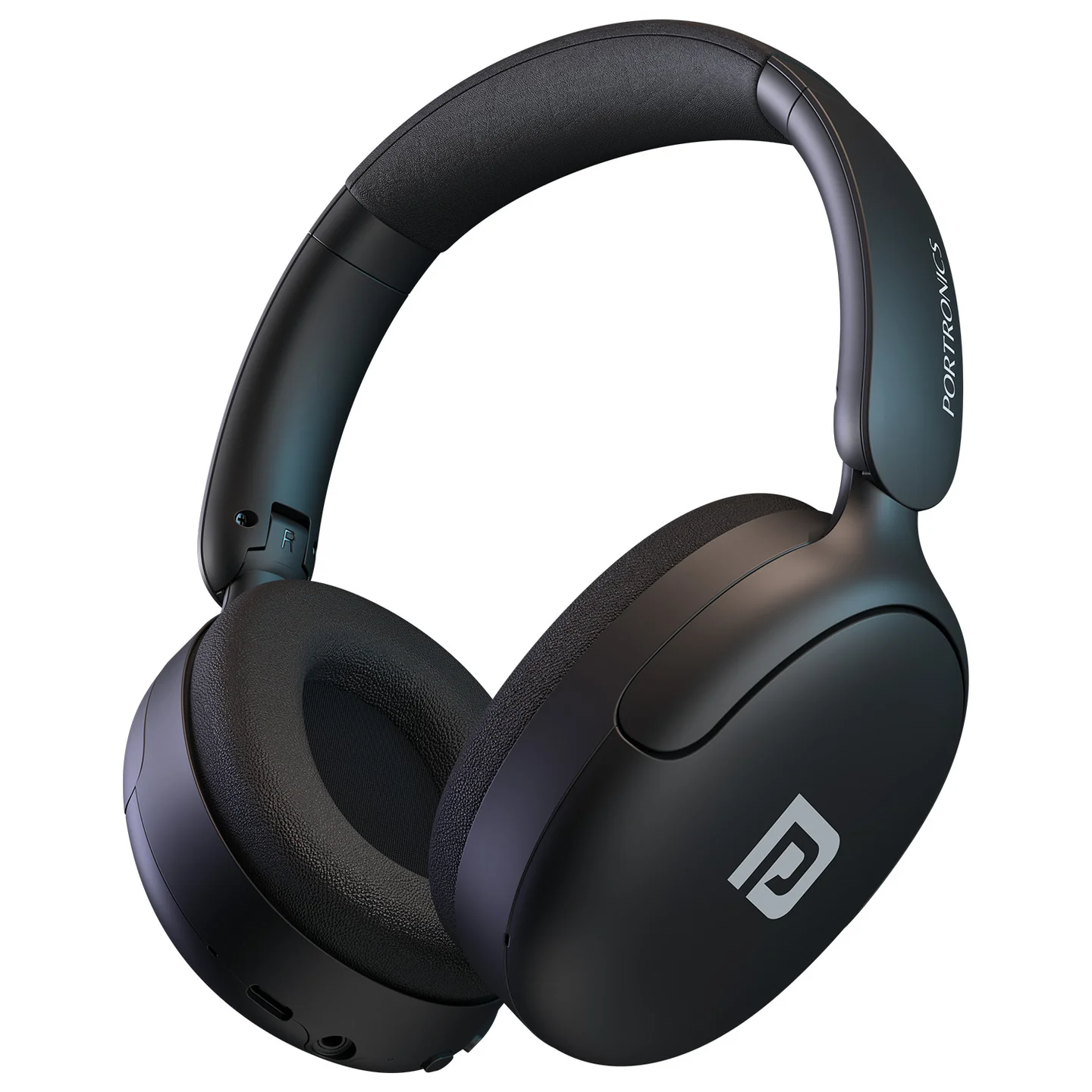
Thank you for choosing the Portronics Muffs M5 wireless headphone. Muffs M5 offers up to 50 hours of playtime, Hybrid Active Noise Cancellation with a Transparency mode, a Quad Mic array for clear calls, Bluetooth 5.3 with dual pairing, a 40mm dynamic driver, three sound modes (Music/Gaming/Movie), and Type-C fast charging in a foldable, adjustable design.
2. Box Contents
- Muffs M5 Wireless Headphone — 1
- 3.5mm AUX Cable — 1
- USB Type-C Charging Cable — 1
- User Manual — 1
3. Buttons & Their Functions
1. Multi-Function Button
- Long press (3 seconds): Power On/Off.
- Double click: Cycle Mode (Music → Gaming → Movie).
- Single press: Play/Pause music.
- Single press: Answer/Hang up call.
- Double click (incoming call): Reject call.
2. Volume "+" / Next Track Button
- Single click: Volume Up.
- Long press: Next Track.
3. Volume "−" / Previous Track Button
- Single click: Volume Down.
- Long press: Previous Track.
4. ANC Button
- Single press: ANC On/Off — Transparency mode.
- Double press: Adaptive noise reduction mode.
- Long press: Siri or voice assistant.
5. 3.5mm Audio Jack
- Supports major mobile audio devices for wired listening.
6. Power/Pairing LED
| LED State | Meaning |
|---|---|
| Flashing Blue & Red | Powering on / Pairing mode |
| Solid Blue | Connected |
| Off | Powered off |
7. Charging LED
| LED State | Meaning |
|---|---|
| Solid Red | Charging |
| Light Off | Fully charged |
4. Ports
1. 3.5mm AUX Input Connect using the supplied AUX cable to use Muffs M5 as a wired headset with a phone, PC, laptop, or other audio device. If the source has no 3.5mm port, use an appropriate audio adapter, or connect via Bluetooth instead.
2. USB-C Charging Port Use a Type-C cable to charge. A full charge takes approximately 2–2.5 hours.
5. Power On & Off
- Power On: Long-press the Multi-Function key for 3 seconds; the LED flashes blue and red.
- Power Off: Long-press the Multi-Function key for 3 seconds; the LED stops flashing.
6. How to Use — Pairing
- Make sure your phone, computer, or other audio device is switched on and within 1 metre.
- Activate Bluetooth on your device and search for available Bluetooth devices; select MUFFS M5.
- Click to complete the pairing — once successful, the LED turns solid blue.
- After the first successful pairing, Muffs M5 automatically reconnects to the last-paired phone whenever it's switched on, so there's no need to repeat the pairing steps.
Note: If necessary, turn the headset off and on again and repeat the steps above to reconnect.
Dual Pairing: Pair and connect the headset to mobile phone A first, then turn on Bluetooth on mobile phone B and connect from there too. The headset will automatically switch back to phone A (if that phone has automatic reconnection enabled) or you can click the Muffs M5 entry on phone A to reconnect manually. This lets you stay connected to two phones at once, so you can answer calls or play audio from either device.
7. How to Use — Mode Switching
Double-click the Multi-Function Button to cycle between:
- Music Mode
- Gaming Mode
- Movie Mode
8. How to Use — Active Noise Cancellation
Using the ANC Button:
- Single press — toggles ANC On/Off (Transparency mode).
- Double press — switches to Adaptive noise reduction mode.
- Long press — activates Siri or your phone's voice assistant.
9. How to Use — Media & Call Handling
Media Handling
| Action | Control |
|---|---|
| Play/Pause music | Single click Multi-Function Button |
| Volume Up | Single click "+" |
| Volume Down | Single click "−" |
| Next Track | Long press "+" |
| Previous Track | Long press "−" |
Call Handling
| Action | Control |
|---|---|
| Answer call | Single click Multi-Function Button |
| Hang up call | Single click Multi-Function Button |
| Reject incoming call | Double click Multi-Function Button |
| Volume Up (in call) | Single click "+" |
| Volume Down (in call) | Single click "−" |
10. Using the AUX Cable
Connect the supplied 3.5mm AUX cable between the headphone's Audio Jack and a compatible device — a PC, laptop, or any device with a 3.5mm port (or with Bluetooth, as an alternative) — to listen without Bluetooth. ANC can still be used in AUX mode via the ANC Button. Note: while connected with the wired AUX cable, the Bluetooth connection function cannot be used at the same time.
11. Charging
- Use a Type-C cable to charge.
- Charging: LED indicator glows solid red.
- Fully Charged: LED indicator turns off.
- Charging Time: ~2–2.5 hours.
- Please use a charger that has passed the national safety certification.
12. Listen Responsibly
To avoid hearing damage, make sure the volume on your music player is turned down before connecting your headphones, then gradually turn the volume up until you reach a comfortable listening level. Noise at or above 85dB, or prolonged exposure at any level, can cause gradual hearing loss — the louder it is, the less time you can safely listen, and the softer it is, the more time you can listen.
Do not use the headphones when it's unsafe to do so — while operating a vehicle, crossing streets, or during any activity requiring full attention to your surroundings.
13. Specifications
| Specification | Details |
|---|---|
| Bluetooth Name | MUFFS M5 |
| Bluetooth Version | 5.3 |
| Bluetooth Range | 10m |
| Battery | 400mAh |
| Charging Time | ~2–2.5 hours |
| Speaker Diameter | 40mm |
| Input Current | 5V⎓280mAh±20% |
| Net Weight | ~332g |
14. Support
If the issue persists after performing all troubleshooting steps, please raise a support request.
Our support team will assist you further.
Support
- Visit: www.portronics.com
- Support Portal: support.portronics.com7
Was this article helpful?
That’s Great!
Thank you for your feedback
Sorry! We couldn't be helpful
Thank you for your feedback
Feedback sent
We appreciate your effort and will try to fix the article