TABLE OF CONTENTS
- 1. Introduction
- 2. Package Contains
- 3. Specifications
- 4. Connection Modes
- 5. Button Functions
- 6. UI Operation Instructions (2.4G Gaming Mode)
- 7. Charging
- 8. Support
1. Introduction
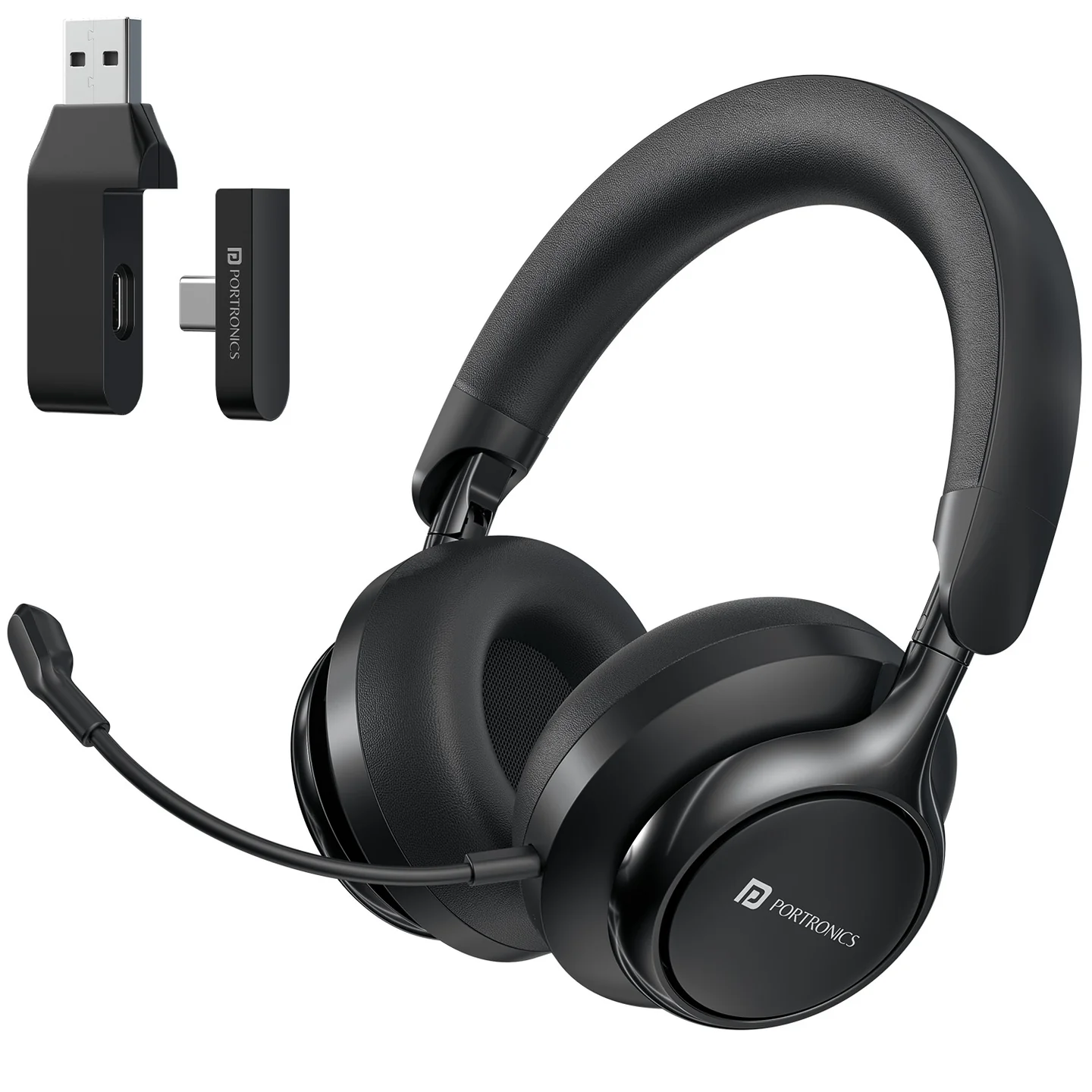
Thank you for choosing the Portronics Muffs M7. Muffs M7 is a dual-connectivity gaming headphone offering Bluetooth 5.4 and a low-latency 2.4GHz wireless mode (via USB-A or Type-C transmitter), a detachable boom mic, 40mm drivers, and up to 50 hours of playtime.
2. Package Contains
- Muffs M7 Headphones — 1
- Charging Cable — 1
- Type-C Transmitter — 1
- USB-A Transmitter — 1
- User Manual — 1
3. Specifications
| Specification | Details |
|---|---|
| Bluetooth Version | V5.4 |
| Battery Volume | 600mAh / 3.7V |
| Charging Voltage | 5V/1A |
| Distance | ≤10m |
| Frequency Response | 20–20K Hz |
| Working Time | Wireless: 55–60H · 2.4G: 22–24H |
| Microphone | Built-in & detachable microphone |
| Dual Pairing | Yes |
2.4G Dongle
| Specification | Details |
|---|---|
| Working Current | 25mA |
| Transmission Frequency | 2.4–2.483GHz |
| Transmission Power | 8dBm |
| Distance | ≤10m |
4. Connection Modes
1. Game Mode (2.4GHz)
- Plug the USB receiver into your device.
- Long-press the mode button on your headphones to switch to 2.4G mode.
- The headphones will automatically connect.
2. Wireless Bluetooth Mode
- Long-press the mode button to switch to Bluetooth mode.
- Open Bluetooth settings on your phone or computer.
- Select "Muffs M7" from the list to pair and connect.
3. Wired Mode (3.5mm Audio Cable)
- Plug one end of the 3.5mm audio cable into your headphones and the other into your device.
- Once connected, your headphones are ready to use.
5. Button Functions
| Control | Action | Function |
|---|---|---|
| Power Button | Long press | Turn headphones on or off |
| Mode Button | Double-tap | Activate Siri / Google Assistant |
| Power Button | Single press | Answer or end a call |
| Power Button | Press & hold (2 sec) | Reject an incoming call |
| "+" | Press | Increase volume |
| "–" | Press | Decrease volume |
| Power Button | Single press | Play / pause music |
| "–" | Long press | Previous track |
| "+" | Long press | Next track |
| Mode Button | Click | Turn microphone on or off |
| Mode Button | Long press | Switch between Wireless and 2.4G modes |
6. UI Operation Instructions (2.4G Gaming Mode)
- Power On: press and hold the ON/OFF button for 2 seconds — white light flashes 3 times, then stays on for 2 seconds.
- Power Off: press and hold the ON/OFF button for 4 seconds.
- Enter Pairing Mode: press and hold the ON/OFF button for 2 seconds — the headset powers on and enters pairing mode automatically; red and white lights flash alternately.
- Connected to Dongle: white light stays on.
- Disconnected from Dongle: red and white lights flash alternately when the dongle is removed or out of range.
- Auto Reconnect After Power On: headset reconnects automatically to the previously paired device; white light stays on.
- Disconnected Due to Range: headset disconnects automatically if it goes out of range; red and white lights flash alternately.
- Reconnect After Returning in Range: if you return within range within 5 minutes, the headset reconnects automatically; white light stays on.
- Microphone On/Off: press the mode button once to mute or unmute; a voice prompt says "Mic Mute" or "Mic On."
- Play/Pause Music: short press the ON/OFF button once.
- Next Track: press and hold the V+ button for 2 seconds.
- Previous Track: press and hold the V− button for 2 seconds.
- Volume Up: short press the V+ button — a "Max Volume" sound plays at the maximum level.
- Volume Down: short press the V− button.
7. Charging
- Charging: the red light stays on.
- Charging Complete: the blue light stays on.
- Power Off During Charging: the headset automatically powers off while charging.
- Wired Connection (Audio Cable): plugging in an audio cable automatically powers the headset off, and it works in AUX/Wired Mode.
- Auto Shutdown (Inactivity): if inactive for 5 minutes, the headset turns off automatically to save battery.
8. Support
If the issue persists after performing all troubleshooting steps, please raise a support request.
Our support team will assist you further.
Support
- Visit: www.portronics.com
- Support Portal: support.portronics.com
Was this article helpful?
That’s Great!
Thank you for your feedback
Sorry! We couldn't be helpful
Thank you for your feedback
Feedback sent
We appreciate your effort and will try to fix the article