TABLE OF CONTENTS
- Product Overview
- Quick Reference
- What's in the Box
- Button & Control Guide
- Bluetooth Pairing
- Wireless Microphone Auto Connection
- USB Music Playback
- Volume & Echo Control
- RGB Lighting
- Charging
- Battery & Playtime
- FM / AUX
- Care & Safety
- Still stuck?
Product Overview
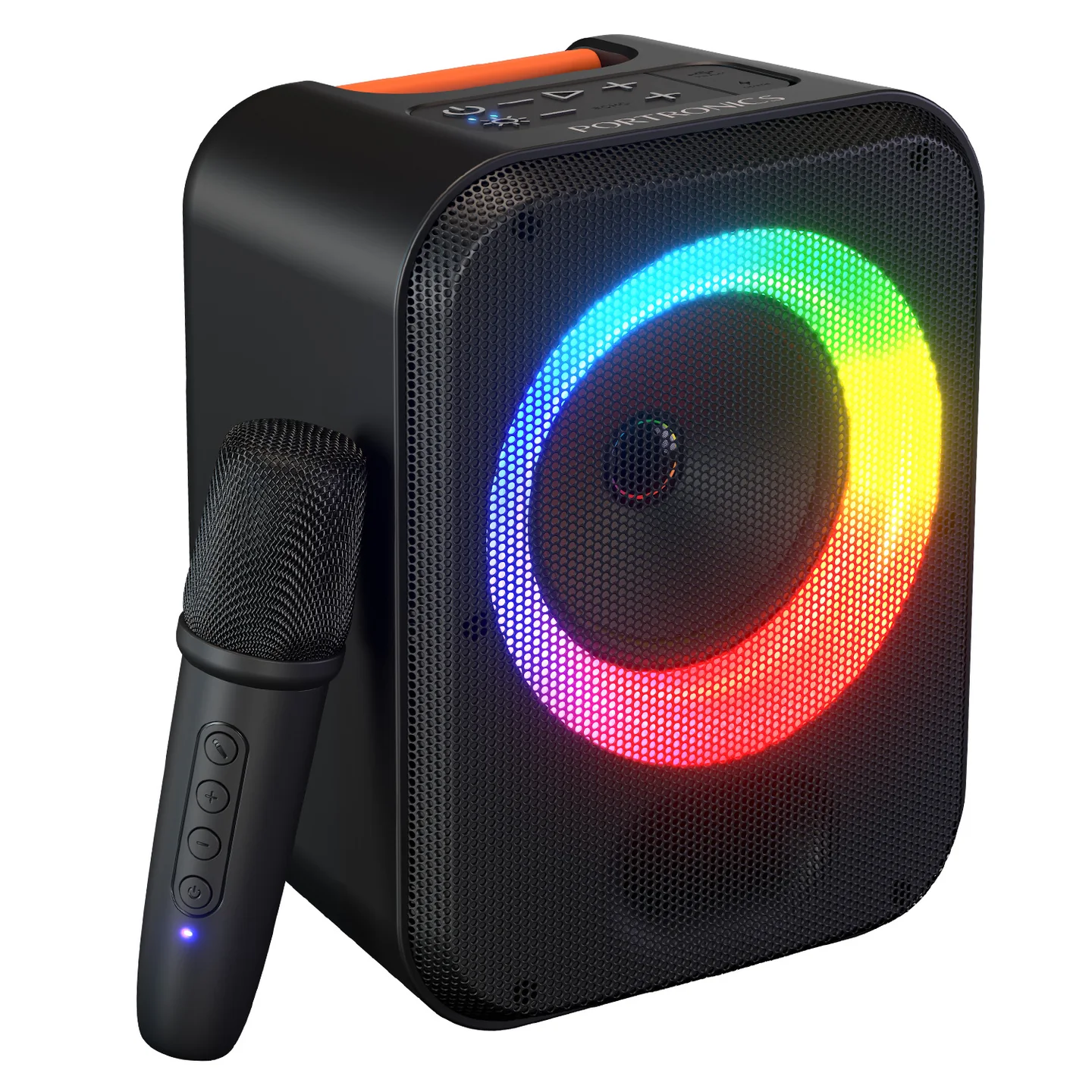
The Portronics Apollo 30 is a 30W Bluetooth speaker with a wireless karaoke microphone, designed for music, karaoke and casual entertainment. It features RGB lighting, echo control, USB playback and Type-C charging.
Quick Reference
| Feature | Details |
|---|---|
| Product | Portronics Apollo 30 |
| Product Code | POR 2737 |
| Output Power | 30W |
| Bluetooth | 5.4V |
| Bluetooth Frequency | 2402MHz–2480MHz |
| Battery | Li-ion, 3.7V / 2000mAh / 7.4Wh |
| Charging Time | Approx. 2.5 hours |
| Playtime | Up to 5 hours |
| Connectivity / Functions | Bluetooth, USB, Microphone |
| Charging Port | Type-C |
| Product Dimensions | 170 × 220 × 145mm |
| Product Weight | 0.972kg |
| Wireless Karaoke Mic | Included |
| RGB Lighting | Yes |
| Echo Control | Yes |
| FM / AUX | Supported |
What's in the Box
| Item | Quantity |
|---|---|
| Apollo 30 Speaker | 1 |
| Wireless Microphone | 1 |
| Type-C Charging Cable | 1 |
| User Manual | 1 |
Button & Control Guide
Speaker
| Control | Function |
|---|---|
| Play/Pause | Play or pause audio |
| Volume − | Decrease speaker volume |
| Volume + | Increase speaker volume |
| Power | Turn the speaker ON/OFF |
| Echo − | Decrease microphone echo |
| Echo + | Increase microphone echo |
| USB Input | Connect a USB flash drive |
| Type-C Charging Port | Charge the speaker |
| Working Indicator | Shows operating/connection status |
| Pulse Lights | RGB lighting effects |
Wireless Microphone
| Control | Function |
|---|---|
| Power | Turn the microphone ON/OFF |
| Mic Volume − | Decrease microphone volume |
| Mic Volume + | Increase microphone volume |
| Mute | Mute the microphone |
| Echo / Voice Controls | Adjust the microphone sound as available |
| Type-C Charging Port | Charge the microphone |
Bluetooth Pairing
- Turn on the Apollo 30.
- Activate Bluetooth on your phone or other device.
- Search for Apollo 30 in the available Bluetooth devices.
- Select Apollo 30 to connect.
- Once paired, the working indicator confirms the connection.
Wireless Microphone Auto Connection
The wireless microphone is designed to connect automatically to the speaker.
- Power on the Apollo 30.
- Switch on the wireless microphone.
- Wait for the prompt sound or indicator confirmation.
- Once connected, the microphone is ready to use.
If the Microphone Does Not Connect
- Restart the speaker and microphone.
- Keep the microphone within range of the speaker.
- Check the microphone battery level.
- Switch both devices off and on again, then retry.
USB Music Playback
- Insert a compatible USB flash drive into the USB port.
- The speaker automatically starts playing music from the USB drive.
- Use the playback controls on the speaker to control the audio.
Volume & Echo Control
Use the speaker controls to adjust the overall audio and microphone controls to fine-tune karaoke sound.
- Speaker Volume + / −: Increase or decrease overall speaker volume.
- Microphone Volume + / −: Increase or decrease microphone volume.
- Echo + / −: Increase or decrease the microphone echo effect.
- Mute: Temporarily mute the microphone.
RGB Lighting
The Apollo 30 features a multicolour RGB ring light that adds visual effects while playing music.
The pulse lighting can be part of the speaker's active operating mode.
Charging
- Connect the supplied Type-C cable to the speaker's charging port.
- Connect the other end to a suitable power source.
- Allow approximately 2.5 hours for charging.
- Disconnect the charging cable after charging is complete.
Charge the wireless microphone separately through its Type-C charging port.
Battery & Playtime
The speaker uses a 3.7V / 2000mAh Li-ion battery (7.4Wh).
The specified playtime is up to 5 hours. Actual battery life may vary depending on volume, lighting, microphone use and playback conditions.
FM / AUX
The Apollo 30 supports FM radio and AUX audio for additional playback options.
Select the appropriate mode/input and connect the relevant source where required.
Care & Safety
- Keep the speaker away from water, direct sunlight and high heat.
- Do not attempt to dismantle the unit.
- Clean the speaker with a dry, soft cloth.
- For long-term storage, fully charge the speaker and store it with around 50% charge if it will remain unused for an extended period.
- Do not use damaged charging cables.
- Keep the microphone and speaker sufficiently charged for wireless operation.
Still stuck?
If the issue persists after performing all troubleshooting steps, please raise a support request.
Our support team will assist you further.
Support
- Visit: www.portronics.com
- Support Portal: support.portronics.com
Was this article helpful?
That’s Great!
Thank you for your feedback
Sorry! We couldn't be helpful
Thank you for your feedback
Feedback sent
We appreciate your effort and will try to fix the article