TABLE OF CONTENTS
- Product Overview
- Quick Reference
- What's in the Box
- Parts & Controls
- Getting Started
- How to Wear and Position the Microphone
- Switching Between Sound Modes
- Karaoke Mode: 8 Sound Effects
- Listening Mode: 4 Sound Modes
- Dry and Wet Recording
- Music and Call Controls
- Volume Controls
- Frequently Asked Questions
- Care & Safety
- Still stuck?
Product Overview
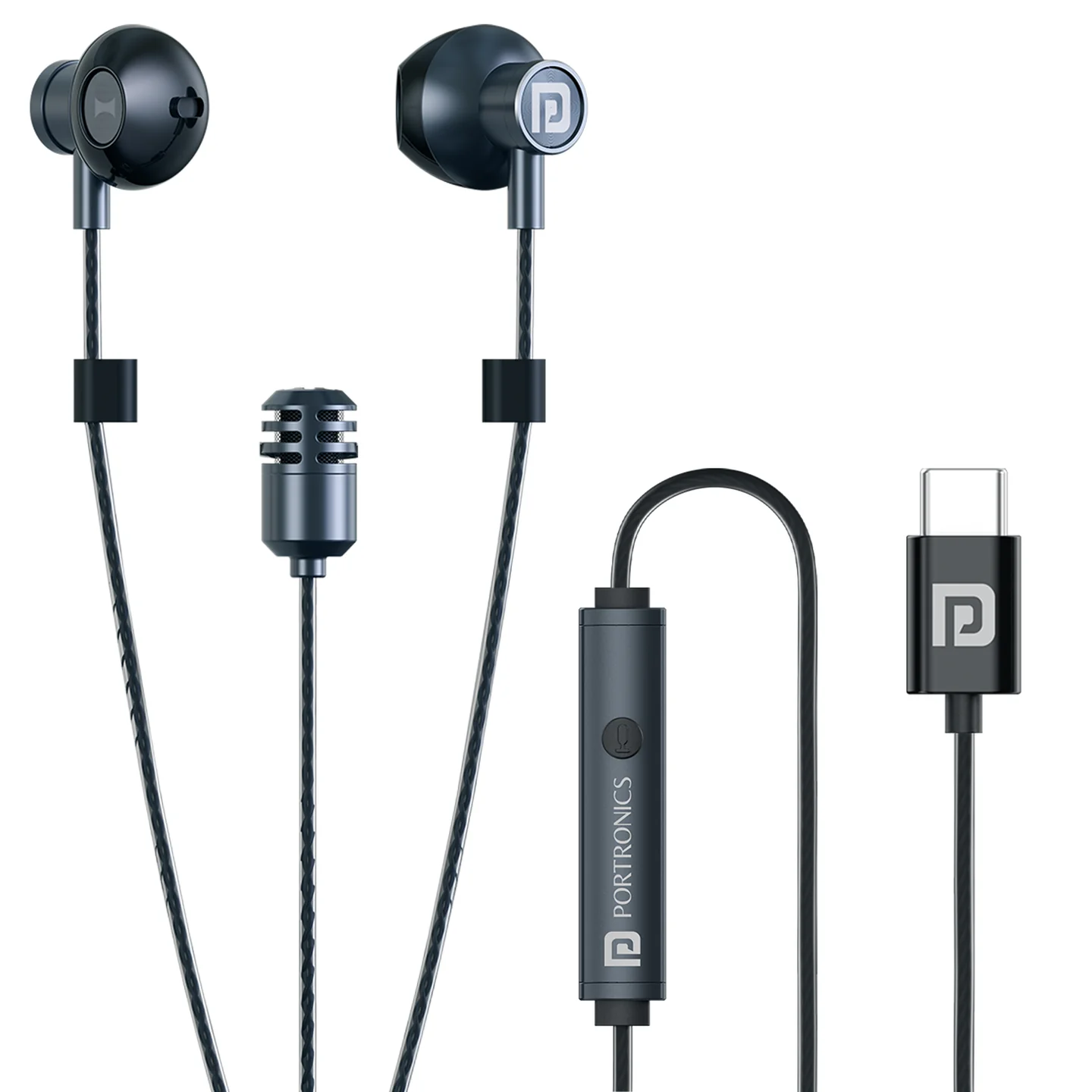
The Portronics Conch One is a Type-C wired earphone with an in-built karaoke microphone. It offers 8 karaoke sound effects for singing and 4 listening sound modes for music, video and gaming. The microphone can be used in hands-free or handheld mode.
Quick Reference
| Feature | Details |
|---|---|
| Product | Portronics Conch One |
| Product Code | POR 3246 |
| Connection | USB Type-C wired |
| Speaker Diameter | 14.2mm |
| Frequency Response | 20Hz–20kHz |
| Speaker Impedance | 32Ω |
| Microphone | Large-size omnidirectional microphone |
| Microphone Sensitivity | −40dB |
| Karaoke Sound Effects | 8 |
| Listening / EQ Modes | 4 |
What's in the Box
| Item | Quantity |
|---|---|
| Conch One Earphones with Microphone | 1 |
| Instruction Manual | 1 |
Parts & Controls
| Control | Function |
|---|---|
| M / Sound Effect Button | Long-press to switch between Karaoke Mode and Listening Mode; short-press to change effects within the selected mode |
| Microphone Button | Double-click to switch between Dry and Wet Recording |
| Multi-Function Button (Middle Button) | Playback and call controls |
| “+” Button | Volume and karaoke-return control, depending on mode |
| “−” Button | Volume and karaoke-return control, depending on mode |
| Type-C Connector | Connects the earphones to a compatible Type-C audio device |
| Detachable Microphone | Can be used attached to the cable or removed for handheld singing |
Getting Started
- Connect the Type-C connector to a compatible phone, tablet, laptop or other device that supports Type-C audio.
- Make sure the connector is fully inserted.
- Start your music, video, call or compatible karaoke app.
- Select Conch One as the audio output if your device asks you to choose an output.
Conch One is a wired Type-C earphone. It does not require Bluetooth pairing.
How to Wear and Position the Microphone
The earphones have adjustable positioning. Adjust the left and right earbuds so they sit comfortably and provide balanced sound.
Option 1: Hands-Free Microphone
- Keep the microphone attached to the connecting cable.
- Adjust the microphone position up or down until it is at a comfortable distance.
- Start singing or speaking.
Option 2: Handheld Microphone
- Detach the microphone from the connecting cable.
- Hold the microphone at a suitable distance from your mouth.
- Speak or sing into the microphone.
Switching Between Sound Modes
Long-press the M button to switch between:
- Karaoke Mode: for singing with microphone return and sound effects.
- Listening Mode: for regular music, video or gaming playback.
Karaoke Mode: 8 Sound Effects
In Karaoke Mode, short-press the M button to cycle through these effects:
| Mode | Sound Character |
|---|---|
| Professional Mode | Balanced sound for singing |
| Singer Mode | Brings vocals forward |
| Theater Mode | Stage-performance effect |
| Distant Mode | Adds a distant-sounding echo |
| Acoustic Mode | Softer, room-like sound |
| Melody Mode | Adds musical harmony |
| Rounded Mode | Smooth, warm sound |
| Vocal Clear Mode | Makes the voice clearer and sharper |
Use the “+” and “−” buttons to adjust the microphone/karaoke return level while in Karaoke Mode.
Listening Mode: 4 Sound Modes
In Listening Mode, short-press the M button to cycle through these modes:
| Mode | Sound Character |
|---|---|
| HD Mode | Clean, high-quality sound |
| Bass Mode | Stronger bass and beats |
| Cinema Surround Mode | Wider, cinema-style sound |
| Game Mode | Highlights details such as footsteps and in-game effects |
Use the “+” and “−” buttons to adjust listening volume while in Listening Mode.
Mode tip: If you have not pressed the M button for a few seconds, the first press announces the current mode. Press it again to move to the next mode.
Dry and Wet Recording
Double-click the Microphone Button to switch between:
- Dry Recording: clear voice without echo.
- Wet Recording: voice with an echo/reverb effect.
Choose the mode that suits your recording or singing style.
Music and Call Controls
| Action | Control |
|---|---|
| Play / Pause | Short-press the Multi-Function Button once |
| Answer a call | Short-press the Multi-Function Button once |
| End a call | Short-press the Multi-Function Button once |
| Reject an incoming call | Long-press the Multi-Function Button |
| Next song | Double-click the Multi-Function Button |
| Previous song | Triple-click the Multi-Function Button |
Volume Controls
The function of the “+” and “−” buttons depends on the selected mode:
- Karaoke Mode: adjust microphone/karaoke return level.
- Listening Mode: adjust music or media volume.
If the sound is too low, check the source device's volume as well.
Frequently Asked Questions
Sound still plays through the phone after connecting Conch One
- Check whether OTG is enabled in your phone settings, if your phone provides this option.
- Close music and media apps completely.
- Connect the earphones again.
- Restart the app and test audio.
Call audio stays on the phone instead of the earphones
Some phone systems require you to answer the call on the phone to route call audio through the wired earphones. Try answering the call on the phone and check the audio route.
No sound from the earphones or microphone
- Make sure the Type-C connector is fully inserted.
- Check that the phone and media volume are not muted.
- Remove any case or obstruction that may prevent the connector from fitting fully.
- Test with another compatible Type-C device if available.
Sound is low or only one earbud works
- Adjust the angle and position of the left and right earbuds.
- Inspect the earbud sound outlets for dirt or debris.
- Check the Type-C connector and device port for obstruction.
- Clean carefully before reconnecting.
Care & Safety
- Keep the earphones and connector free from dirt and moisture.
- Do not pull or bend the cable forcefully.
- Clean the earbuds and connector gently; do not pour liquid onto them.
- Use a compatible Type-C port that supports audio.
- Listen at a moderate volume to help protect your hearing.
- Keep the microphone secure when using it attached to the cable.
- When using the microphone detached, hold it carefully and avoid pulling its cable.
Still stuck?
If the issue persists after performing all troubleshooting steps, please raise a support request.
Our support team will assist you further.
Support
- Visit: www.portronics.com
- Support Portal: support.portronics.com
Was this article helpful?
That’s Great!
Thank you for your feedback
Sorry! We couldn't be helpful
Thank you for your feedback
Feedback sent
We appreciate your effort and will try to fix the article