TABLE OF CONTENTS
- Product Overview
- Quick Reference
- What's in the Box
- Parts & Controls
- Powering ON the Speaker
- Bluetooth Pairing
- Switching Playback Modes
- Bluetooth Audio Playback
- AUX Playback
- USB Flash Drive Playback
- TF Card Playback
- Using the Wireless Karaoke Microphone
- Speaker RGB Lighting
- Charging the Speaker
- LED Indicator Guide
- Safety & Care
- Troubleshooting
- Still stuck?
Product Overview
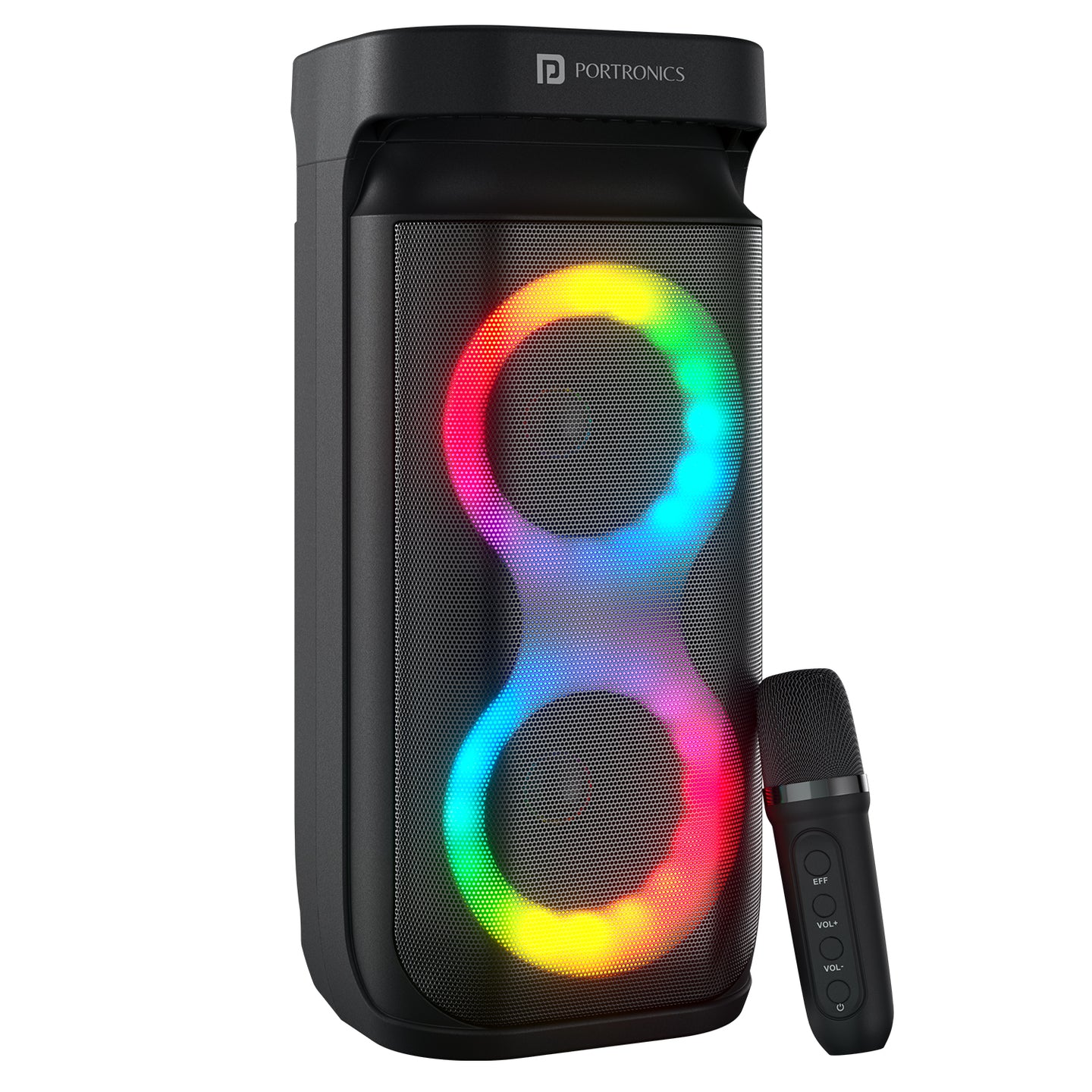
The Portronics Apollo Plus Duo (POR 3184) is a 40W Bluetooth speaker with a wireless karaoke microphone, eight RGB lighting effects and multiple playback options. It supports Bluetooth, AUX, USB flash drive and TF card playback. The included wireless microphone offers five voice effects, echo adjustment and a vocal-remover function.
Quick Reference
| Feature | Details |
|---|---|
| Product | Portronics Apollo Plus Duo |
| Product Code | POR 3184 |
| Colour | Black |
| Speaker Output | 40W (20W × 2) |
| Bluetooth Version | 6.0 |
| Playback Modes | Bluetooth, AUX, USB and TF card |
| RGB Effects | 8 |
| Speaker Battery | 3600mAh, 3.7V Li-ion (13.32Wh) |
| Microphone Battery | 400mAh, 3.7V Li-ion (1.48Wh) |
| Charging Port | USB Type-C |
| Charging Input | DC 5V/1A |
| Charging Time | Approx. 4–5 hours |
| Listed Playtime | Up to 4 hours |
| Driver / Frequency Response | 50Hz–20kHz |
| Microphone | Wireless karaoke microphone, included |
| Receiver / Wireless Range | Up to 10m |
| Material | ABS body + iron mesh |
| Dimensions | 149 × 154 × 330mm |
| Net Weight | 1.33kg |
| Warranty | 1 year |
Actual playtime depends on volume, RGB lighting, microphone use, playback mode and operating conditions.
What's in the Box
| Item | Quantity |
|---|---|
| Apollo Plus Duo Speaker | 1 |
| Wireless Karaoke Microphone | 1 |
| Type-C Cable | 1 |
| AUX Cable | 1 |
| 2.4GHz / TF accessories | As supported by the speaker slots; refer to the included package |
Parts & Controls
Speaker Controls
| Control | Action | Function |
|---|---|---|
| M / Mode Button | Single press | Switches between Bluetooth, AUX, USB and TF modes |
| M / Mode Button | Long press | Power ON/OFF or change the RGB effect, as described in the supplied control diagram |
| − Button | Single press | Previous track / video |
| − Button | Long press | Decrease speaker volume |
| + Button | Single press | Next track / video |
| + Button | Long press | Increase speaker volume |
| Play / Pause Button | Single press | Play or pause audio |
Microphone Controls
| Control | Action | Function |
|---|---|---|
| Power Button | Long press | Turn microphone ON/OFF |
| VOL+ Button | Long press | Increase microphone echo |
| VOL− Button | Long press | Decrease microphone echo |
| EFF Button | Single press | Cycle through voice effects |
| EFF Button | Long press | Toggle vocal remover ON/OFF |
The microphone's blue light turns ON when the microphone is powered ON.
Powering ON the Speaker
Use the speaker's M / Mode control as indicated on the product control panel. long press for power ON/OFF and a single press to change playback mode.
Bluetooth Pairing
- Turn ON the Apollo Plus Duo.
- The speaker starts in Bluetooth mode.
- Turn ON Bluetooth on your phone, tablet or other audio device.
- Search for Portronics Apollo Plus Duo.
- Select it to pair.
- Once paired, the blue LED becomes stable.
Bluetooth 6.0 and a receiver distance of up to 10m.
Switching Playback Modes
Use the M Button to cycle between the available playback modes.
| Mode | How to Use |
|---|---|
| Bluetooth | Pair the speaker with a phone, tablet or compatible device |
| AUX | Connect an audio source using the supplied 3.5mm AUX cable |
| USB | Insert a compatible USB flash drive |
| TF | Insert a compatible TF / microSD card until it clicks |
The single press of the M Button changes the mode. Confirm the selected source before starting playback.
Bluetooth Audio Playback
- Pair your phone or other device with Portronics Apollo Plus Duo.
- Start music or video playback on the connected device.
- Use the speaker's Play / Pause button to control playback.
- Press − or + to move to the previous or next track.
- Press and hold − or + to reduce or increase volume.
AUX Playback
- Connect one end of the supplied AUX cable to the speaker.
- Connect the other end to the 3.5mm audio output on your phone, PC or other audio device.
- Press the M Button until AUX mode is selected.
- Start audio playback on the connected device.
- Adjust the volume using the speaker controls.
USB Flash Drive Playback
- Insert a compatible USB flash drive into the speaker's USB port.
- Press the M Button until USB mode is selected.
- Use the speaker controls to play, pause and change tracks.
TF Card Playback
- Insert a compatible TF / microSD card into the TF slot.
- Push it in until it clicks.
- Press the M Button until TF mode is selected.
- Use the speaker controls to play, pause and change tracks.
To remove the card, press it gently to release it, then pull it out. Do not force the card.
Using the Wireless Karaoke Microphone
Turning the Microphone ON/OFF
- Press and hold the microphone Power Button to turn it ON.
- The blue light on the microphone turns ON when it is powered.
- Press and hold the Power Button again to turn it OFF.
Adjusting Echo
- Press and hold VOL+ to increase the echo effect.
- Press and hold VOL− to decrease the echo effect.
Changing the Voice
- Press the EFF Button once to change the voice effect.
- The default setting is Normal voice.
- Each short press moves to the next voice effect.
- The speaker beeps once after changing an effect.
- The speaker beeps twice when the voice effect returns to Normal.
The five voice modes are:
- Normal
- Female to Male
- Baby
- Male to Female
- Monster
Vocal Remover
- Press and hold the EFF Button to reduce vocals in the music.
- Press and hold the EFF Button again to undo / switch OFF the vocal-remover effect.
The vocal-remover function is intended for karaoke use.
Speaker RGB Lighting
The Apollo Plus Duo offers 8 RGB lighting effects.
The supplied speaker control diagram describes a long press of the M Button for changing the RGB effect, while the same control is also described for power ON/OFF. Use the long-press action on the M control to operate the function as indicated by the speaker's control response.
Charging the Speaker
- Connect the supplied Type-C cable to the speaker's Type-C charging port.
- Connect the other end to a suitable 5V/1A USB power source.
- The red LED indicates charging.
- When the red LED turns OFF, the speaker is fully charged.
- Disconnect the charging cable after charging.
The speaker charging time is approximately 4–5 hours.
LED Indicator Guide
| Indicator | Meaning |
|---|---|
| Blue LED blinking | Bluetooth pairing mode |
| Blue LED stable | Bluetooth paired |
| Red LED ON | Charging |
| Red LED OFF | Fully charged |
| Battery error sound prompt | Low-battery indication |
| Blue light on microphone | Microphone is ON |
Safety & Care
- Do not use the speaker or microphone in rain or near water.
- Keep away from fire and flammable substances.
- Store the product in a safe place to prevent dust and dirt from affecting it.
- Disconnect the power plug / cable before cleaning.
- Clean with a soft cloth only.
- Do not use harsh abrasives or chemicals, as they may damage the surface finish.
- Do not force USB, TF card or AUX connectors into their ports.
- Keep the speaker and microphone away from excessive heat and moisture.
Troubleshooting
| Issue | Possible Cause | Recommended Action |
|---|---|---|
| Speaker does not pair | Bluetooth pairing not active or previous pairing interference | Turn Bluetooth OFF/ON and search for Portronics Apollo Plus Duo again |
| No sound in AUX mode | AUX cable or input mode not selected | Reconnect cable and select AUX using M |
| USB / TF music does not play | Incorrect mode or drive/card not seated | Reinsert the drive/card and select the matching mode |
| Microphone does not turn ON | Microphone battery is low | Charge microphone and long-press its Power Button |
| Echo does not change | Wrong control action | Long-press VOL+ or VOL− on the microphone |
| Voice changer does not change | EFF button action incorrect | Short-press EFF to cycle voice modes |
| Vocal remover does not toggle | EFF button not long-pressed | Long-press EFF to toggle vocal remover |
| Speaker is not charging | Cable or power connection issue | Check Type-C connection and 5V/1A source |
Still stuck?
If the issue persists after performing all troubleshooting steps, please raise a support request.
Our support team will assist you further.
Support
- Visit: www.portronics.com
- Support Portal: support.portronics.com
Was this article helpful?
That’s Great!
Thank you for your feedback
Sorry! We couldn't be helpful
Thank you for your feedback
Feedback sent
We appreciate your effort and will try to fix the article