TABLE OF CONTENTS
- Product Overview
- Compatibility Information
- Package Contents
- Installation Guide
- Step 1 – Install the Base
- Step 2 – Install the Arm
- Step 3 – Install the VESA Plate
- Step 4 – Mount the Monitor
- Step 5 – Adjust Monitor Position
- Step 6 – Adjust Arm Tension
- Step 7 – Cable Management
- Troubleshooting Guide
- 1. Monitor Arm Not Holding Position
- 2. Monitor Arm Dropping Down Automatically
- 3. Arm Not Fitting in the Suction
- 4. Monitor Shaking or Wobbling
- 5. Clamp Mount Not Fitting Properly
- 6. Grommet Mount Becoming Loose
- 7. VESA Plate Not Matching Monitor
- 8. Rotation / Tilt / Swivel Not Working Properly
- 9. Height Adjustment Not Locking
- 10. Cable Management Problems
- 11. Physical Damage
- Maintenance Guide
- Safety Guidelines
- Still Facing Issues?
Product Overview
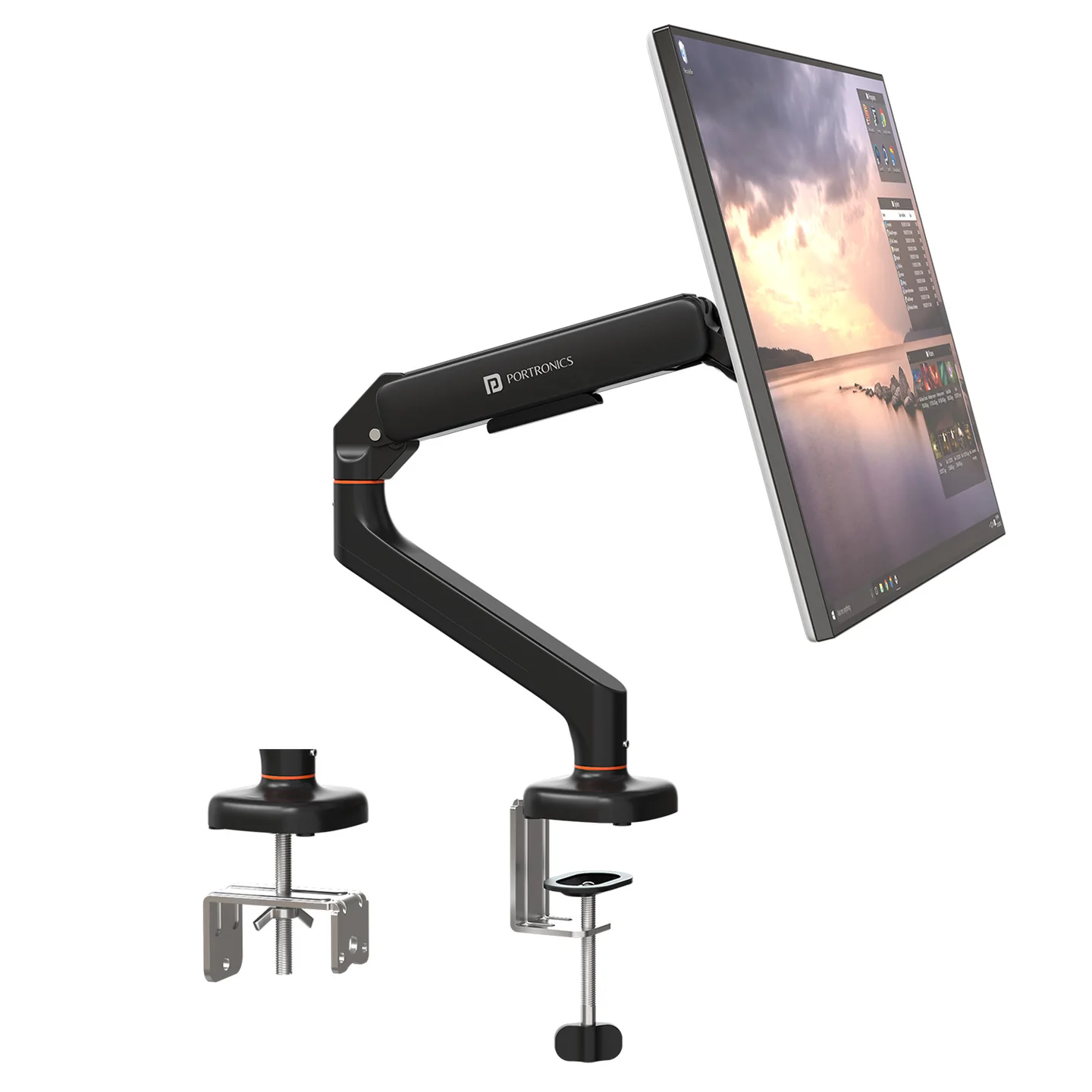
Key Features
- Flexible monitor positioning
- Tilt, swivel, and rotation support
- Desk clamp and grommet mounting options
- Built-in cable management
- Ergonomic workspace setup
- Suitable for flat and curved monitors
Compatibility Information
Supported Monitor types
- Flat monitors
- Curved monitors
Supported VESA Standards
- 75×75 mm
- 100×100 mm
Supported Desk Thickness
- 10mm to 65mm
Installation Types Supported
- Clamp Mount
- Grommet Mount
Package Contents
The package includes:
- Monitor arm assembly
- Desk clamp
- Grommet mounting hardware
- VESA mounting plate
- Screws and washers
- Allen keys
- Cable management clips
Please ensure all accessories are available before installation.
Installation Guide
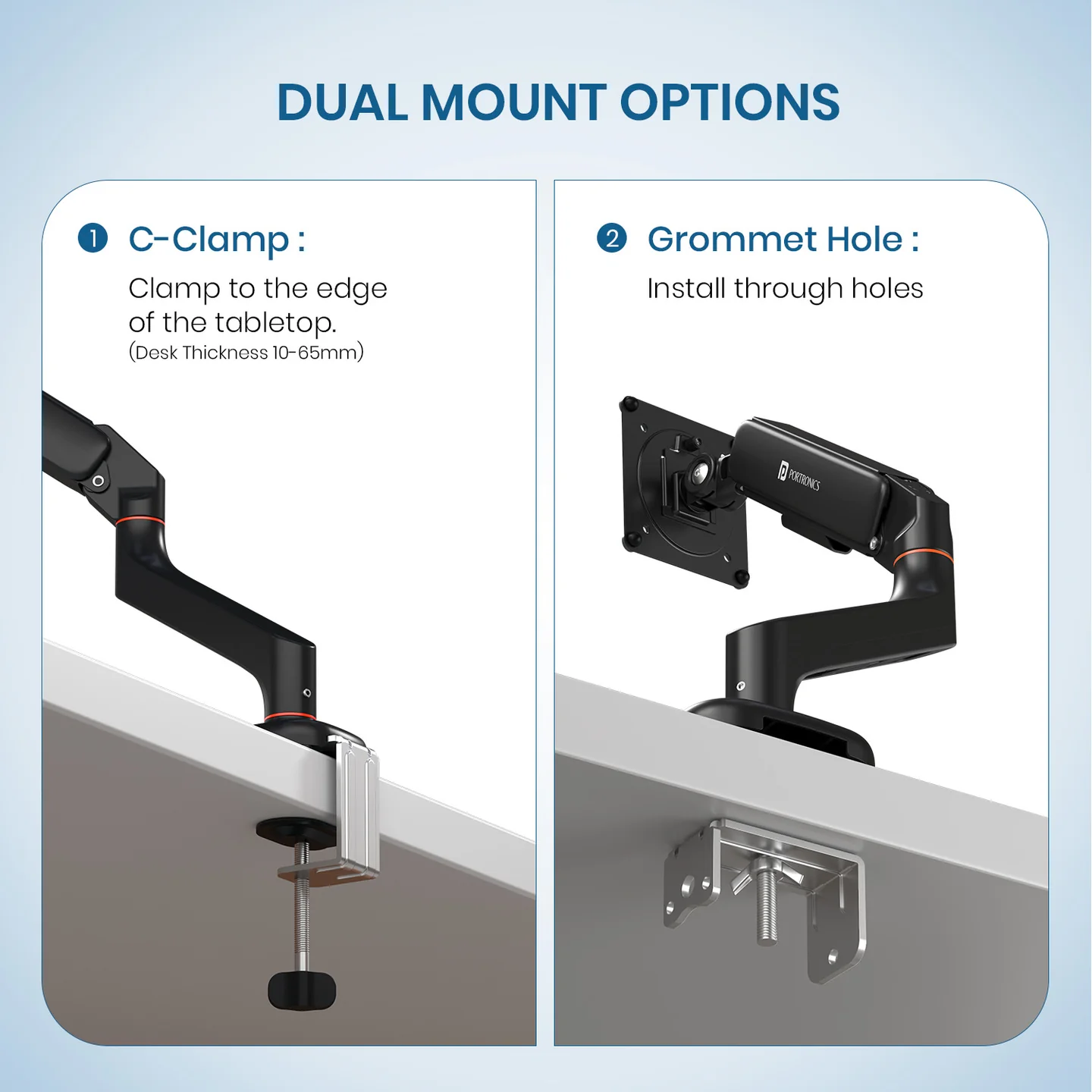
Step 1 – Install the Base
Option A: Clamp Mount Installation
Steps
- Attach the clamp to the base using the supplied screws.
- Position the clamp on the desk edge.
- Tighten the clamp securely.
- Ensure the base remains stable without movement.
Important Notes
- Use only on stable desk surfaces.
- Do not overtighten the clamp.
Option B: Grommet Mount Installation
Steps
- Insert the threaded rod through the desk hole.
- Position the base correctly.
- Tighten the mounting hardware from below the desk.
- Verify the mount is secure before proceeding.
Important Notes
- Ensure the desk hole size is compatible.
- Tighten evenly for better stability.
Step 2 – Install the Arm
Steps
- Slide the lower arm onto the mounting pole.
- Adjust the arm height as required.
- Tighten the locking screw using the Allen key.
- Attach the upper arm to the lower arm securely.
Recommended
Double-check all arm joints before mounting the monitor.
Step 3 – Install the VESA Plate
Steps
- Select the correct screws according to your monitor.
- Align the VESA plate with the mounting holes.
- Tighten all screws securely.
- Ensure the plate sits flat against the monitor.
Supported VESA Sizes
- 75×75 mm
- 100×100 mm
Step 4 – Mount the Monitor
Steps
- Align the VESA plate with the swivel arm head.
- Slide the monitor into position.
- Ensure the monitor locks securely into place.
- Verify monitor stability before use.
Safety Check
Always hold the monitor securely while mounting.
Step 5 – Adjust Monitor Position
The Aerolift Solo supports:
- Tilt adjustment
- Swivel movement
- Height adjustment
- 90° portrait rotation
Tips
- Adjust slowly while supporting the monitor.
- Avoid excessive force during rotation.
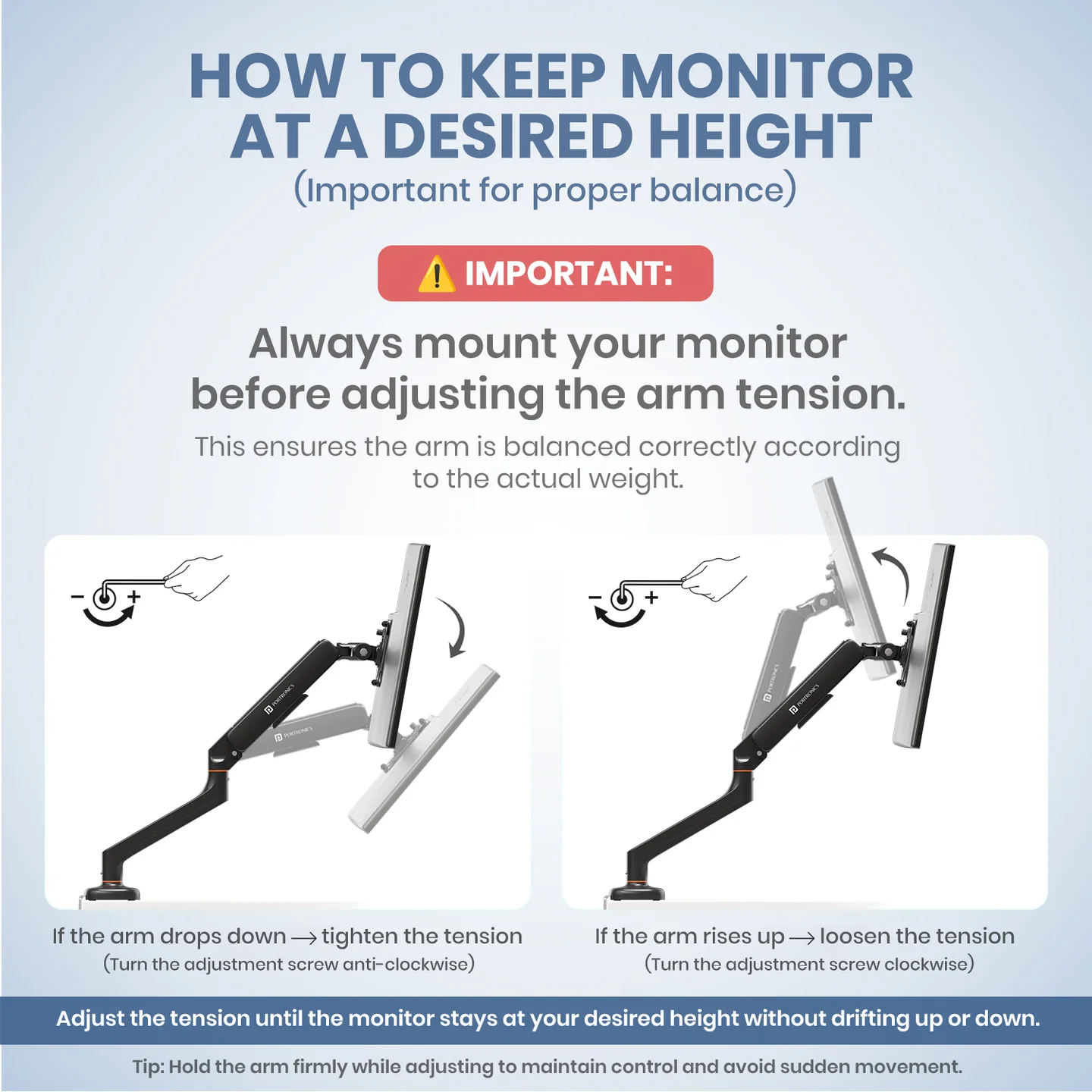
Step 6 – Adjust Arm Tension
If the monitor moves too freely or does not stay in position:
Steps
- Use the supplied Allen key.
- Turn clockwise to increase tension.
- Turn anti-clockwise to reduce tension.
- Test monitor movement after every adjustment.
Recommended
Re-adjust tension whenever changing monitor weight.
Step 7 – Cable Management
Steps
- Route cables through the built-in cable channels.
- Secure cables using the provided clips.
- Ensure cables move freely during arm adjustment.
Important Notes
- Avoid cable twisting.
- Keep cables away from pinch points.
Troubleshooting Guide
1. Monitor Arm Not Holding Position
Possible Reasons
- Arm tension too loose
- Unsupported monitor weight
- Loose arm joints
Troubleshooting Steps
- Tighten the tension screw using the Allen key.
- Check monitor compatibility.
- Tighten all adjustment joints properly.
- Verify proper VESA mounting.
2. Monitor Arm Dropping Down Automatically
Troubleshooting Steps
- Increase arm tension gradually.
- Ensure the monitor weight is within supported range.
- Recheck all arm locking points.
- Verify secure monitor installation.
3. Arm Not Fitting in the Suction
Possible Reasons
- Arm not inserted properly
- Damage on the curved joint area
- Loose screws
- Dust or particles inside the suction joint
Troubleshooting Steps
- Unmount the monitor carefully before performing any adjustments.
- Remove the arm from the suction joint.
- Check for any visible damage on the curved section or joint area.
- Ensure there are no dust particles or obstructions inside the suction mechanism.
- Reinsert the arm properly into the suction joint.
- Tighten the screws accordingly to ensure the arm does not come out during usage while allowing smooth movement.
- Test the arm movement carefully after installation.
Important Note
The arm is designed to move freely for flexible adjustment and positioning. It is not intended to remain completely fixed in one position.
4. Monitor Shaking or Wobbling
Possible Reasons
- Loose desk clamp
- Weak desk surface
- Improper installation
Troubleshooting Steps
- Tighten the desk clamp securely.
- Reinstall the monitor arm carefully.
- Ensure the desk surface is stable.
- Tighten all screws and joints.
5. Clamp Mount Not Fitting Properly
Troubleshooting Steps
- Verify desk thickness compatibility (10mm–65mm).
- Reinstall the clamp properly.
- Tighten mounting screws evenly.
- Test installation on another desk if required.
6. Grommet Mount Becoming Loose
Troubleshooting Steps
- Tighten the threaded rod securely.
- Ensure the desk hole size is compatible.
- Recheck mounting hardware periodically.
7. VESA Plate Not Matching Monitor
Troubleshooting Steps
- Verify monitor VESA compatibility.
- Use the correct screw set.
- Align mounting holes carefully.
- Ensure the VESA plate sits flat.
8. Rotation / Tilt / Swivel Not Working Properly
Troubleshooting Steps
- Adjust the arm tension properly.
- Tighten loose joints carefully.
- Avoid forcing the movement.
- Test movement without additional pressure.
9. Height Adjustment Not Locking
Troubleshooting Steps
- Tighten the height locking screw properly.
- Reposition the arm and test again.
- Ensure the monitor weight is balanced.
10. Cable Management Problems
Common Problems
- Hanging cables
- Cables getting stuck
- Restricted arm movement
Troubleshooting Steps
- Re-route cables properly through channels.
- Use provided cable clips.
- Leave enough cable slack for movement.
11. Physical Damage
Common Types of Damage
- Bent arm
- Broken clamp
- Cracked plastic parts
- Loose adjustment joints
Important Notes
Physical or accidental damage will not be covered under warranty.
Maintenance Guide
Cleaning Instructions
- Use a dry cloth only.
- Avoid chemicals or liquids.
Periodic Maintenance
- Check screw tightness regularly.
- Recheck arm tension periodically.
- Inspect mounting stability after monitor changes.
Safety Guidelines
- Install only on stable desk surfaces.
- Do not exceed supported monitor weight.
- Keep fingers away from moving joints.
- Keep cables away from pinch points.
- Ensure all screws are tightened properly before use.
Still Facing Issues?
If the issue persists after performing all troubleshooting steps, please Click here raise a support request.
Our support team will assist you further.
Was this article helpful?
That’s Great!
Thank you for your feedback
Sorry! We couldn't be helpful
Thank you for your feedback
Feedback sent
We appreciate your effort and will try to fix the article